Overview 👀
Mistakenly reconciled a transaction? Need to make an adjustment after reconciliation? You can safely unreconcile a single transaction in Rentvine without undoing the entire reconciliation period.
This article walks you through how to:
-
Locate a reconciled transaction
-
Unreconcile it
-
Understand the impact
-
Correct the reconciliation variance
When to Unreconcile a Transaction❗
- There will be times when you need to unreconcile a specific transaction due to it being tied to the incorrect bank, incorrect deposit amount, a transaction with the incorrect Payee/Payer, etc.
With this feature, you can now unreconcile a specific transaction you select for a completed reconciliation.
Unreconciling affects only the selected transaction — it does not undo any other reconciled items in the same period.
How to Unreconcile a Transaction
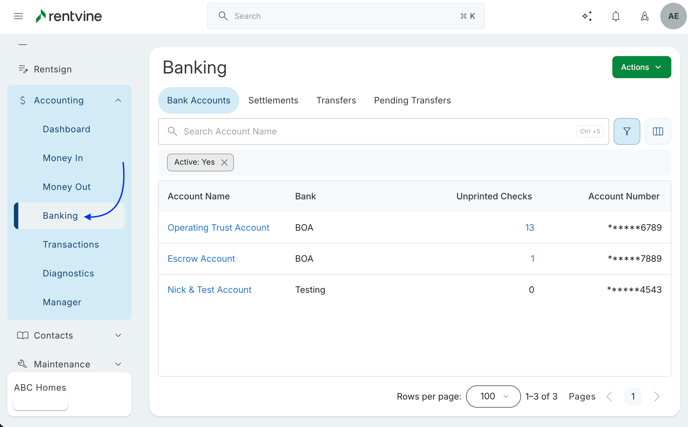
- Navigate to the Reconciliations page by clicking the Accounting Tab → Banking
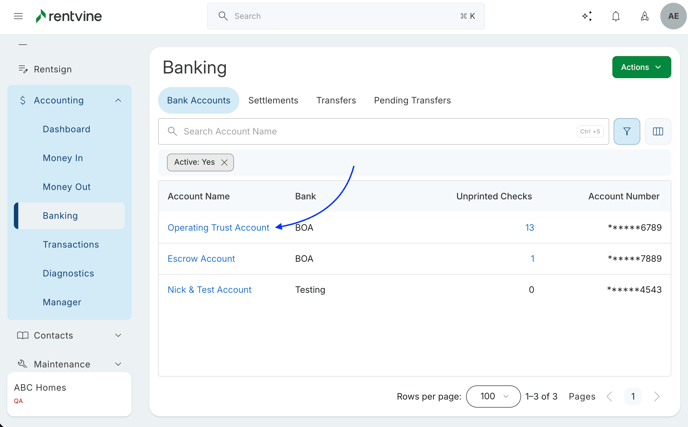
- Select the Bank Account with the reconciliation in question and click the Reconciliation tab
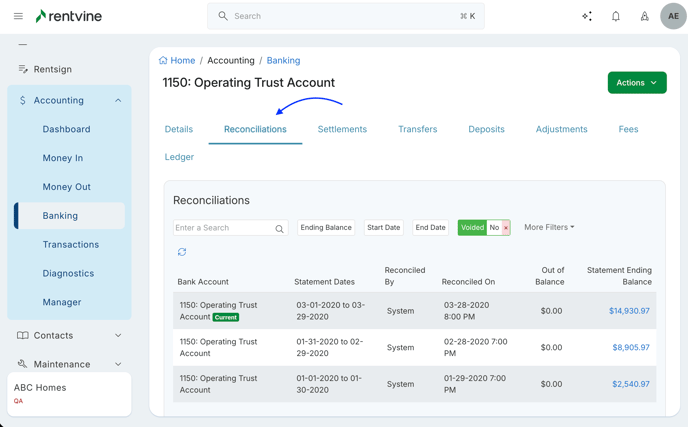
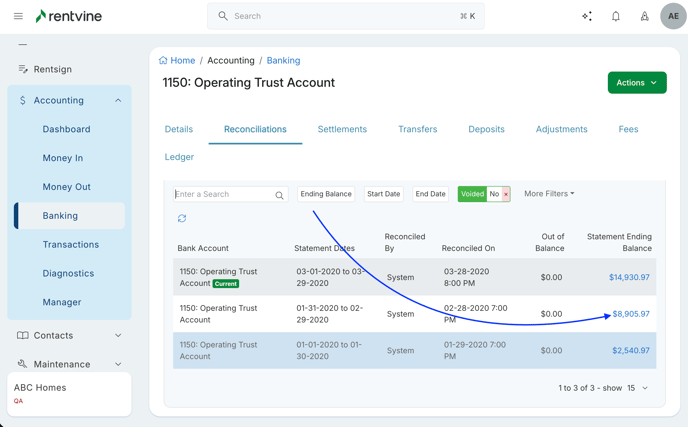
- Select the reconciliation that has the transaction you want to unreconcile
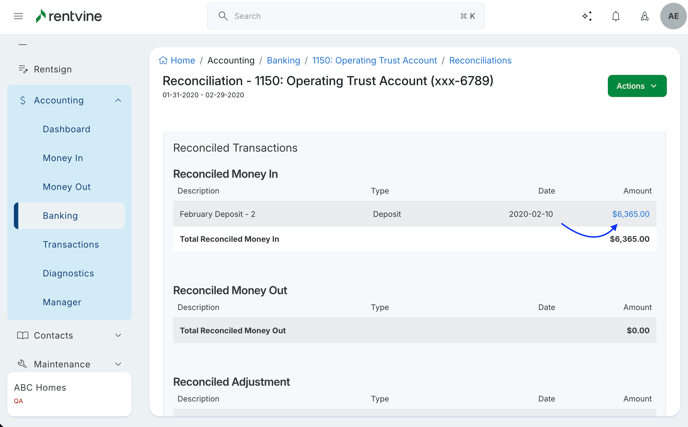
- Select the transaction in the completed reconciliation to navigate to the transaction page
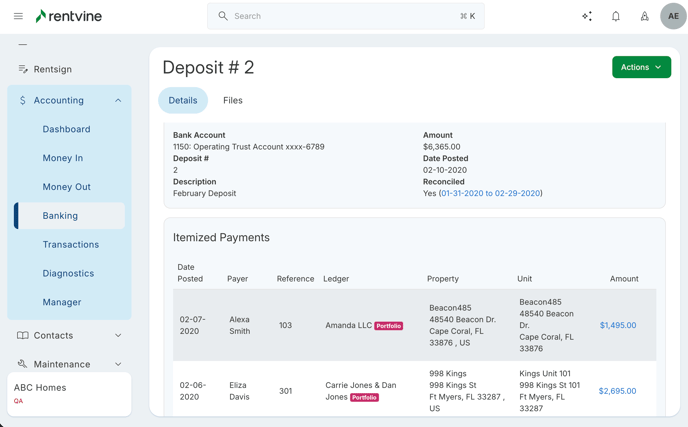
You'll also notice that when a transaction is reconciled, the transaction will now tell you if it is, along with a hyperlink to take you directly to the reconciliation it is attached to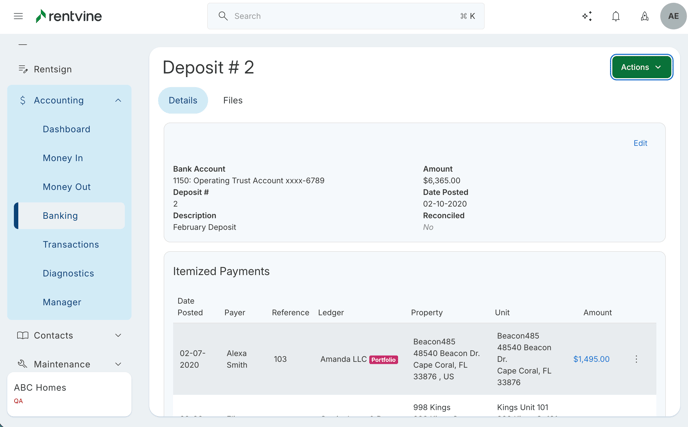
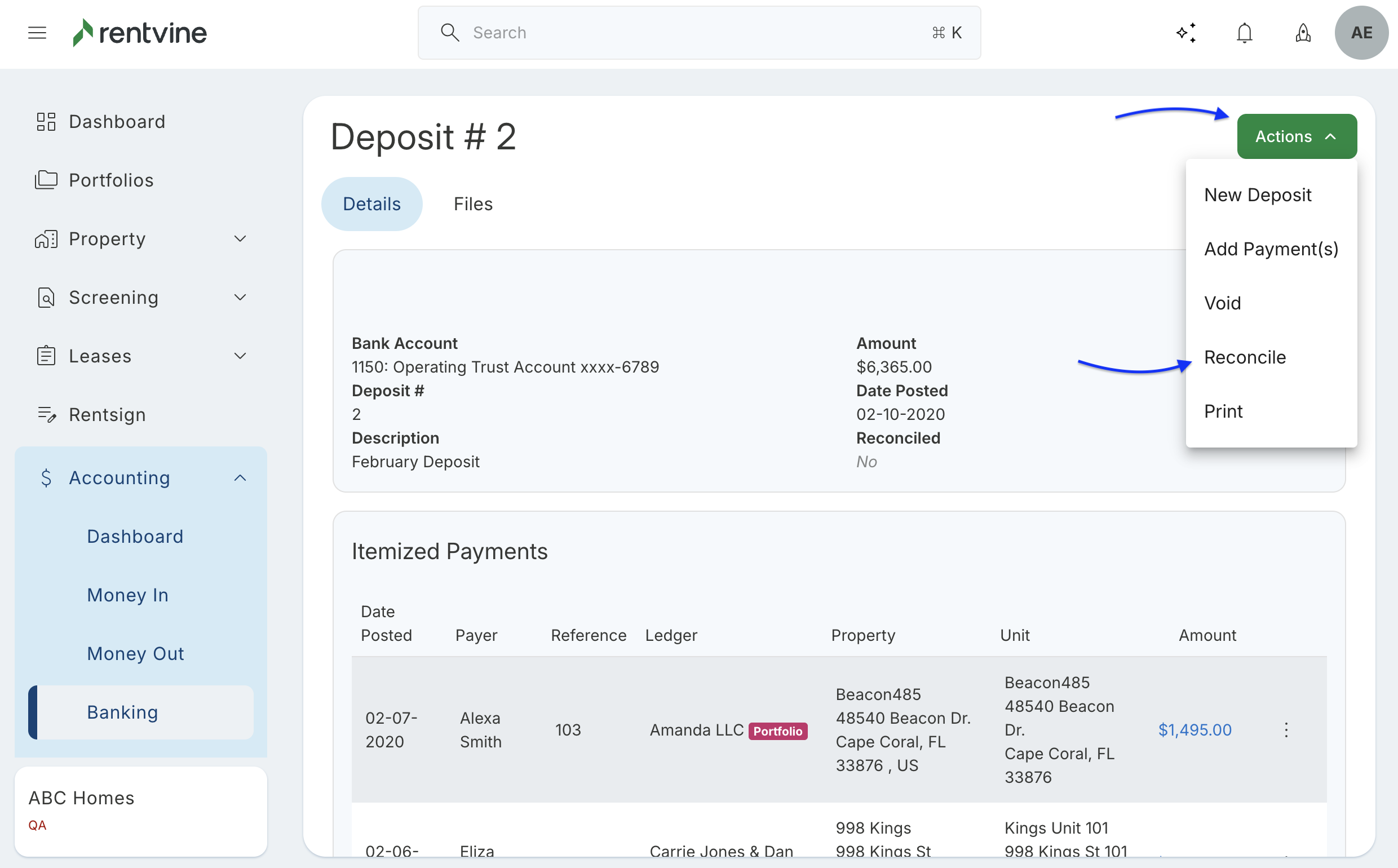
- Select the Actions button → and select Unreconcile
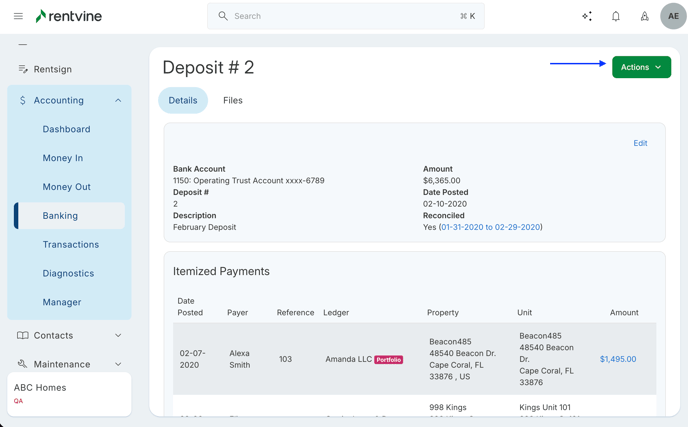
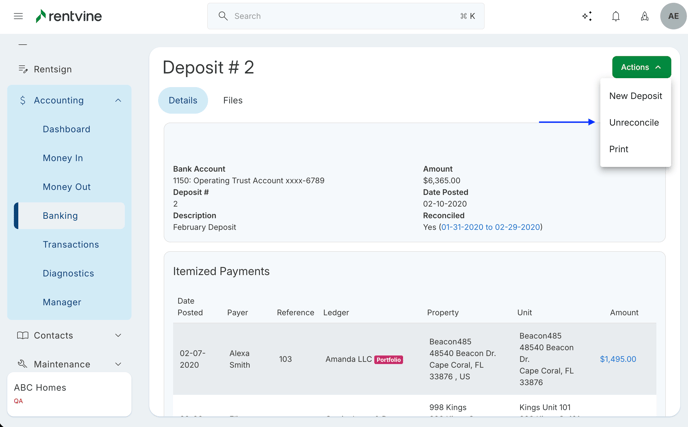
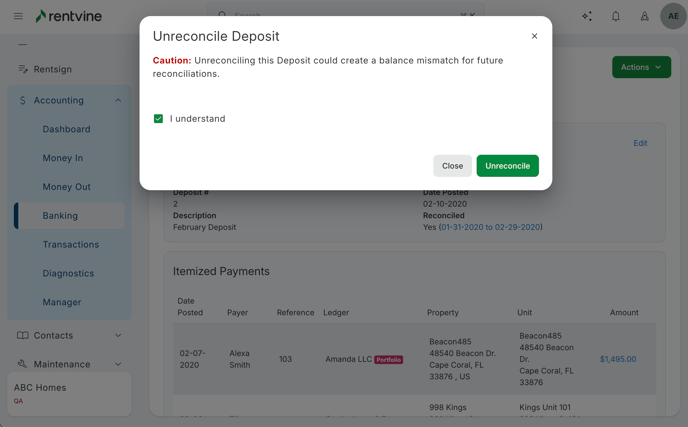
The system will warn you before completing this action so you fully understand what is happening when completing this action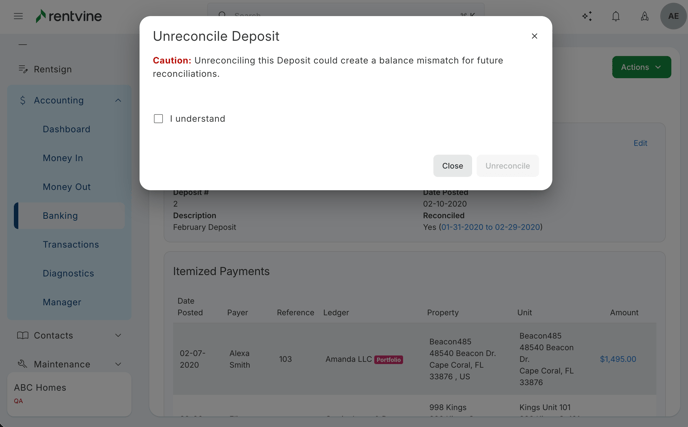
- Once you confirm that the transaction will be unreconciled, by checking off I Understand and selecting Unreconcile
You will see this transaction now says Unreconciled, and no longer has a hyperlink attached to this transaction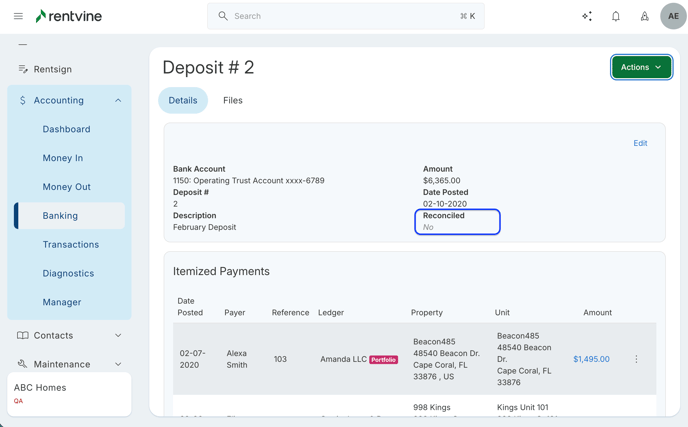
If you unreconcile a Bank Transfer, you will be given two options: unreconcile/reconcile the Source Bank Account or the Destination Bank Account 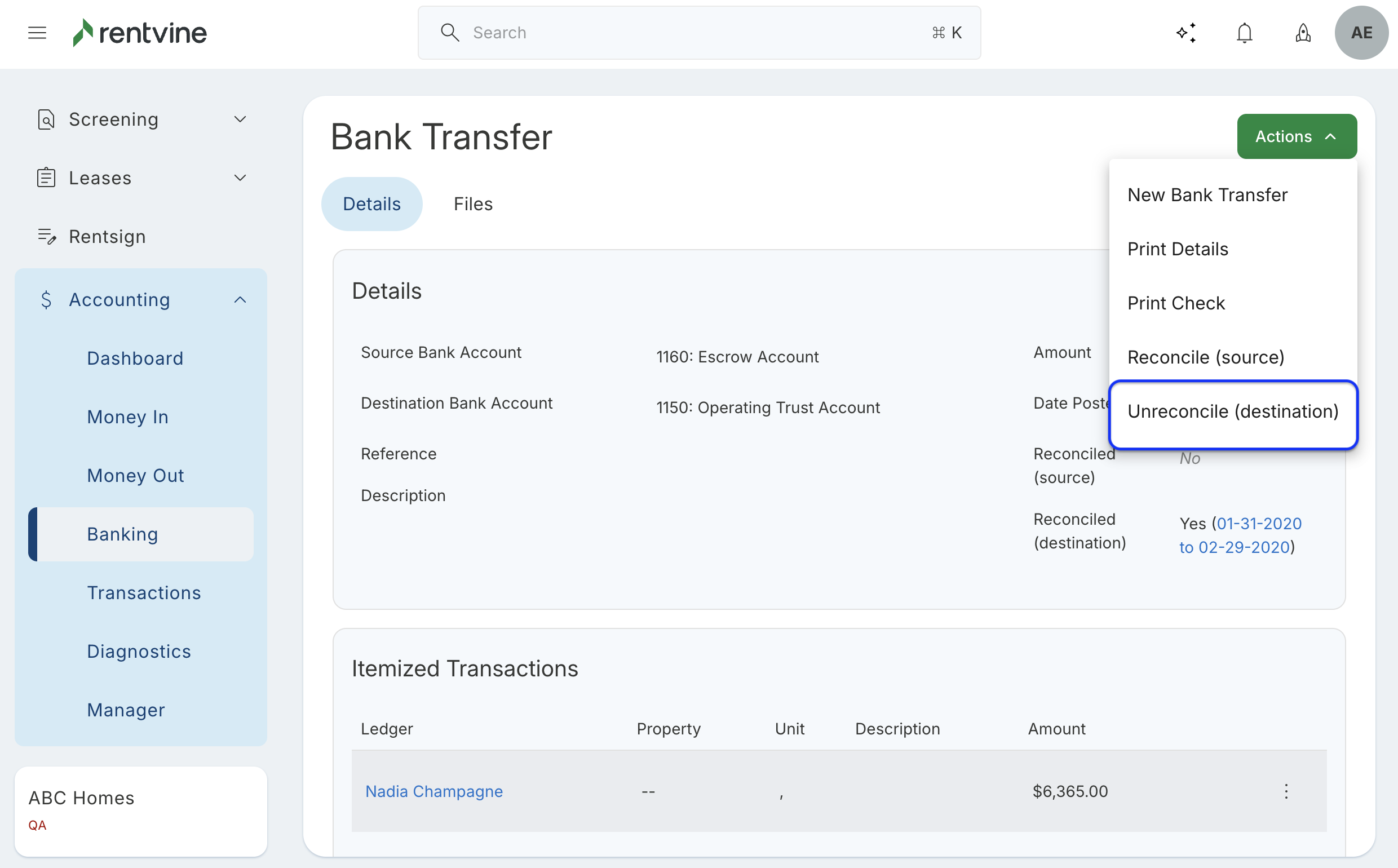
Important Things to Remember
- Although you can now unreconcile transactions, this will still leave the previously existing reconciliation out of balance. Navigating back to the reconciliation will show the off-balance match now
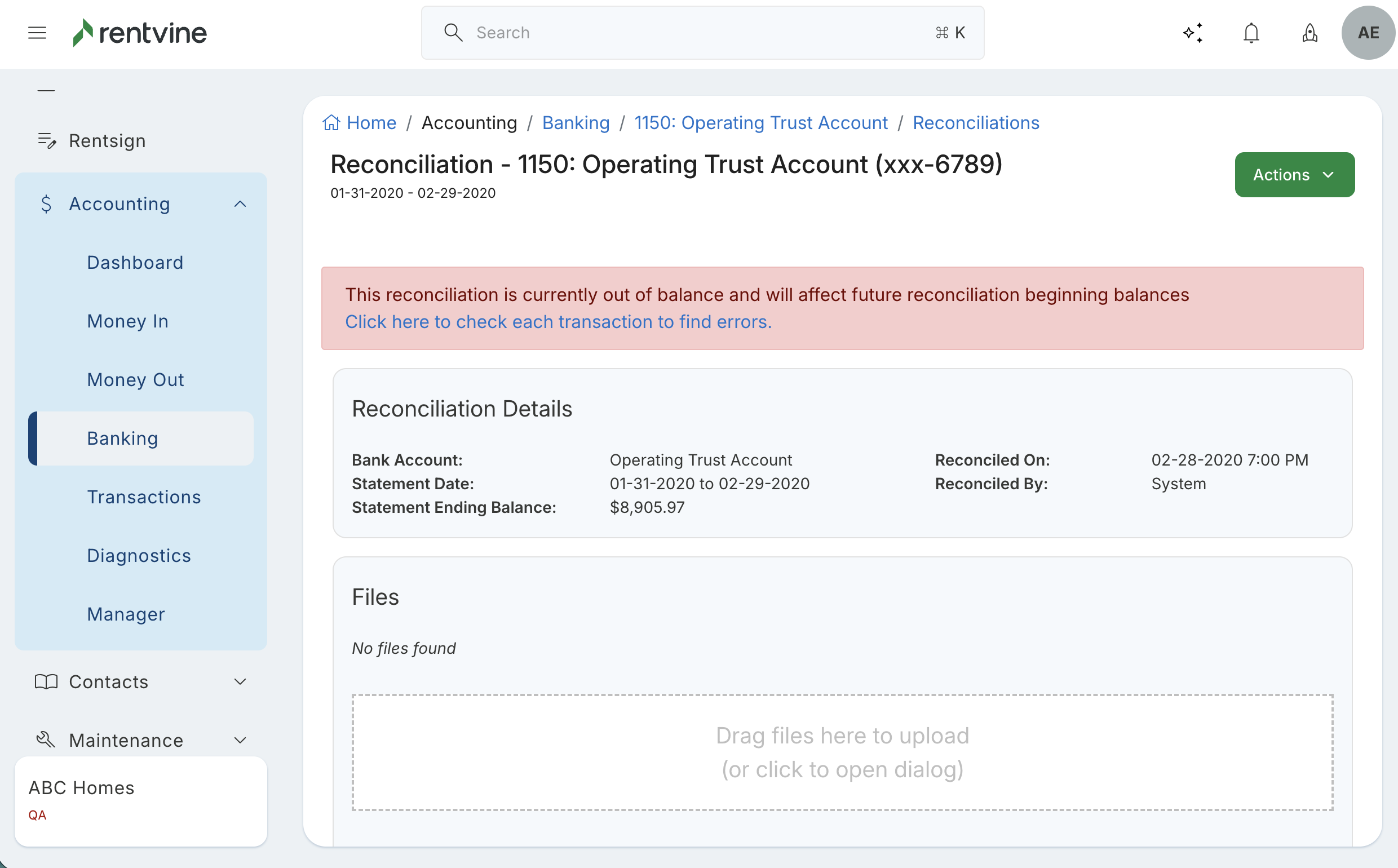
This will also show on the main reconciliation tab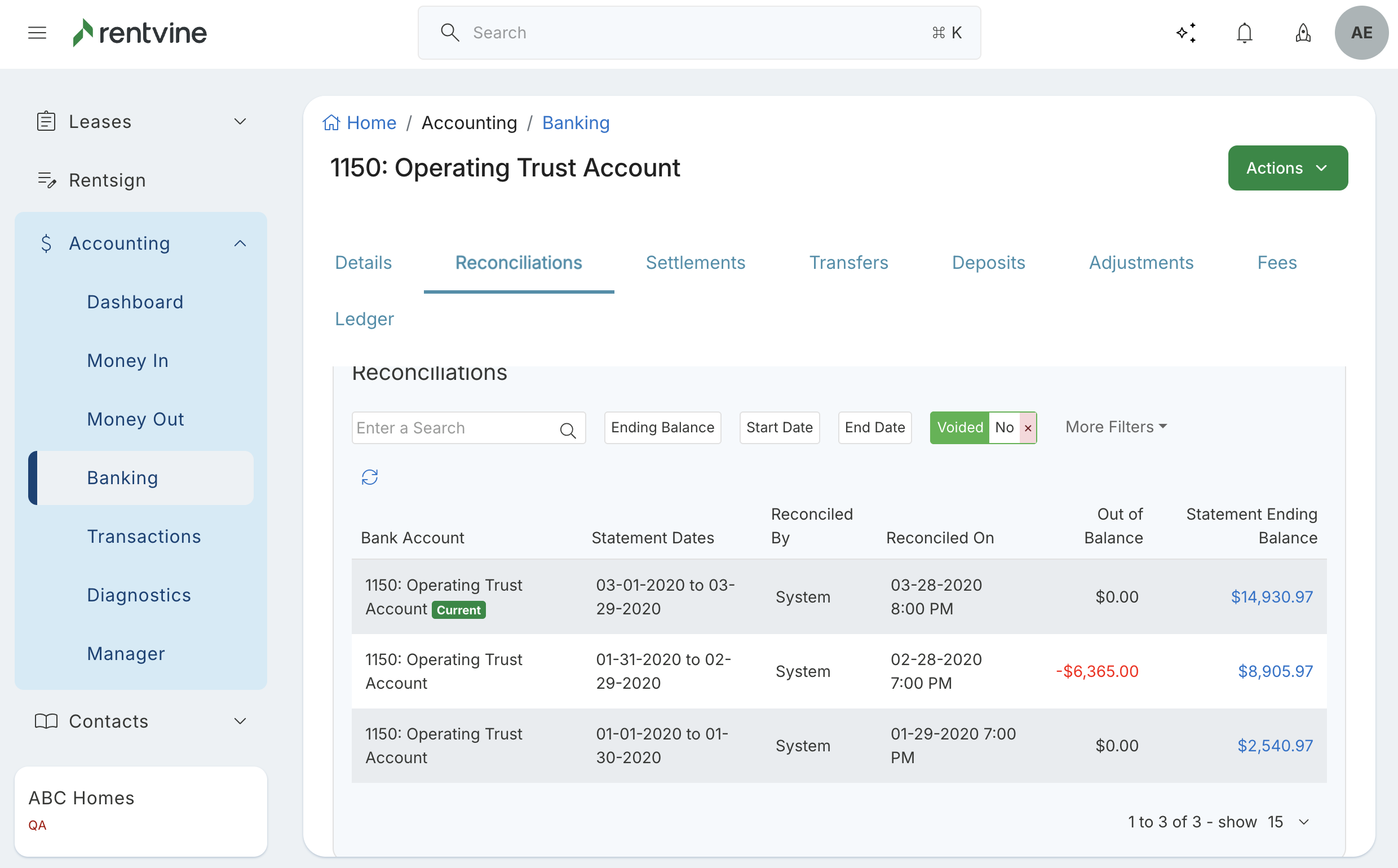
And the Reconciliation Diagnostics, located in the diagnostics tab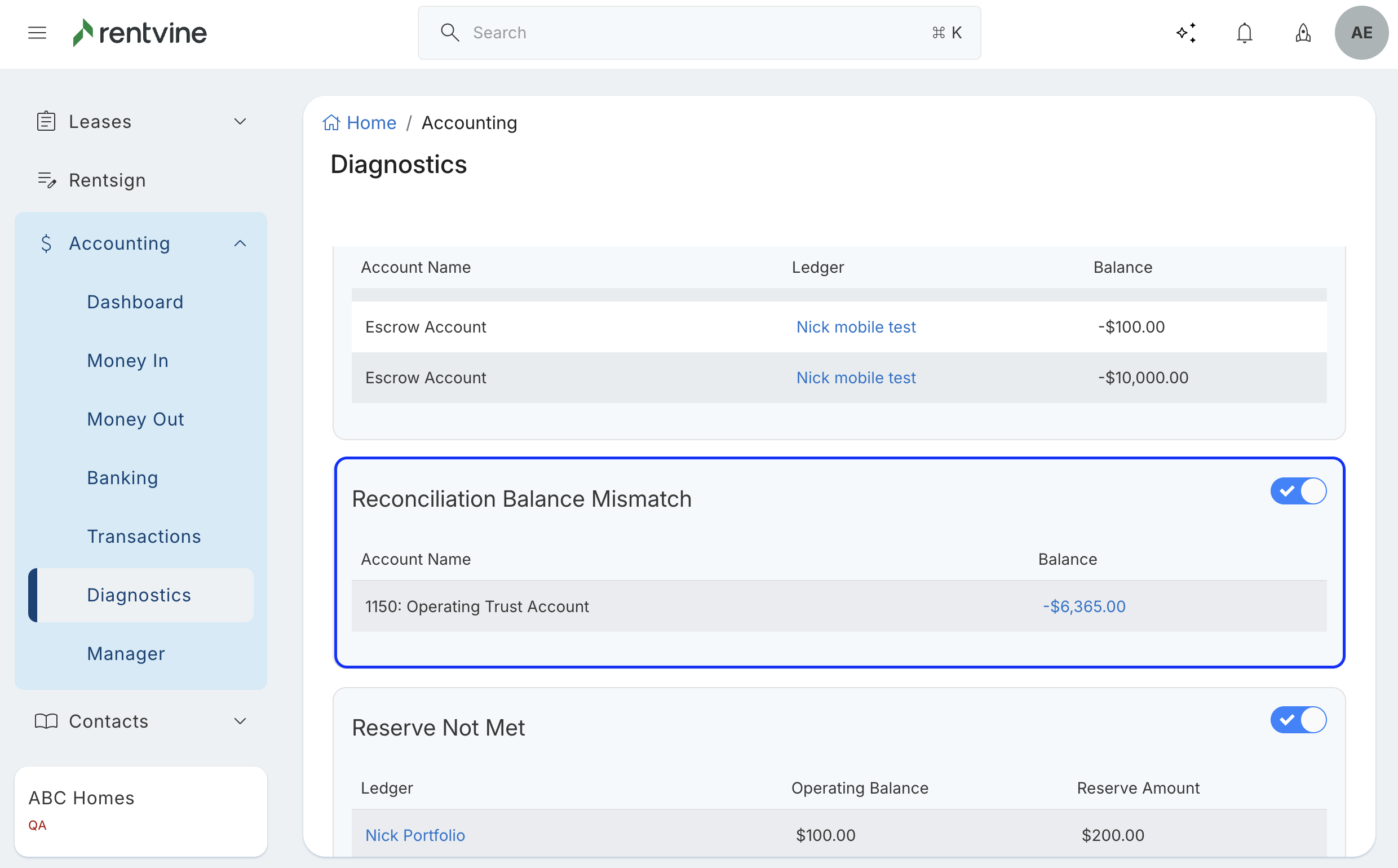
A message will notify you as well if you begin to start a new reconciliation that the beginning balance is off due to the transaction being unreconciled from the previous reconciliations
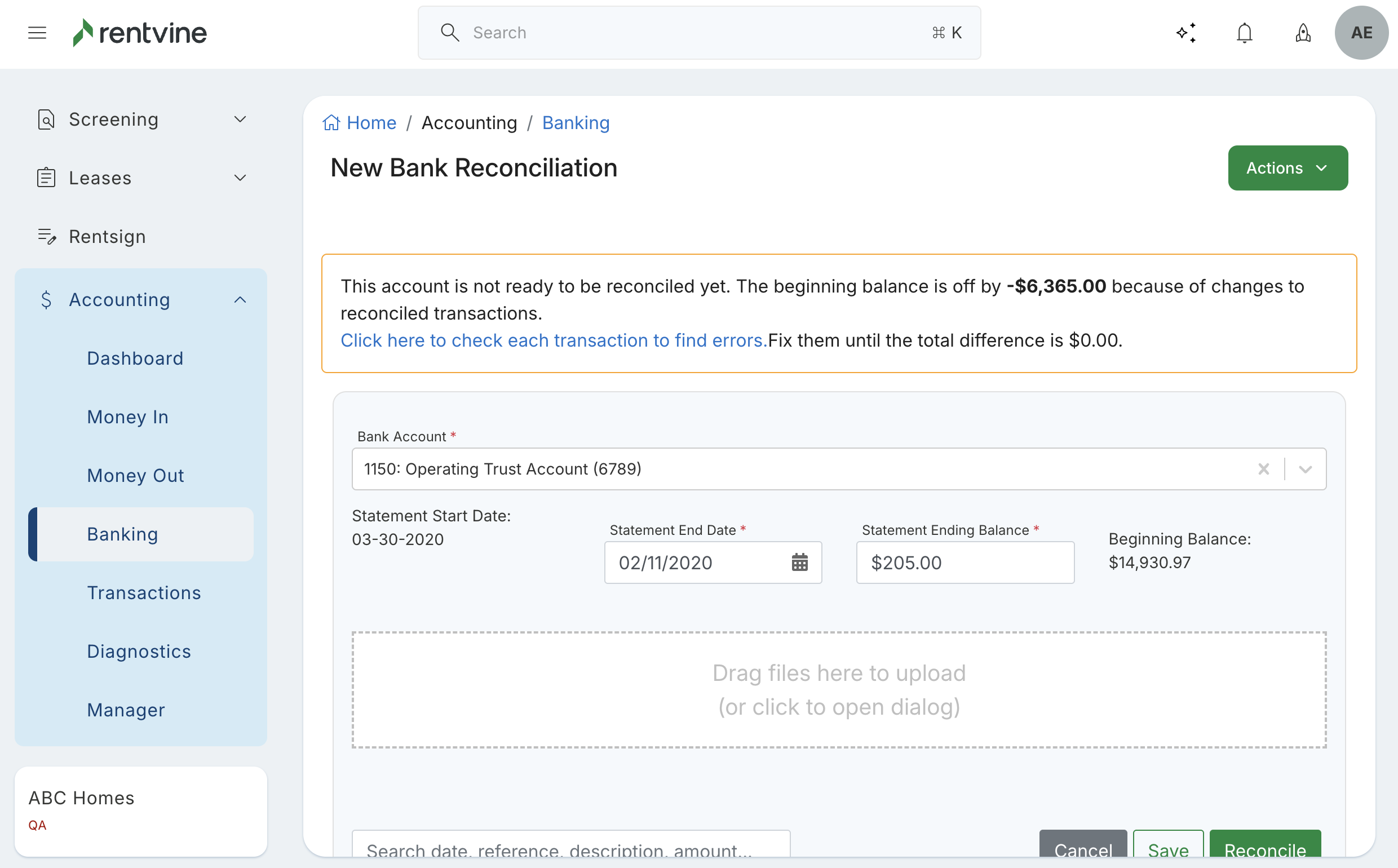
- You can select the Click here to check each transaction to find errors to view the discrepancy report and what was removed
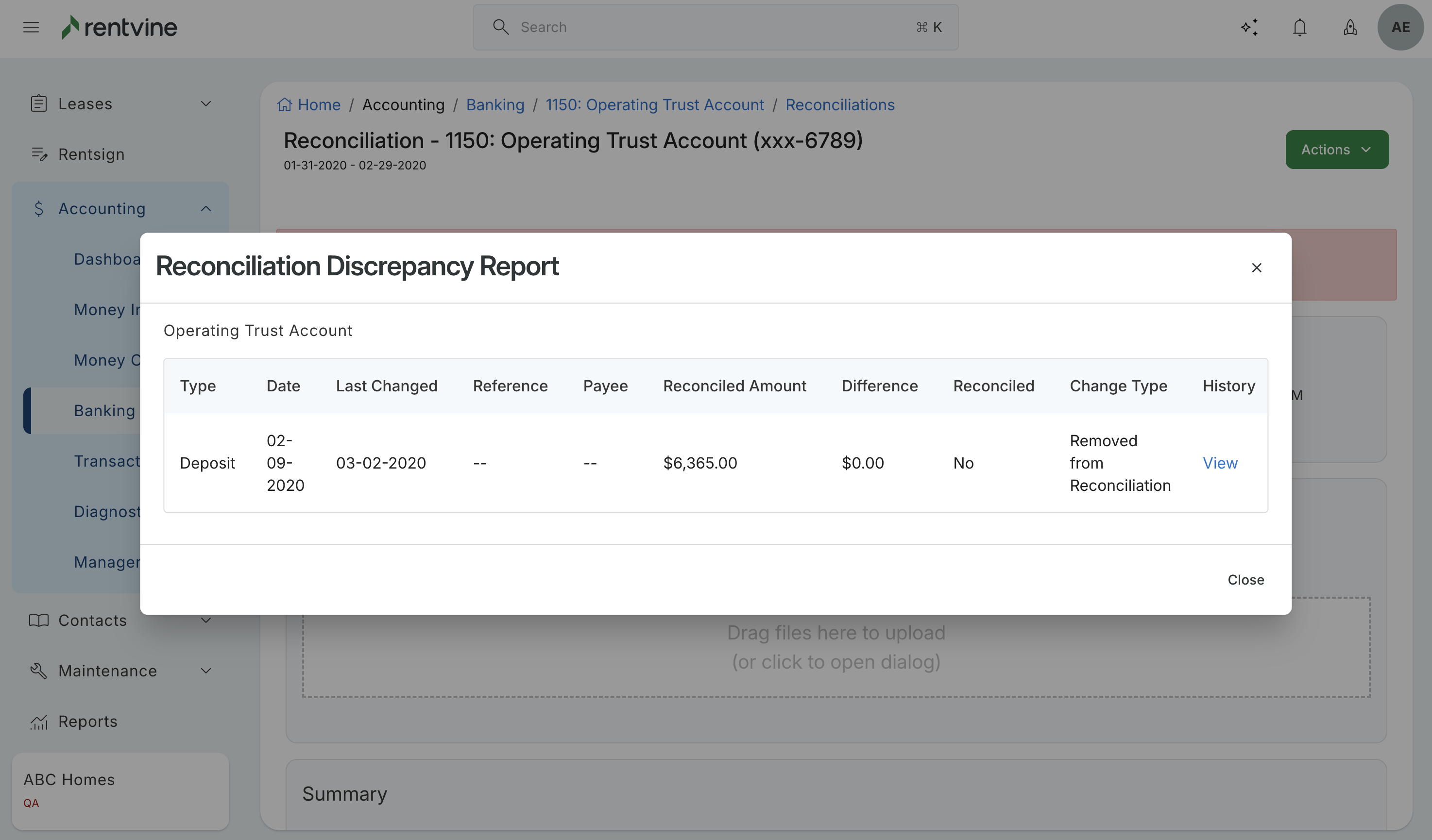
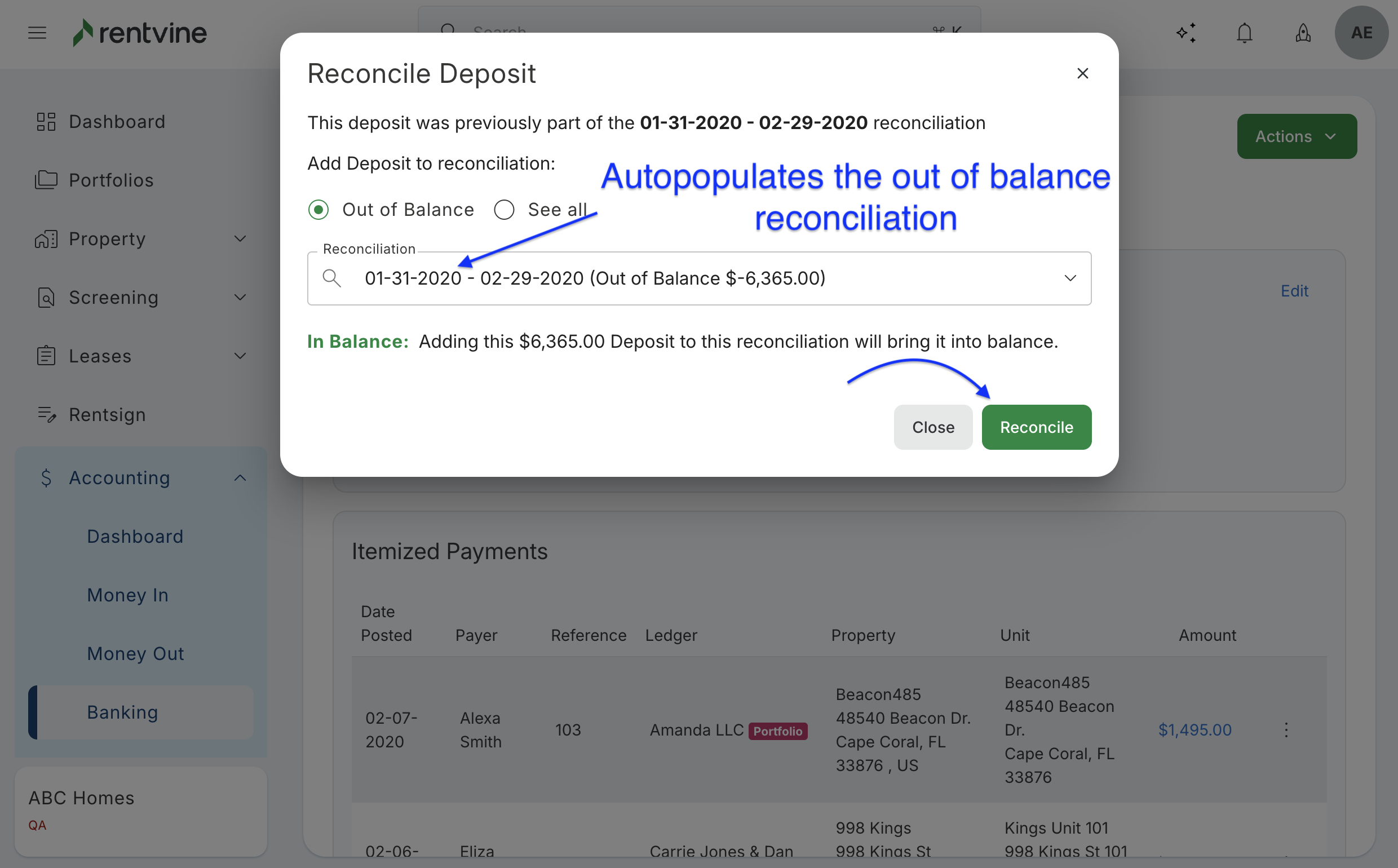
You can select View to take you directly back to the transaction that was removed, and the report will provide additional information. - To fix this discrepancy, the best thing to do is to reconcile a transaction for the same amount that was removed. The system will automatically pick this up and let you add it back. Select the Actions button → Reconcile, and the system will show you the out-of-balance reconciliation it can attach to and inform you the transaction will now bring to the correct balance.