-
Are you and your team looking for an easier way to access your Rentvine account while on the go?
The Rentvine Property Management App was built to give property managers quick and convenient access to key information directly from their mobile device.
This article will walk you through:-
How to download the app
-
How to log in
-
How to use the main features within the app
-
Finding the App
Working the App
Finding the App in the App Store
-
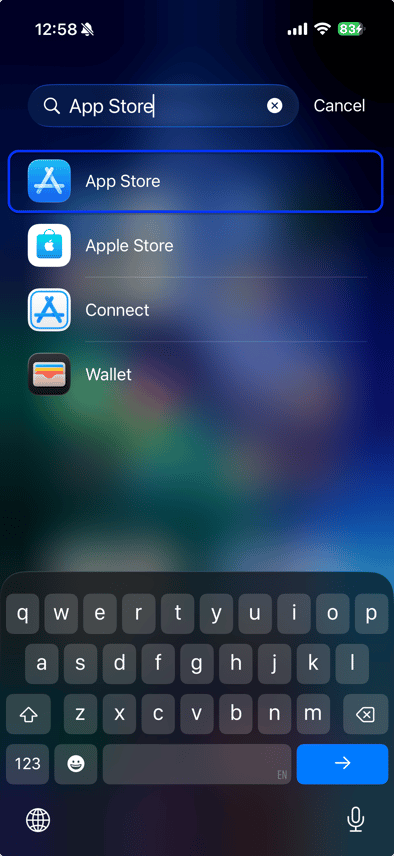
Open your device's App Store (iOS) or Google Play Store (Android)
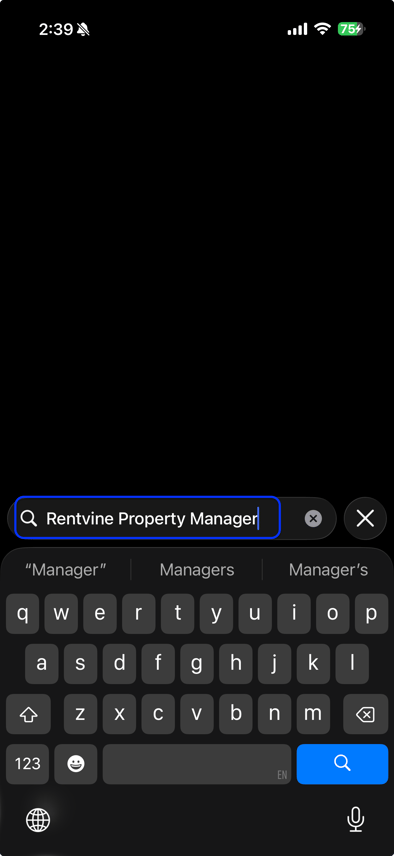
- Search for "Rentvine Property Manager"
App Store (iOS)
Google Play Store (Android)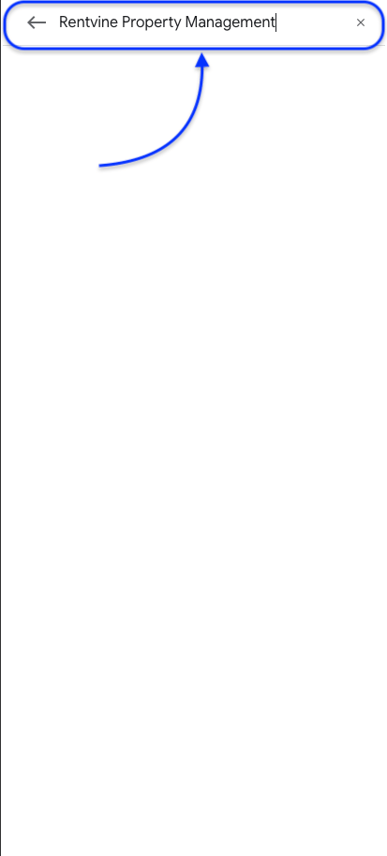
- Select the app developed by Rentvine and Download and install the app
App Store (iOS)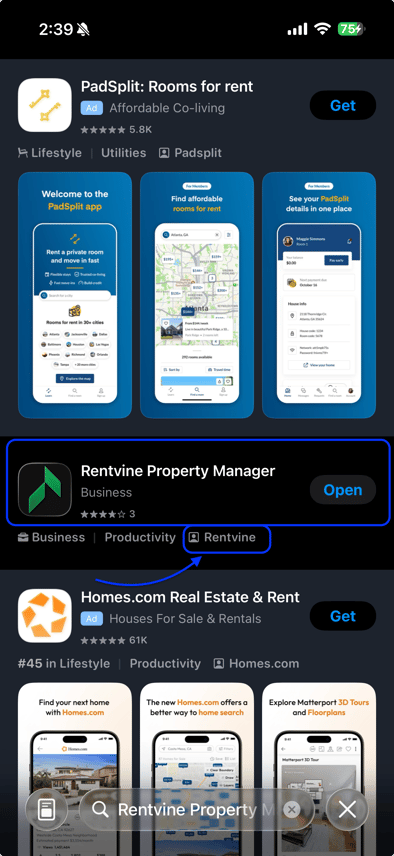
Google Play Store (Android)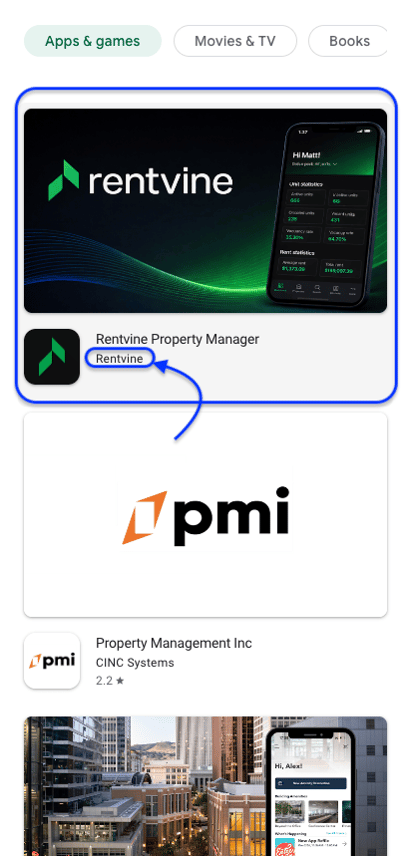
- Open the app, and you will be prompted to log in.
This will redirect you to the standard Log In page to enter your credentials.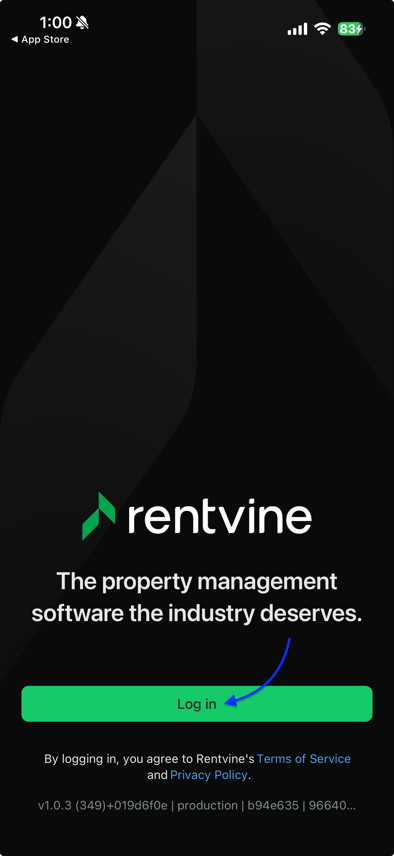
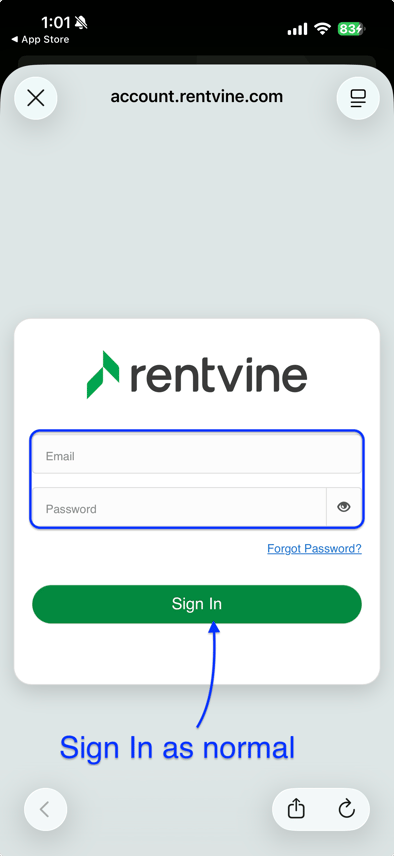
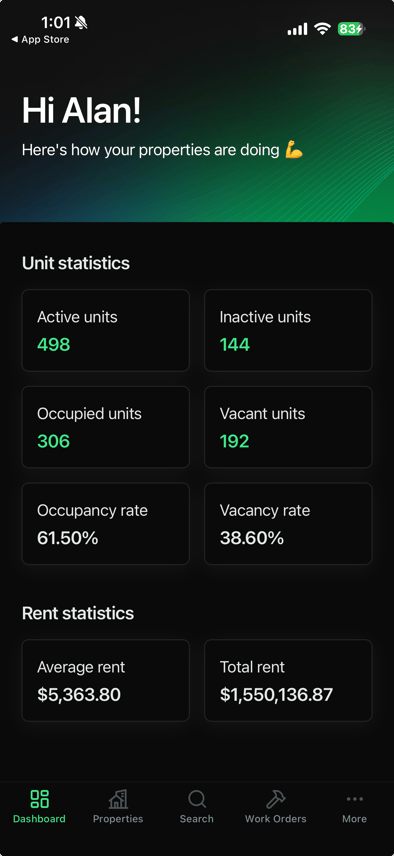
- After logging in, you will be taken directly to the Dashboard tab
Using the App
-
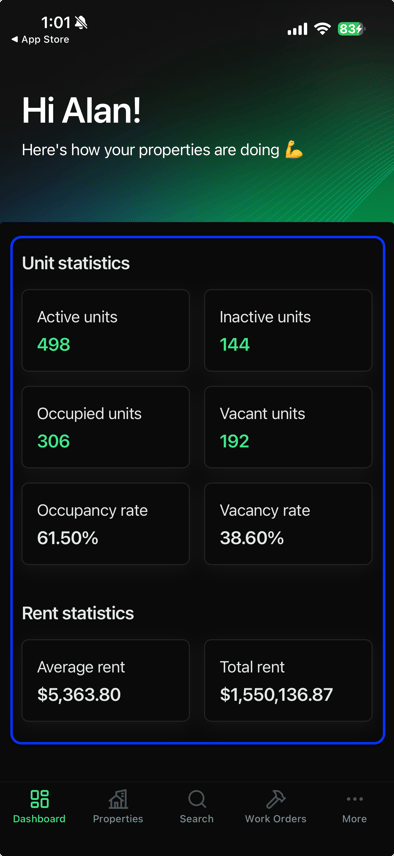
The Dashboards Tab will show you the current Unit Statistics and Rent Statistics for your Rentvine account.
- Unit Statistics - Active Units, Inactive Units, Occupied Units, Occupancy, Vacancy, Vacancy Rate
- Rent statistics - Average Rent, Total Rent
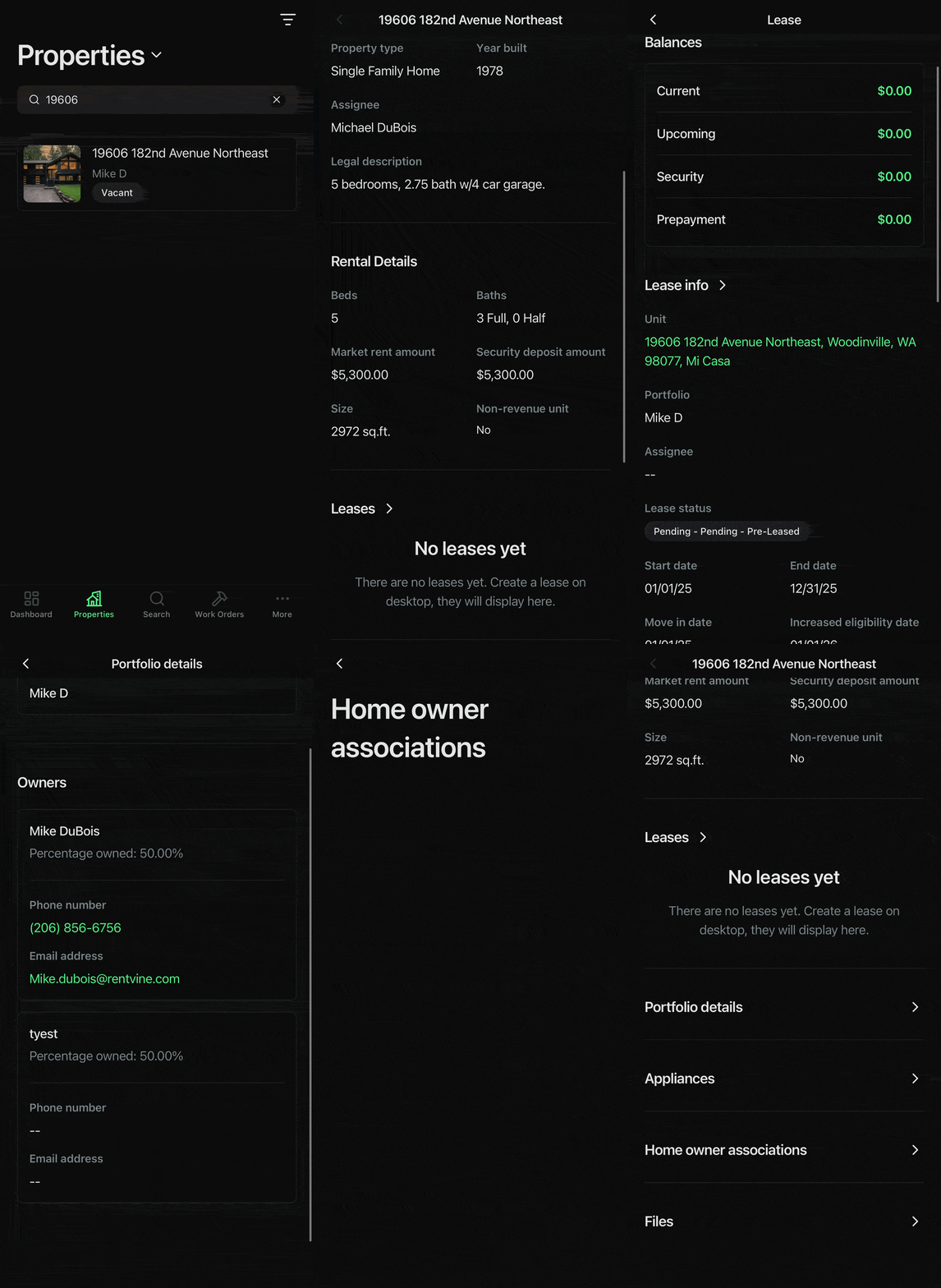
- The Properties Tab allows you to
- Search for properties
- View key property details, including files
- See leases tied to the property
- View the associated portfolio along with the owner contacts
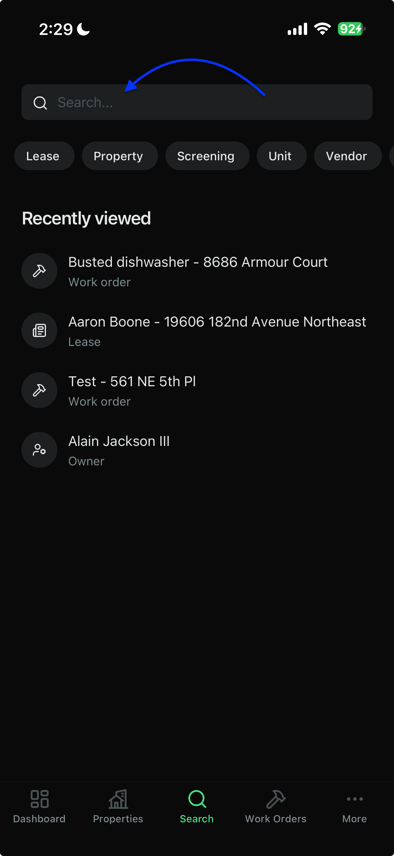
- The Search Tab functions as the global search in Rentvine. This will also display your most recent searches for quick access.
This allows you to search for- Leases
- Properties/Units
- Vendor contact
- Work Orders
- The Work Orders Tab allows you to view and manage work order requests.
Within a Work Order, you can:
- Adjust the scheduled maintenance window
- Edit work order and maintenance details
- View Property Details, Resident Details, and Owner Details.
- Publish or unpublish the work order from tenant/owner portals
- View photos and files attached to the work order
-gif-4.gif?width=422&height=856&name=ezgif-com-video-to-gif-converter%20(1)-gif-4.gif)
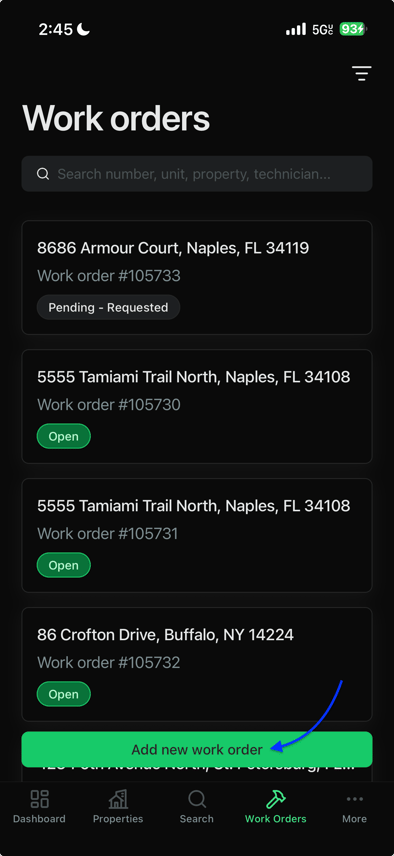
Additionally, you can create a Work Order from the app as well. Just follow the steps prompted on the app and fill in the required fields.
- Select Add New Work Order
- Select if you are applying a work order template to the new work order or if you are adding the work order to an existing project
This is not required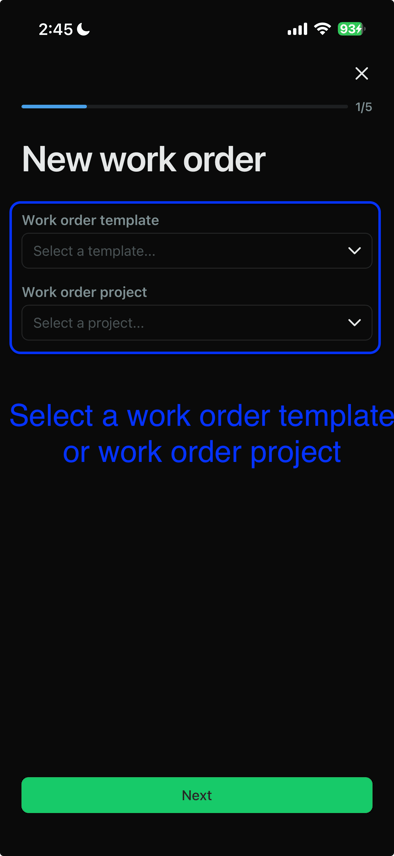
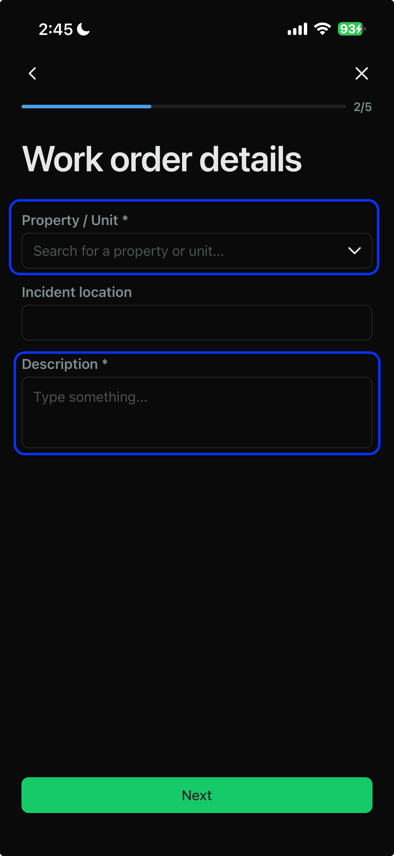
- Select the Property/Unit this is meant for, and a brief description of the work order.
- Upload any relevant photos
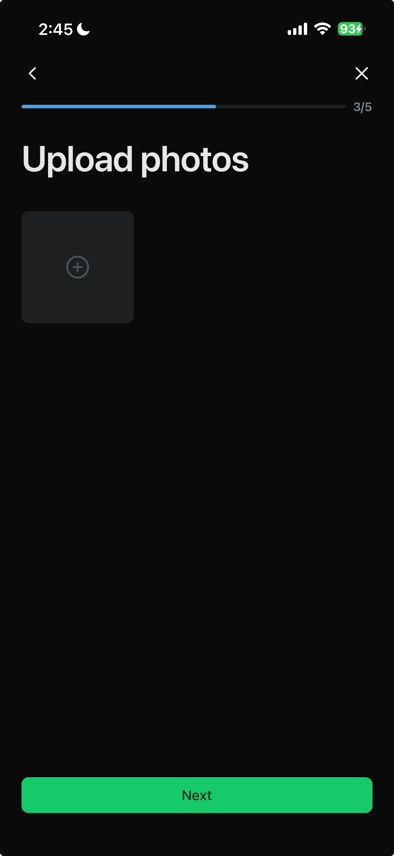
- Assign the work order and add the additional details
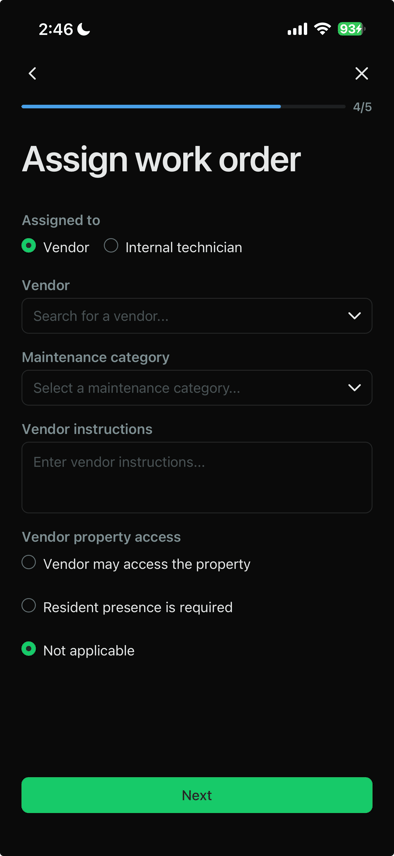
- Set the status, assignee, and visibility (publish to the tenant/owner if needed)
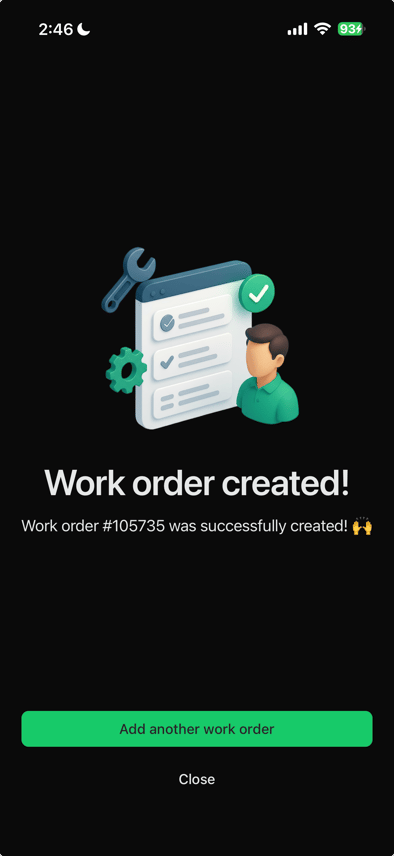
Then select Submit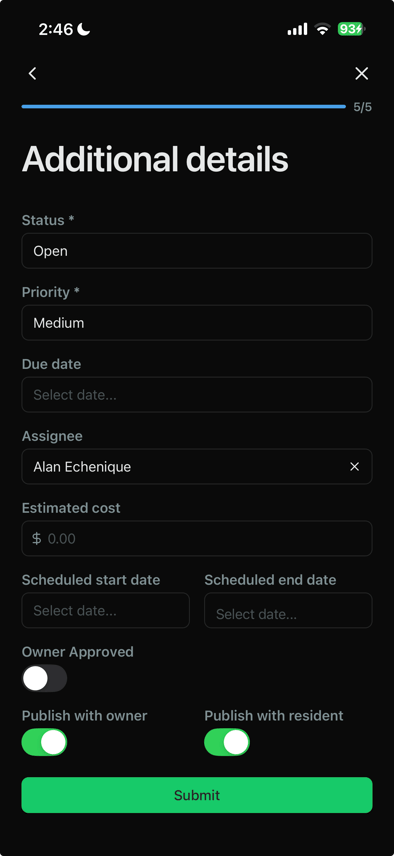
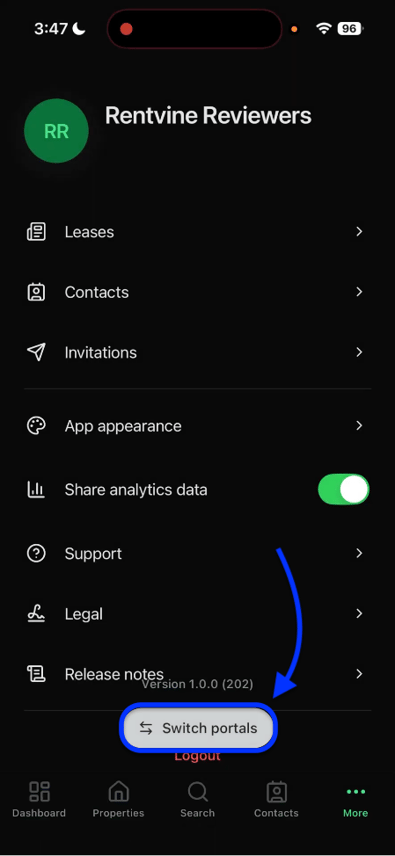
- The More Tab provides access to additional features.
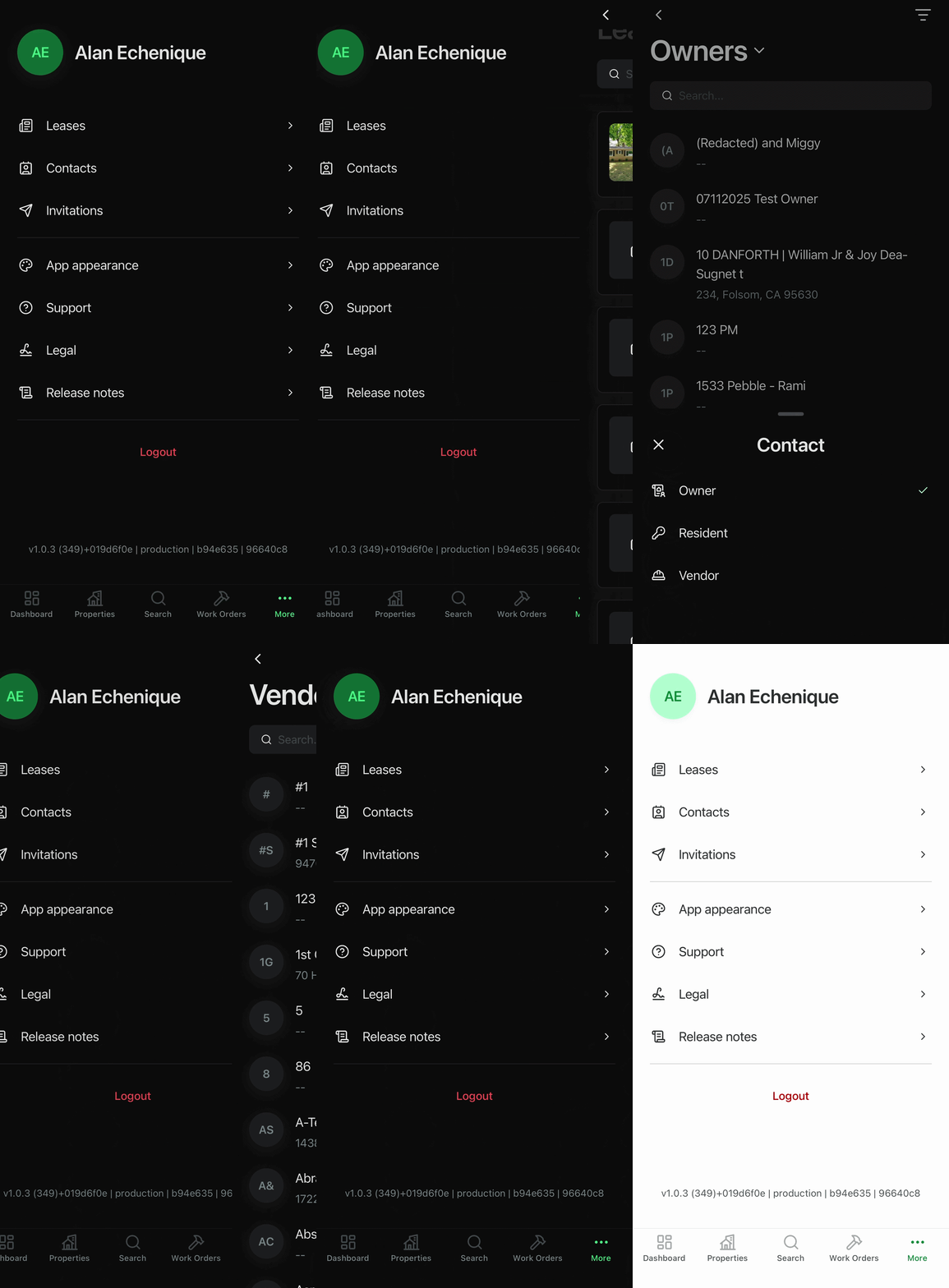
Here you can view:- All Leases
- All Contacts
- Manage invitations sent to prospective tenants
- Switch between Dark Mode/Light Mode
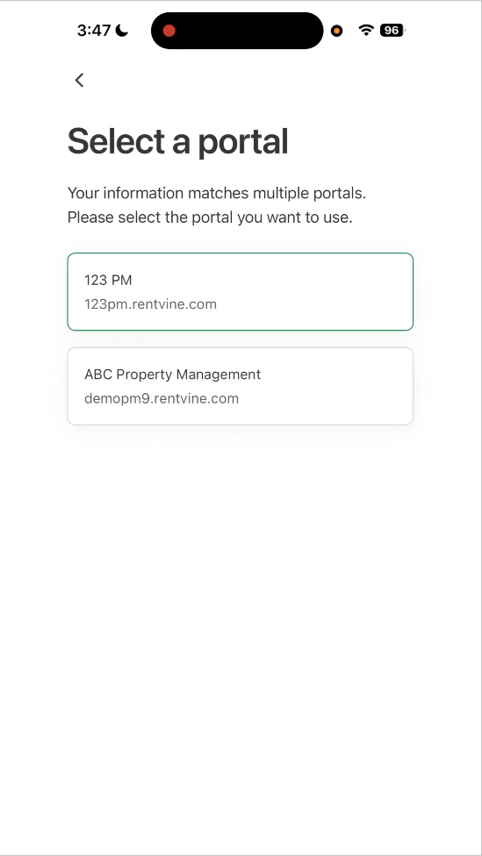
- If you have multiple portals tied to one email, you can also switch between portals here