
Owner CRM
- Owner CRM helps you capture, qualify, and onboard new property owners — from their first inquiry through an active portfolio — without leaving Rentvine. Leads come in, owners fill out their own forms, and once everything's signed, onboarding their portfolio, properties, and units takes one click.
Using this feature, you can:
- Capture owner leads directly from your website (via PMW) or any other lead source
- Let owners fill out pre-qualification and onboarding forms themselves — or fill them out on their behalf
- Automatically generate and send Property Management Agreements (PMAs) for signature through RentSign
- Onboard an owner's portfolio, properties, and units in a single click once forms are complete
- Track your pipeline with a dashboard showing lead count, close rate, time to close, and lead source performance
This feature also introduces a few new components, including:
- The Owner Leads pipeline (a new tab group under Portfolio)
- Owner Lead Statistics on the Portfolio Dashboard
- Owner Lead Settings, including a form builder for Pre-Qualification, Property Onboarding, and Owner Onboarding forms
- PMA automation through RentSign templates
The Owner Leads Pipeline
-
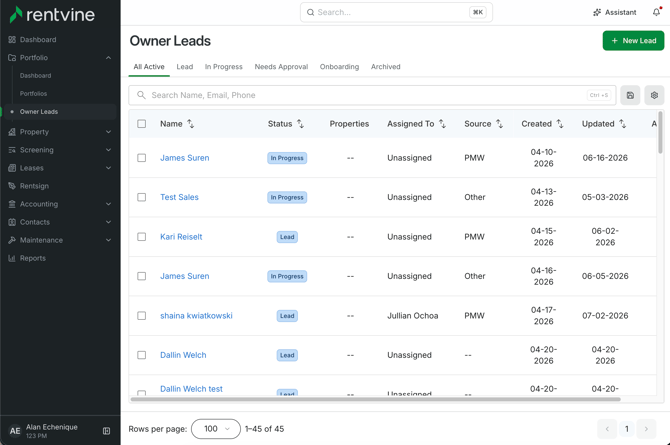
Go to Portfolio → Owner Leads to see every lead in your pipeline.
Stages
-
Leads move through five stages, each with its own tab:
- Lead
- In Progress
- Needs Approval
- Onboarding
- Archived
-
An All Active tab shows everything that isn't archived. Each row shows the lead's contact info, status, number of properties, assigned team member, source, and when it was created and last updated.
-
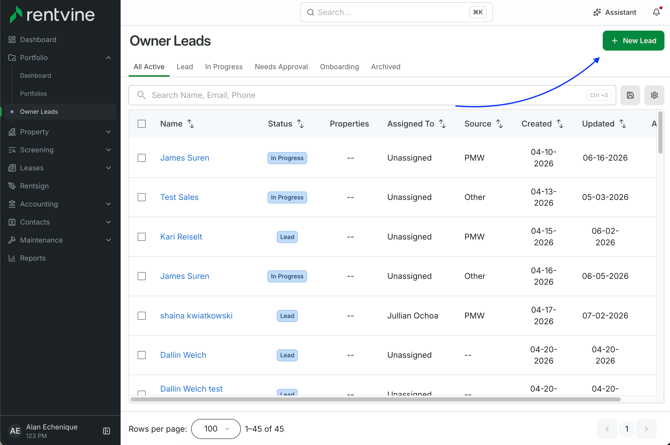
If a lead comes in over the phone or in person rather than through a form, click New Lead to add them manually.
Owner Lead Statistics (Dashboard)
-
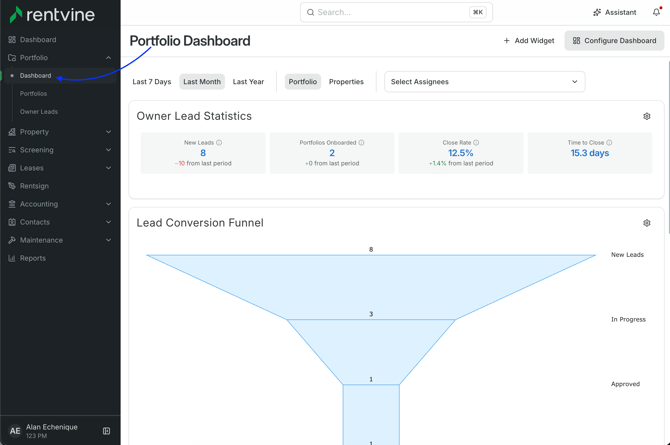
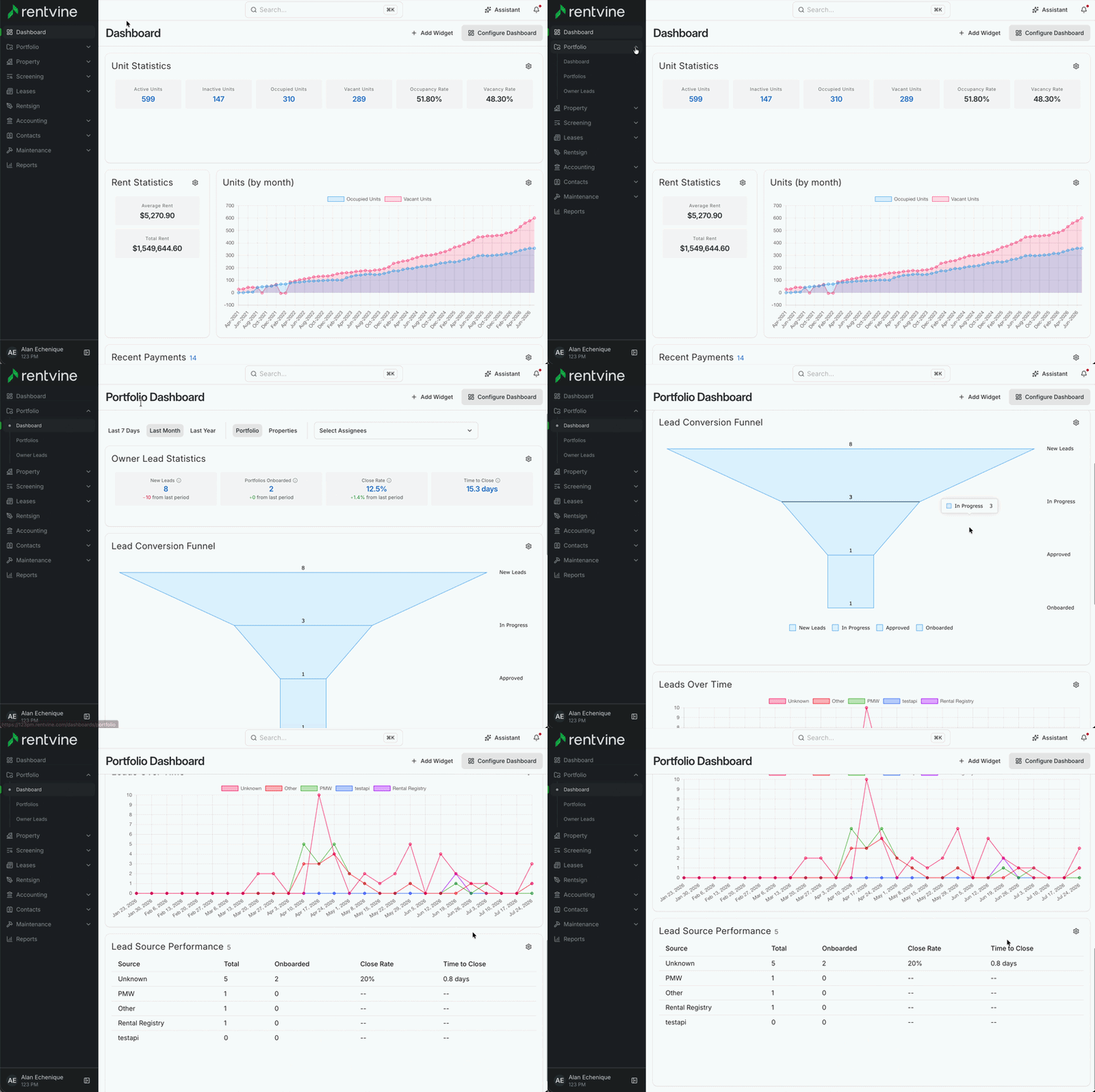
Owner lead metrics live on the Portfolio Dashboard (Portfolio → Dashboard), in a dedicated Owner Lead Statistics section:
- New Leads, Portfolios Onboarded, Close Rate, and Time to Close — compare against the prior period
- Lead Conversion Funnel — visualizes leads moving through New Leads → In Progress → Approved → Onboarded
- Leads Over Time — a trend chart
- Lead Source Performance — a breakdown by source (PMW, Other, Rental Registry, your API integrations, etc.) showing total leads, onboarded count, close rate, and time to close per source
-
Filter by Last 7 Days, Last Month, or Last Year, and narrow by Portfolio, Properties, or assigned team member.
Owner Lead Settings
-
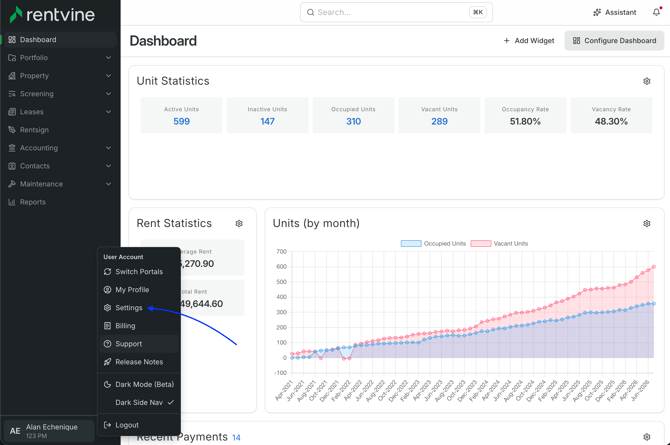
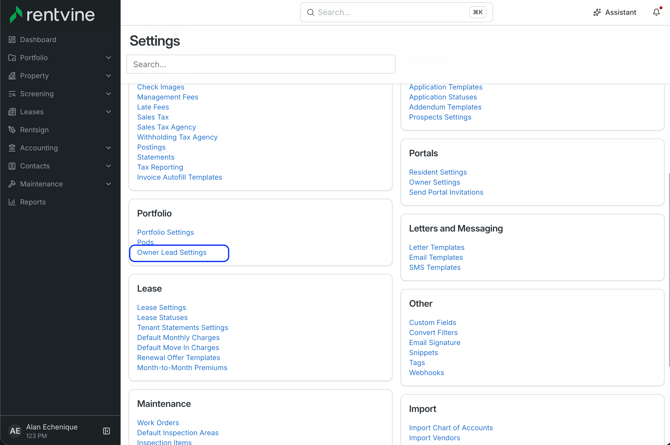
Go to Settings → Portfolio → Owner Lead Settings.
-
General tab
- Automatically Generate Rentsign Documents — If enabled, RentSign documents are automatically generated and sent out when an owner lead submits their pre-qualification form.
- Automatically Send Owner Portal Invite — If enabled, new owner leads automatically receive a portal invitation email when created. If disabled, you can send the invite manually using the Re-send Invite action.
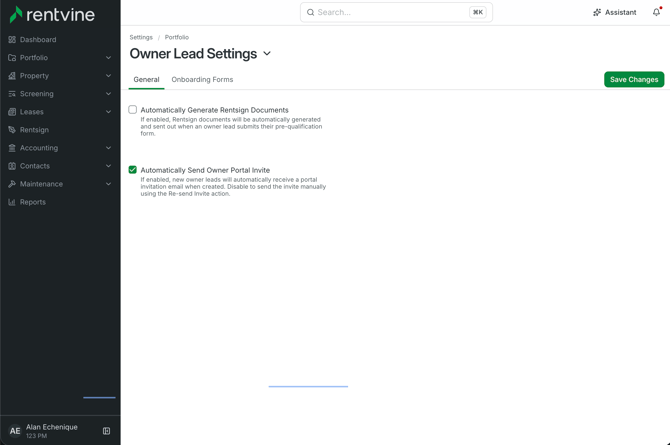
We recommend leaving RentSign auto-generation off at first, until you're comfortable with the rest of the flow.
-
Onboarding Forms tab -
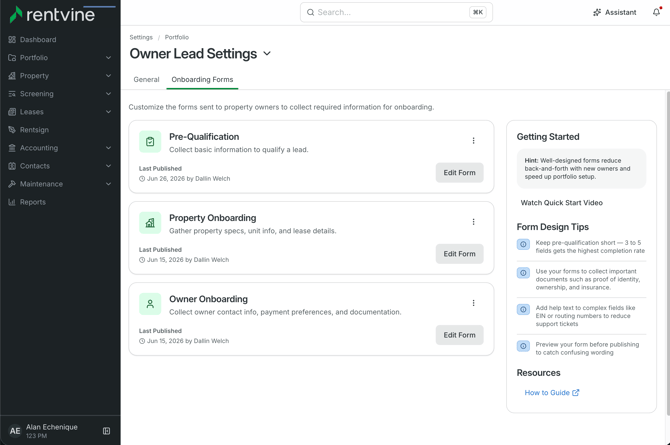
This is where you customize the forms sent to owners to collect the information needed for onboarding. There are three separate forms:
-
- Pre-Qualification — Collects basic information to qualify a lead
- Property Onboarding — Gathers property specs, unit info, and lease details
- Owner Onboarding — Collects owner contact info, payment preferences, and documentation
-
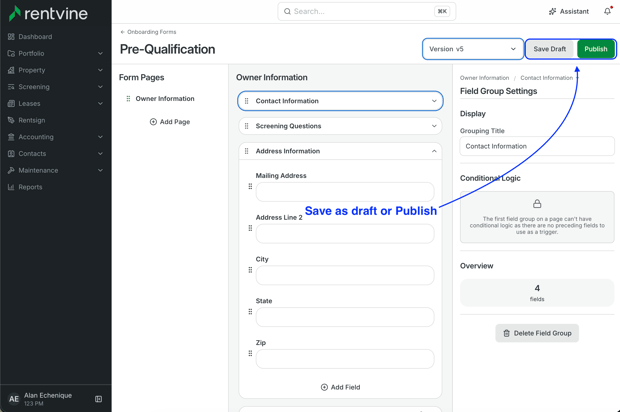
Each form has its own builder where you can:
- Add and organize pages and field groupings (for example, Contact Information, Address Information, Screening Questions)
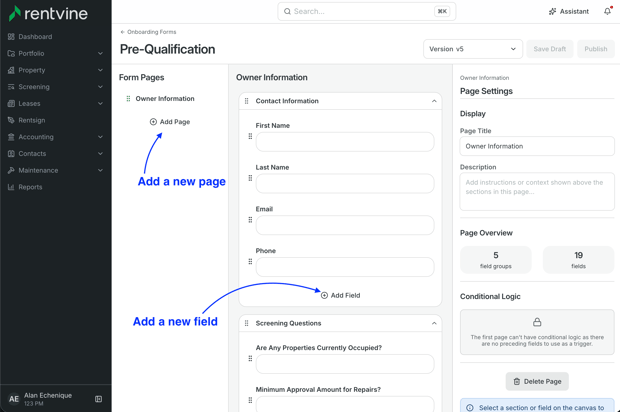
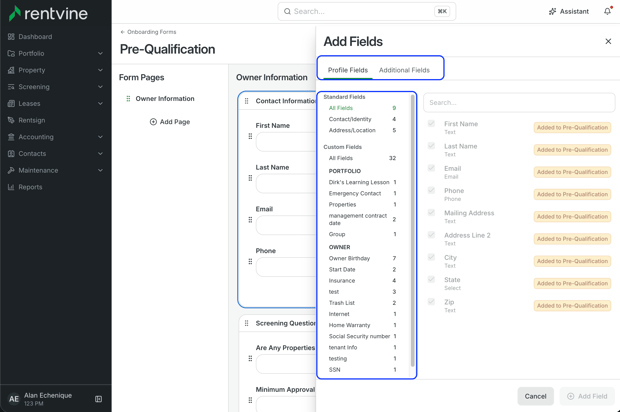
- Add fields as either a Standard Field (built into Rentvine and automatically syncs to the owner's profile) or an Additional Field.
Additional Fields (collected on the form but not synced to the owner's Rentvine profile — useful for questions like "Is the property furnished?" that inform your decision without needing to be stored long-term)
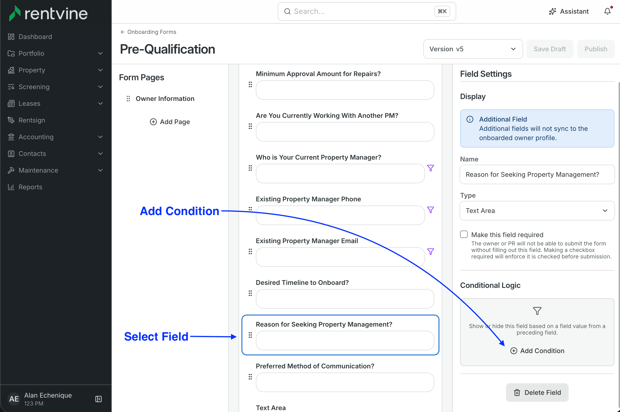
- Click on a field on the for to set conditional logic so a field or field group only appears based on an earlier answer
-
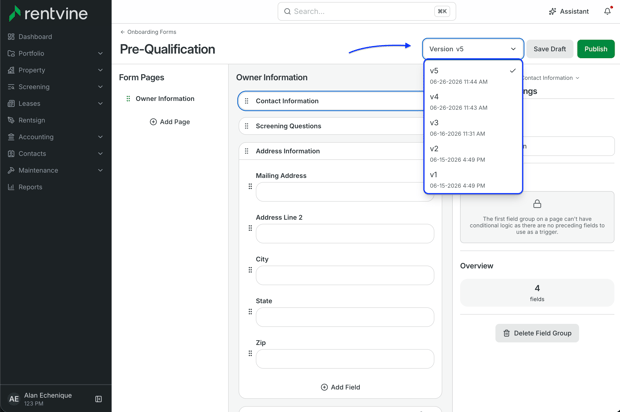
- Save Draft or Publish changes — each form keeps a version history
Pre-Qualification
-
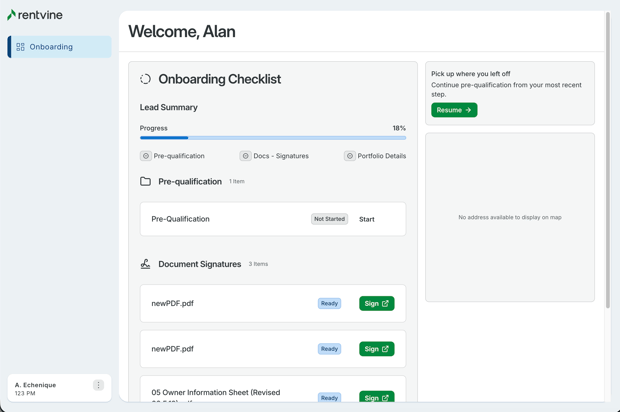
Once an owner has portal access, they'll see the Pre-Qualification form, where they can enter their information directly. You (or the owner) can fill this out from either side — both views stay in sync.
If a PM and an owner are editing the same form at the same time, whichever side saved most recently is what's kept. Avoid having both parties edit simultaneously.
-
The Pre-Qualification form also includes built-in groupings for:
- Co-Owners — add additional owners and set preliminary ownership percentages
- Properties — add multiple properties to a single lead, each with its own address and ownership structure details
View from the Owner Lead Portal
Reviewing a Lead
-
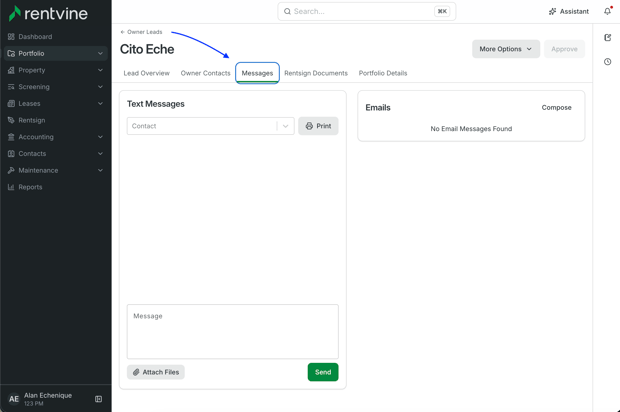
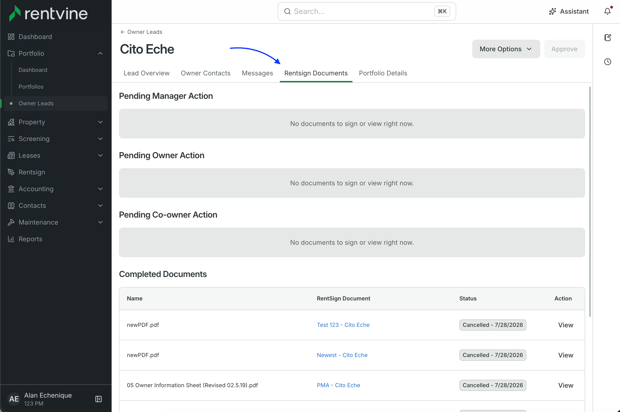
Each lead record has five tabs:
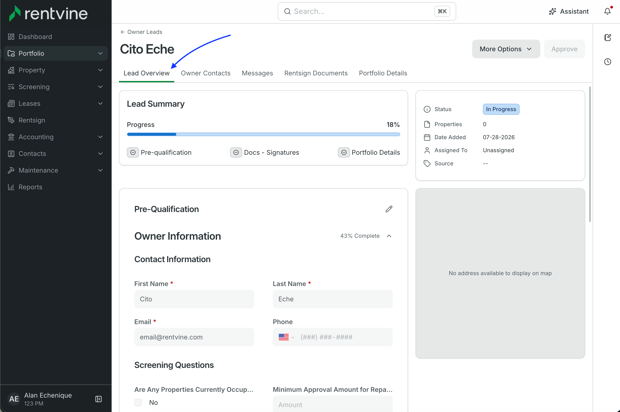
- Lead Overview — a summary showing overall progress, pre-qualification status, and document/signature status, along with portfolio details (status, property count, date added, assigned team member, source), and the pre-qualification data itself
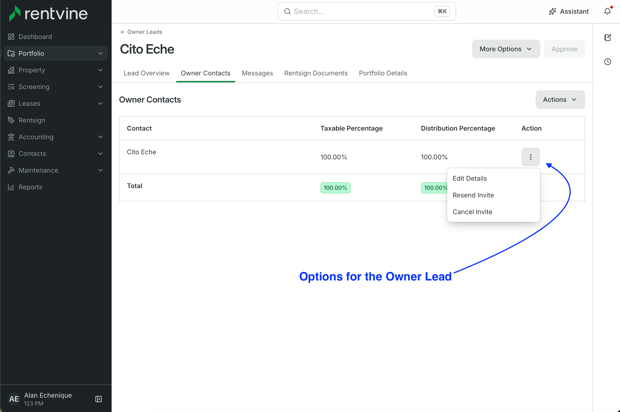
- Owner Contacts — the owner(s) and co-owners attached to the lead. Clicking the ellipses allows you to edit the owner lead details, resend the portal invite, or cancel the portal invite
- Messages — split into Text Messages (a live thread you can reply to directly, with file attachments) and Emails (compose and send from here)
- Rentsign Documents — shows documents split into Pending Manager Action, Pending Owner Action, Pending Co-Owner Action, and Completed Documents, so you can see what's been signed and what's still outstanding
- Portfolio Details — once onboarding forms are filled out, this shows the Property Onboarding and Owner Onboarding data (Owner Details, Property Details, Property Features, Additional Information)
-
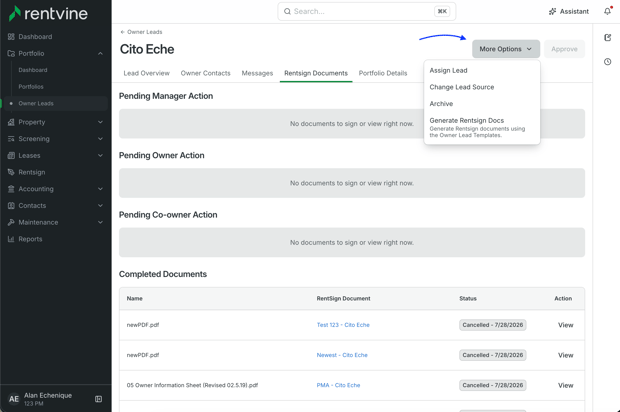
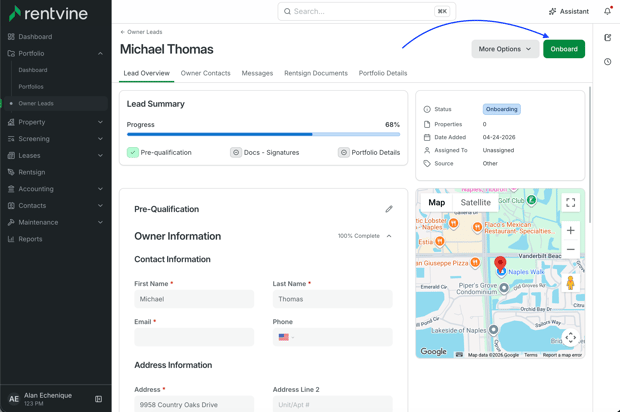
From the top of a lead, you can use More Options to assign the lead, generate documents, or deny it (denial sends a configurable letter). Once a lead is ready, the Onboard button is available at the top of the page.
Completing Onboarding
-
Once the pre-qualification form, PMA signature, and onboarding forms (Property Onboarding and Owner Onboarding) are complete, the lead moves to Needs Approval, and then Onboarding once approved.
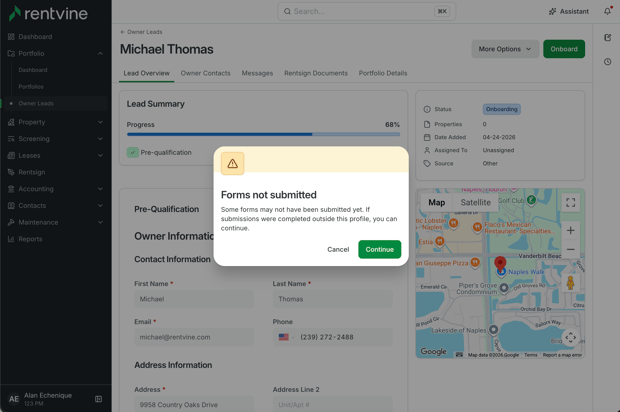
- Click Onboard to automatically create the portfolio, owner(s), properties, and units from the collected data
- If some fields weren't filled out, you'll get a warning — you can still continue if you'd rather not wait
-
Once onboarded, everything is created for you automatically, the owner's file and each property's file will include the information and documents collected throughout the process.
Sending a Standalone PMA
-
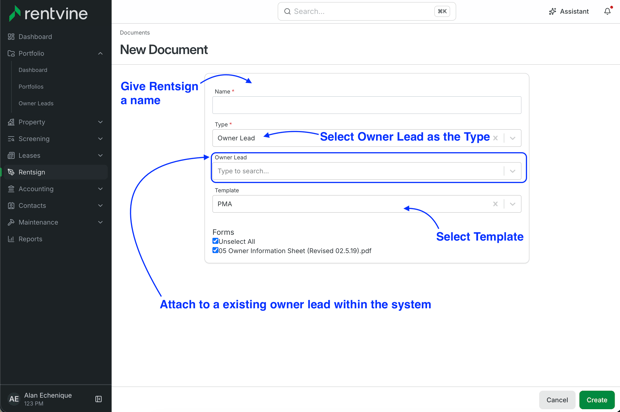
If you'd rather send a RentSign agreement without running an owner through the full lead flow, you still can:
- Create a new Rentsign document, name it, and select the Owner Lead type
- Add your template and send it
-
This will attach to the corresponding lead in Owner Leads once sent, and you'll be able to track its signature status from the lead's Rentsign Documents tab.
Frequently Asked Questions
-
Are there tasks or reminders to help me follow up on leads?
-
Not yet. Task automation and drip campaigns are planned for later in 2026.
-
-
Can emails to owners come from my own email address instead of Rentvine's?
-
This is in development and expected to be added soon.
-
-
Do I need to use PMW to send leads into Owner CRM?
-
No, Rentvine Owner CRM has an open API, so leads from any source can be sent in, not just PMW.
-
-
Can I edit or customize the lead stages?
-
Not currently, but this is something we're looking into.
-