Request access to explore the new updates before Decision View launches at the end of February! We'd love to hear your feedback as it helps shape future improvements.
Sign Up Early Here!
This new view for these applications provides you with a cleaner, easier, and more scannable perspective to take in all the information and allows you to make decisions based on the core information shown with this new view.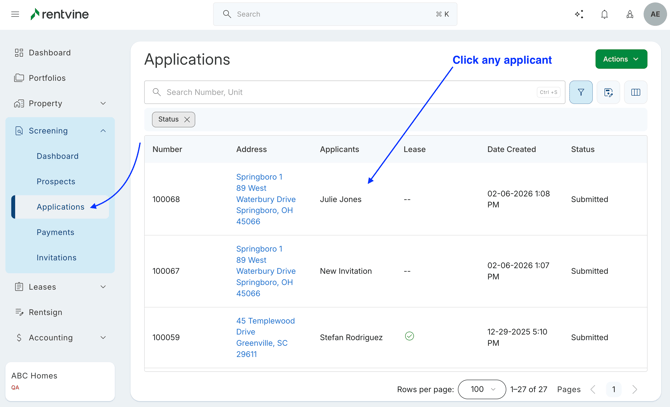
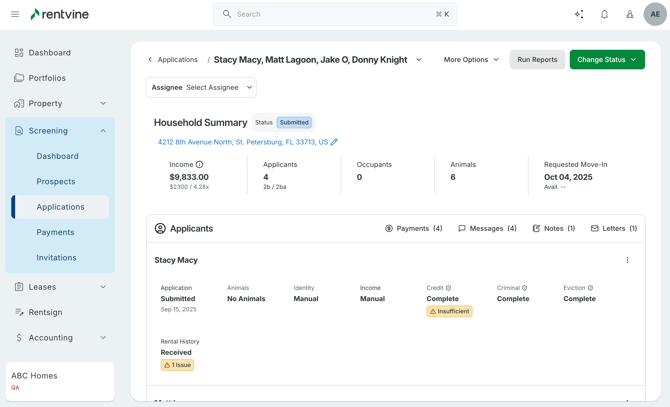
Household Summary
-
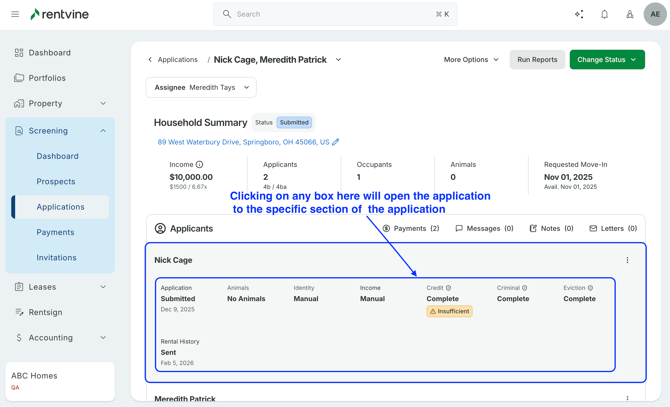
Here you will see a summarized view for applicants at a glance! This includes the unit address, the household income*, the number of applicants, occupants (residents under 18 years old), the animals, and the requested move-in date/availability date for the property.
Displays the combined monthly income for the household, monthly rent, and the income-to-rent ratio.
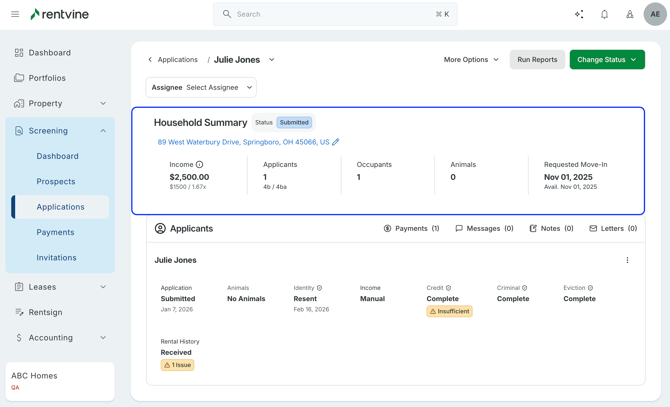
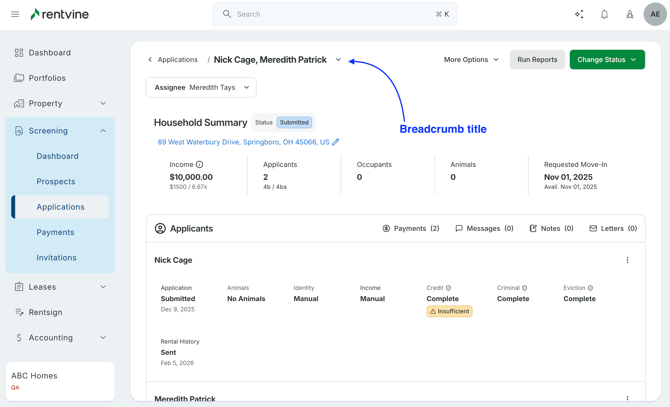
Breadcrumb Title
-
These are the applicants who are shown on the application, but only the applicants who have fully completed the applications
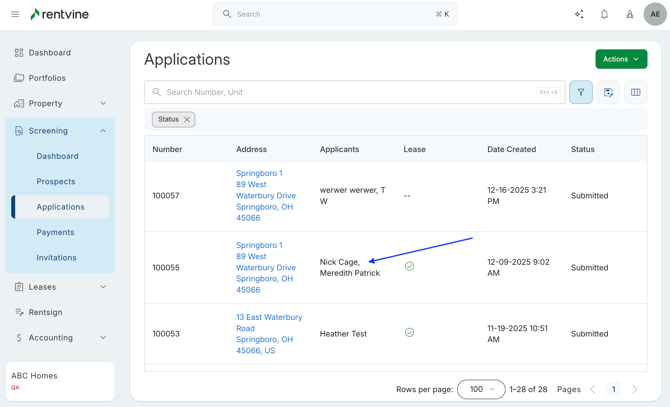
To view all applicants who were invited to the application, including completed and uncompleted applicants, you can view the applicants sections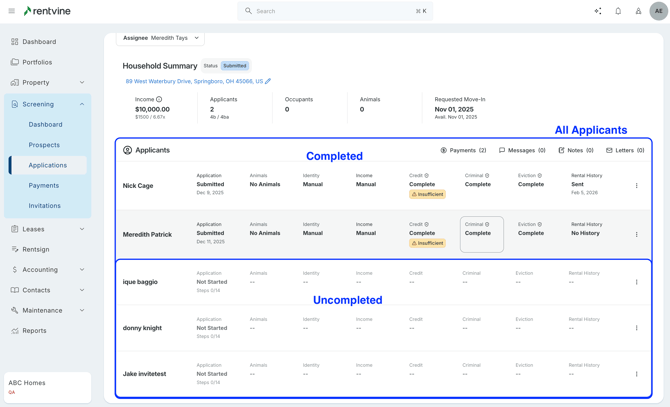
Changing status, running reports, and more
-
Clicking the Change Status button lets you select the new status for the application and shows color coordination based on the Primary Application Status
Blue - Pending, Submitted, Screening, and Processing primary status
Yellow - On Hold primary status
Green - Approved primary status
Red - Declined primary status
Grey - Withdrawn primary status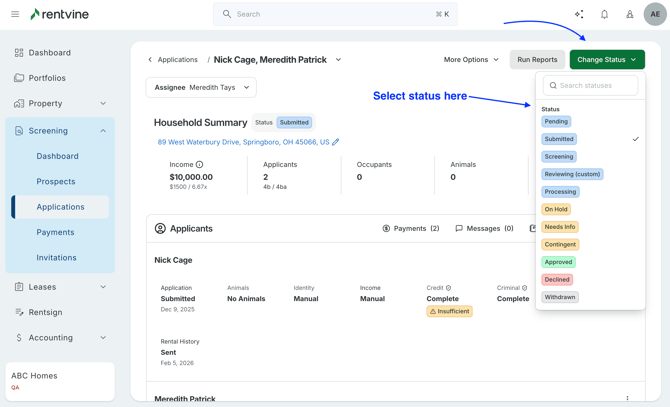
-
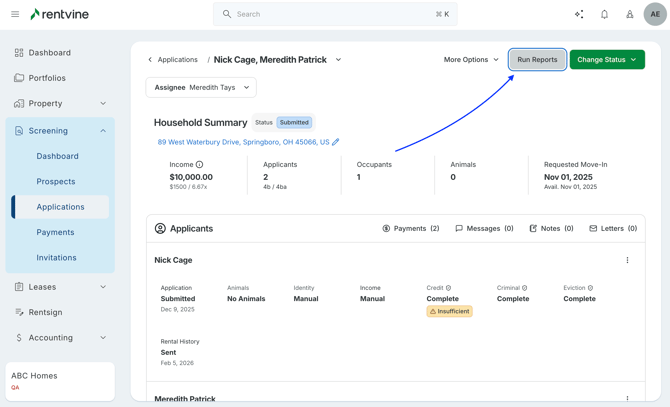
Select the Run reports button to select which reports to run. You can select the applicants and report types you want to run. You can only run reports for applicants with a submitted application status.
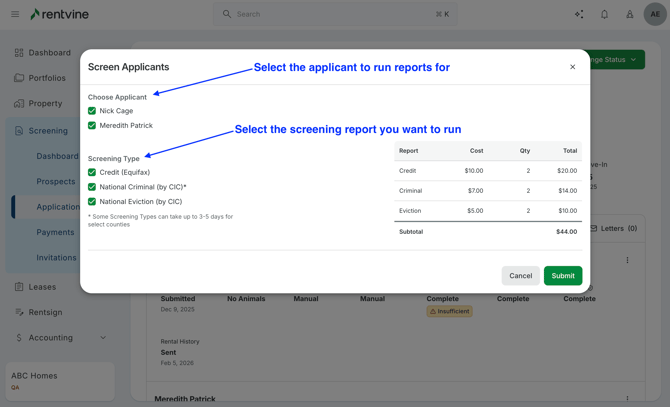
You can also select the ellipse button ( ⋮ the three dots ) to run reports for an individual applicant.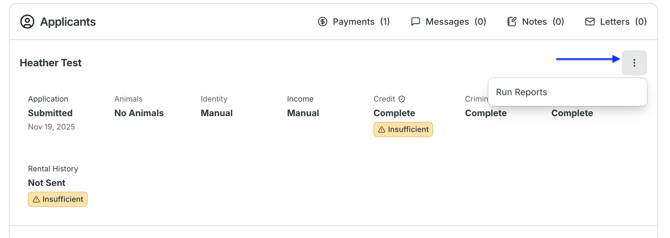
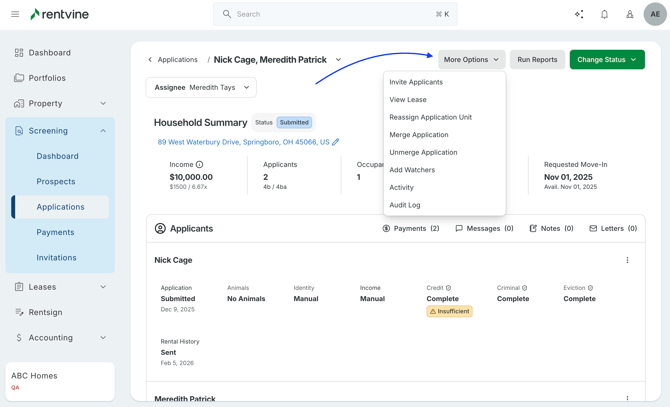
- Selecting the More Options button shows you a menu of actions related to the application. This includes inviting applicants, reassigning the property for an application, merging/unmerging applications, adding watchers, and viewing the activity/audit log.
-
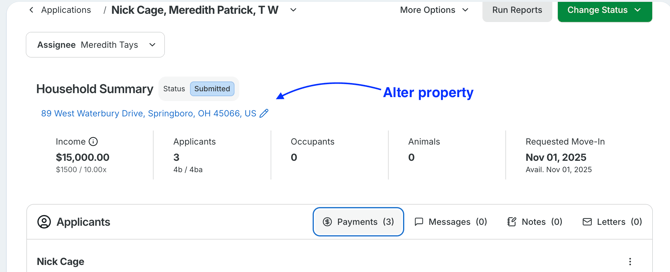
You can also click the blue pencil icon directly to adjust the property the applicant applied to. This can be very convenient in cases where the applicant selected the wrong property or wants to transfer their application to a different property.
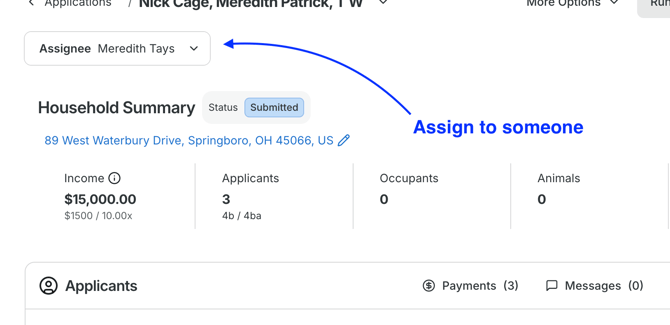
- Setting an Assignee allows your team to know exactly who is responsible for the application at any point during the screening process.
- Attached to each application, you'll also find the payments associated to the application, messages exchanged between the applicants and property managers, notes, and letters made.
Clicking each section will open a side window with the correlated information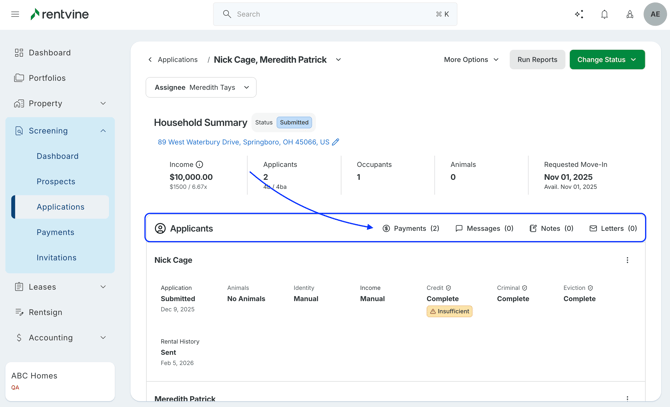
Payments -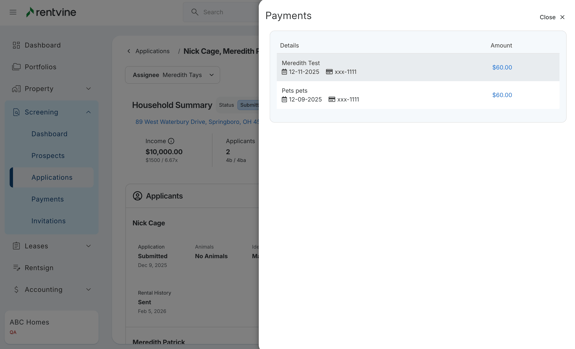
Messages -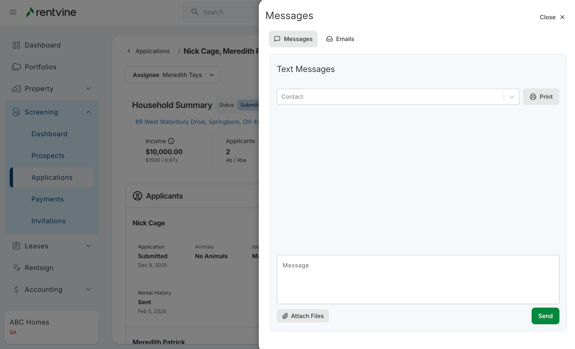
Notes -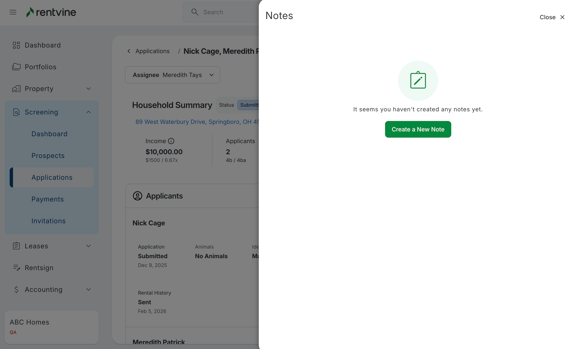
Letters -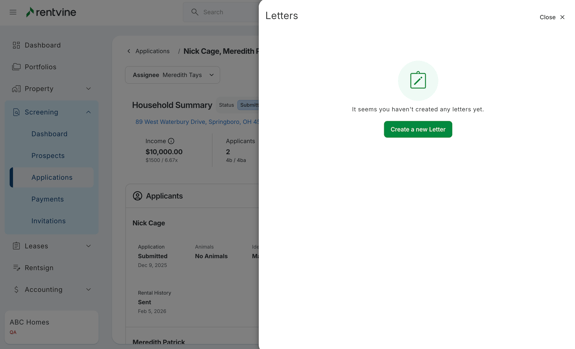
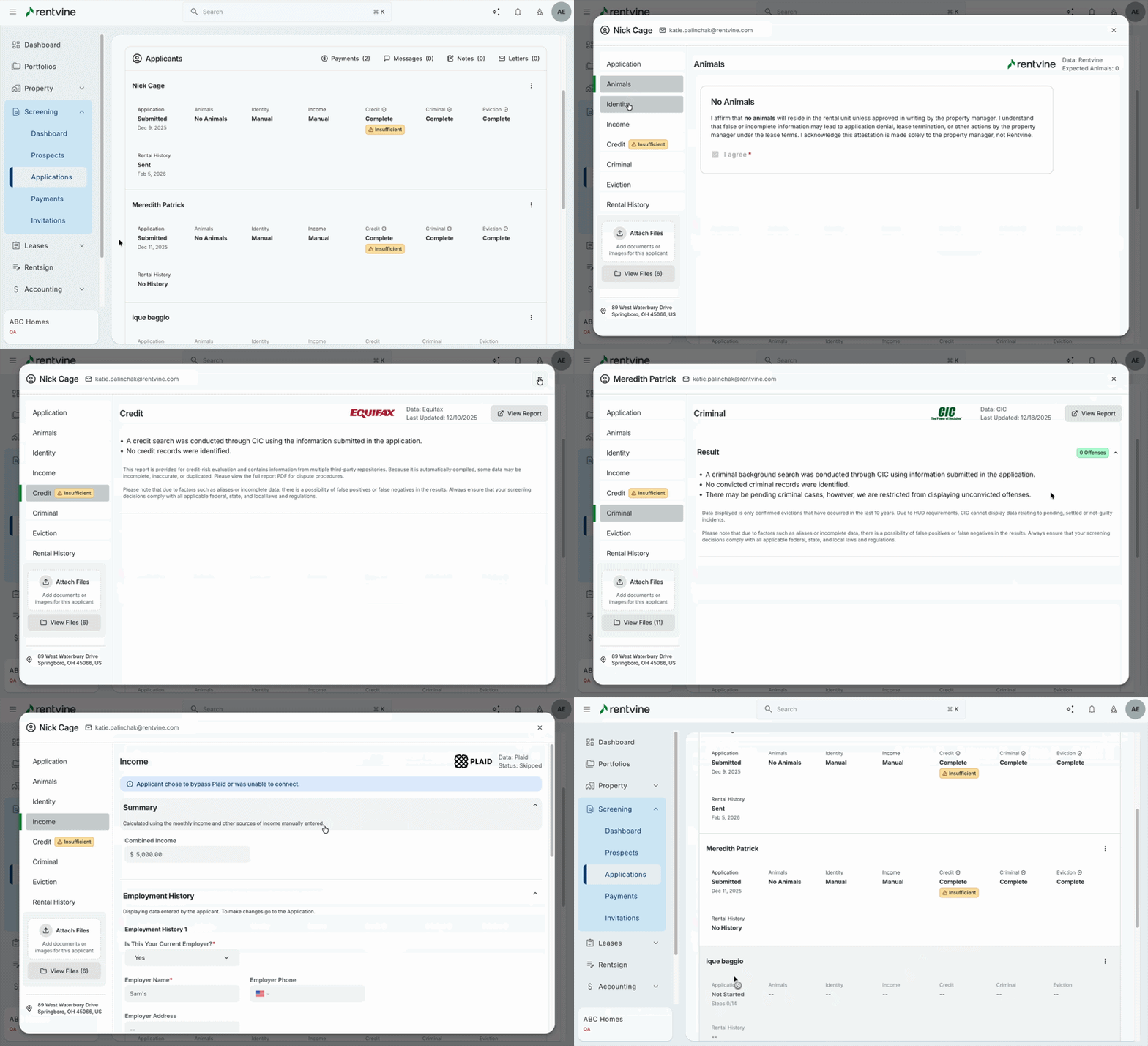
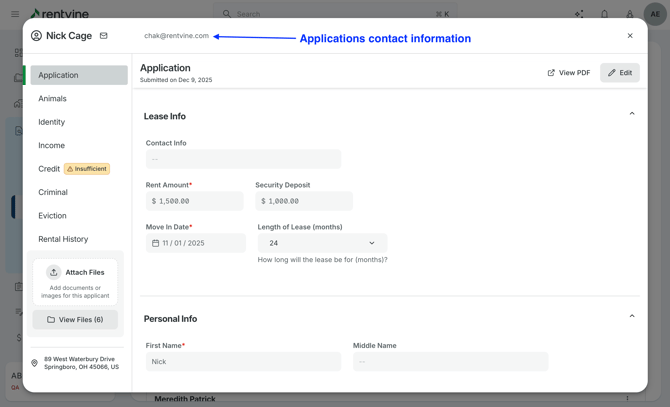
- To view or edit an individual’s application, select the applicant row or an individual tile to go directly to that section in the applicant modal.