
Month-to-Month Premiums Overview
-
When a fixed-term lease reaches its end date and the tenant continues occupying the unit without signing a renewal, the lease automatically converts to month-to-month. The Month-to-Month Premiums feature lets you define exactly what happens at that moment, including a rent increase, recurring premium charges, and one-time charges, so everything is applied automatically without manual intervention.
-
You can create multiple named premiums, set a default premium at the property level, and configure each new lease to apply a premium automatically if it ever goes month-to-month.
Identifying month-to-month leases
-
Month-to-month leases are easy to spot throughout Rentvine. A Month to Month tag appears next to the lease status in your Leases list, and the same tag displays on the Lease Info card inside the lease itself.
Lease Level: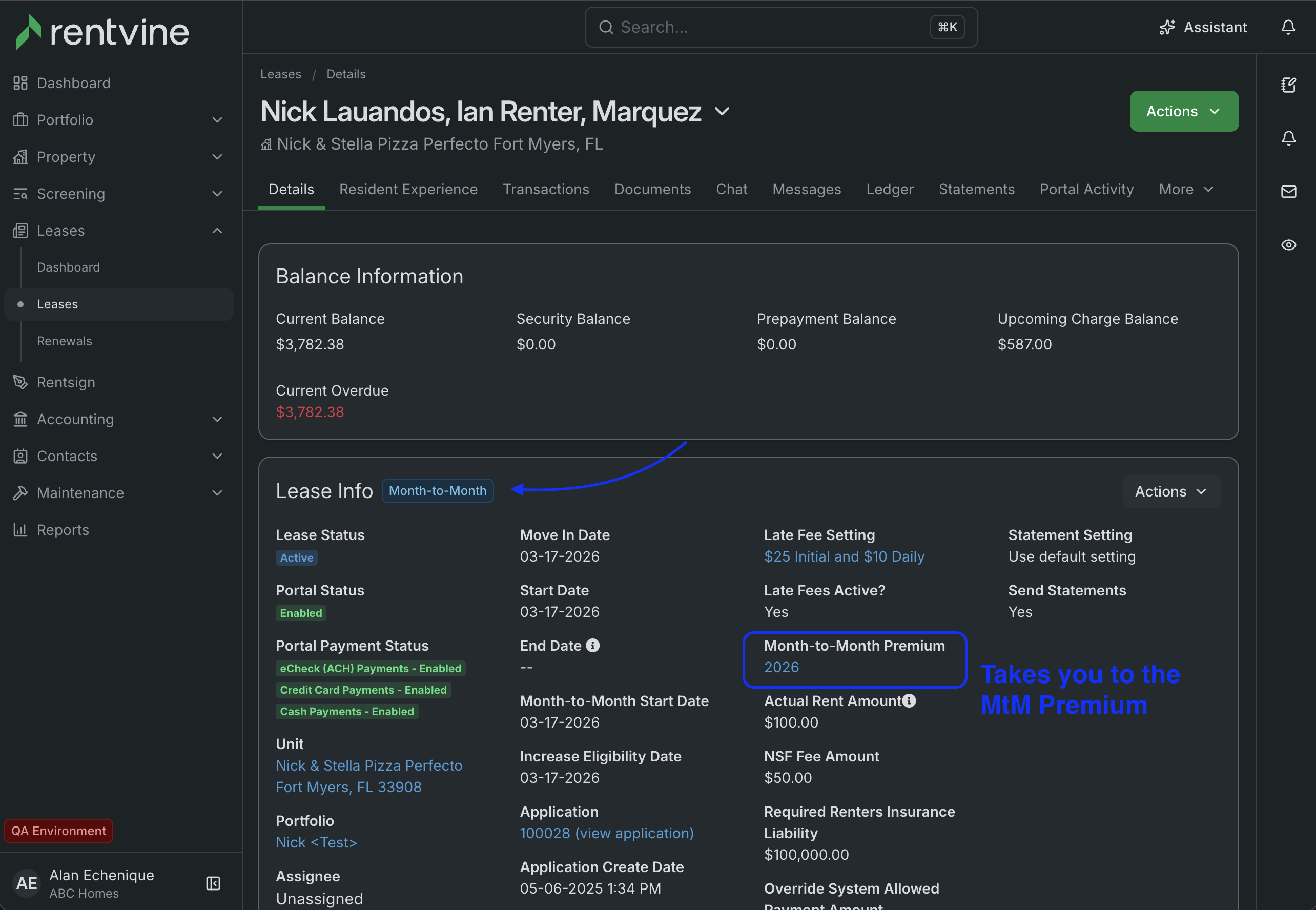
Lease List Level: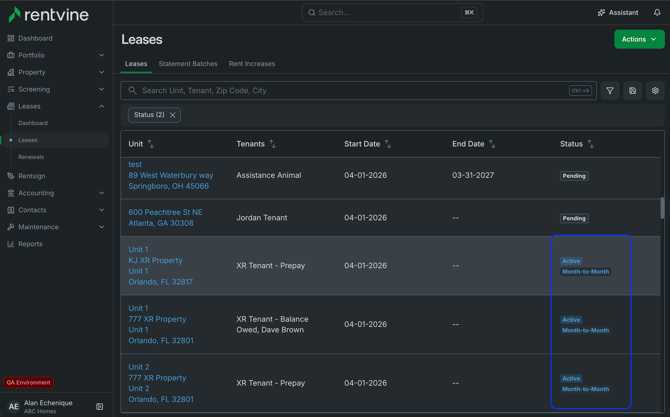
-
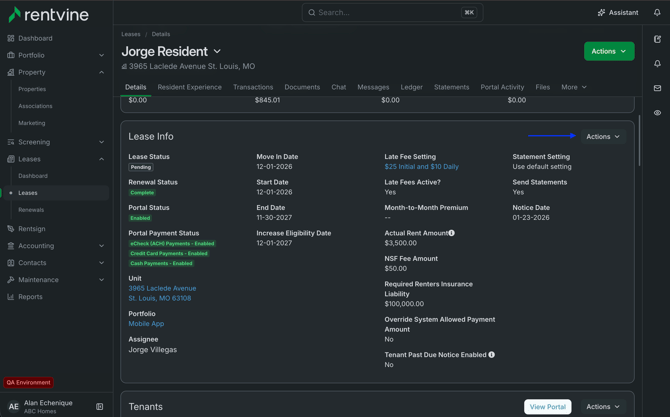
On the Lease Info card, you'll also see a Month-to-Month Premium field showing which premium is currently applied to that lease or what premium you'd like to be applied once that lease goes Month-to-Month. Clicking the premium name takes you directly to that premium's settings page.
Step 1: Create your premiums
-
Before applying a premium to any lease or property, you'll need to set up your premiums in settings.
-
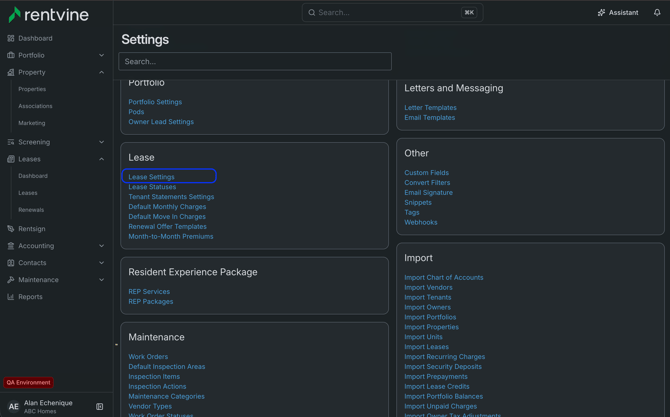
Navigate to: Settings → Lease → Month-to-Month Premiums
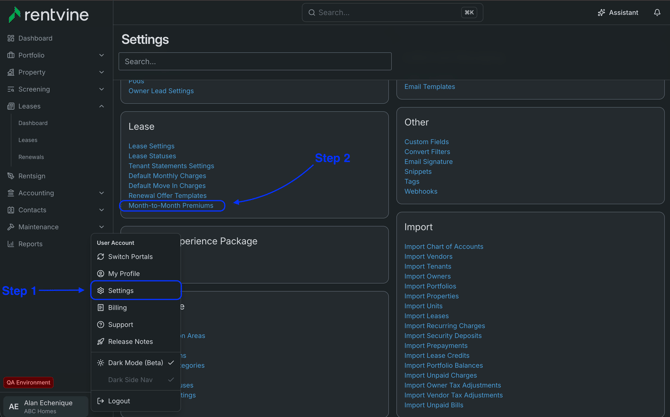
-
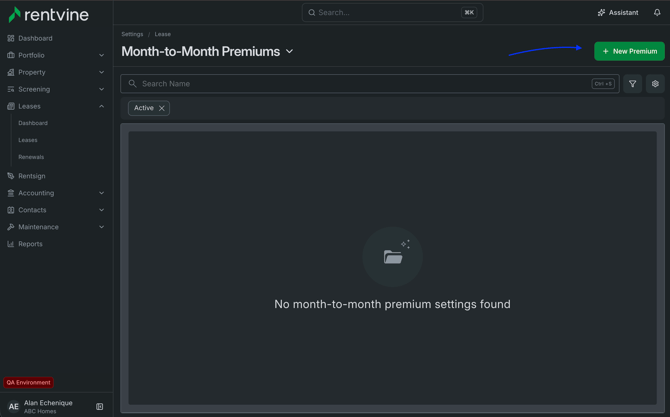
From this page you can see all of your existing premiums and their status (Active/Inactive). To create a new one, click New Premium in the top right corner.
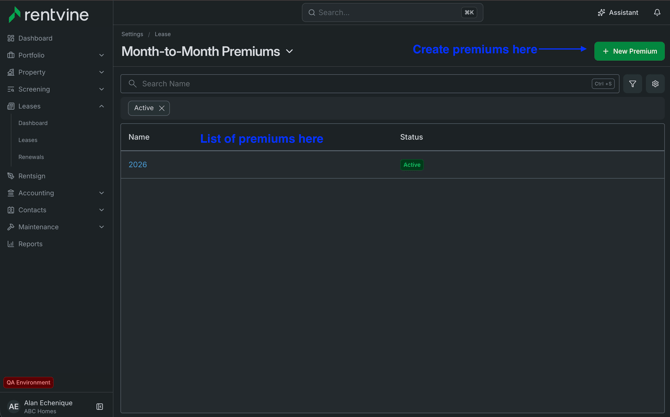
What's inside a premium
-
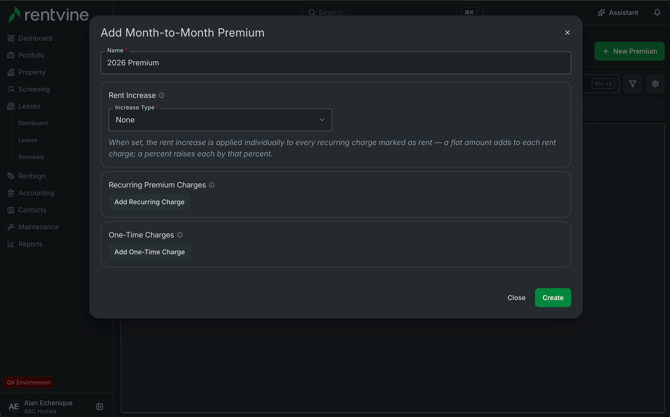
Each premium has three configurable sections:
-
Rent Increase is an optional automatic rent adjustment applied to the lease when it converts to month-to-month. The increase is applied to every recurring charge on the lease that is marked as rent. You can choose:
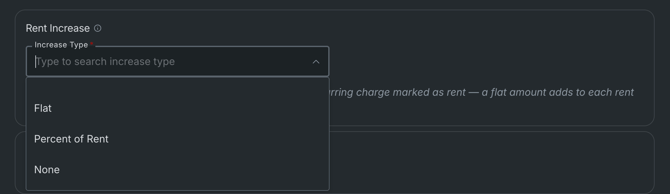
- None — rent stays unchanged at conversion
- Flat — adds a fixed dollar amount to each rent charge
- Percent — raises each rent charge by a percentage
- Recurring Premium Charges - Additional charges billed every period for as long as the lease remains month-to-month.

- Click Add Recurring Charge to add as many as needed. These show up on the tenant's ledger each billing cycle.
-
One-Time Charges - Charges applied a single time, at the moment the lease first converts to month-to-month.

-
Click Add One-Time Charge to configure these. Useful for administrative fees or conversion penalties.
-
To create a premium
- Go to Settings → Lease → Month-to-Month Premiums
- Click New Premium
- Enter a name for the premium (e.g., "MtM Premium (standard)" or "MtM Override")
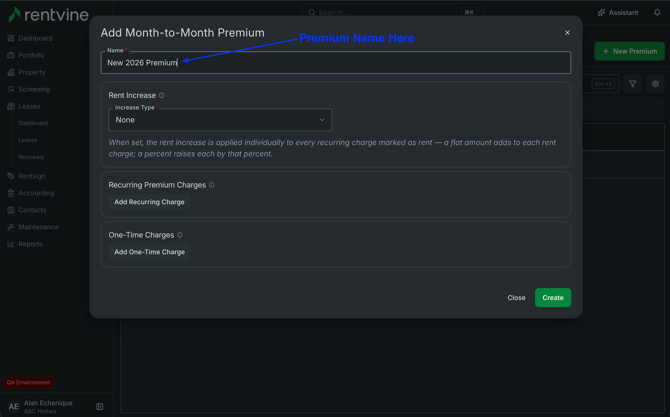
- Set a Rent Increase type and amount if desired
- Add any Recurring Premium Charges
- Add any One-Time Charges
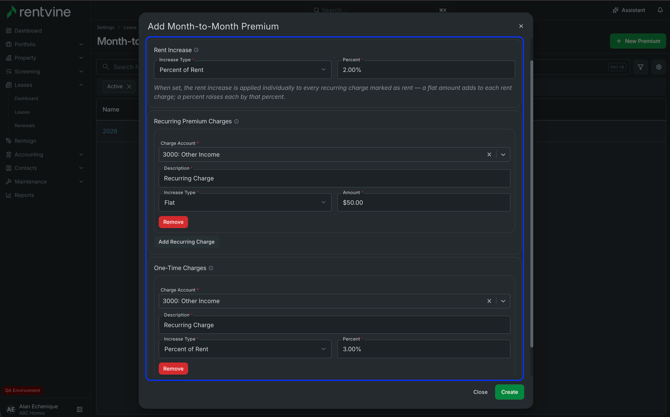
- Click Create
-
You can edit a premium's name and rent increase at any time by clicking the edit icon on the premium's detail page. Individual charges can be edited or deleted using the icons next to each charge row.
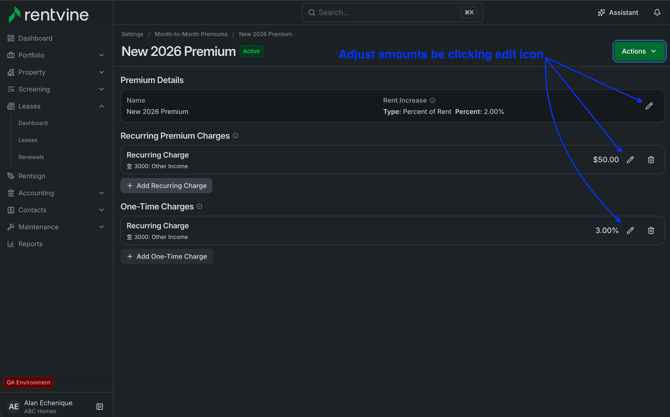
From the Actions menu on a premium you can also:
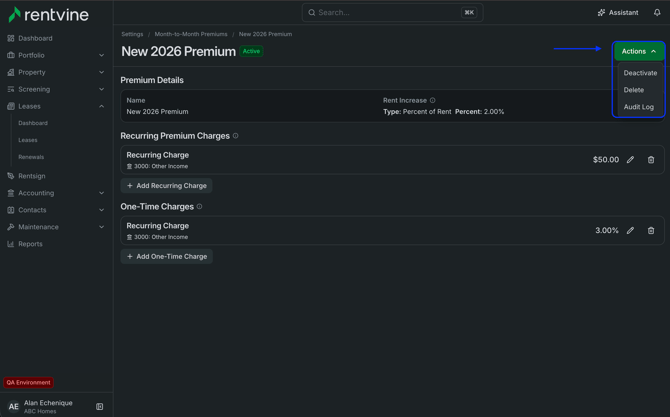
- Deactivate — makes the premium inactive and removes it from selection dropdowns, without deleting it
- Delete — permanently removes the premium
- View Audit Log — see a history of changes made to the premium
Step 2: Set a default premium on a property (optional)
-
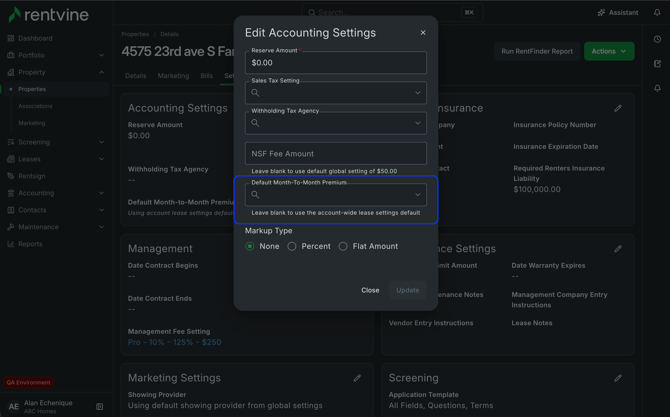
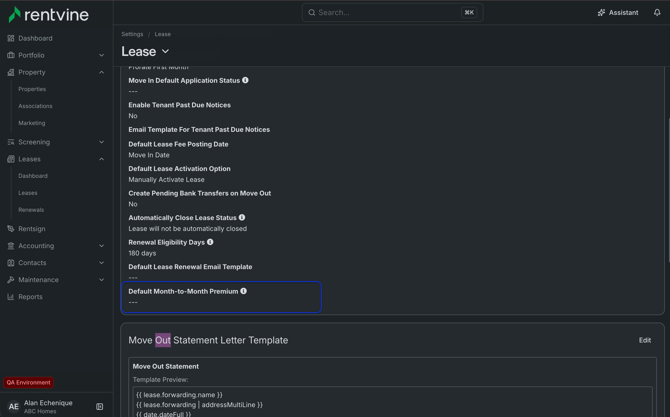
You can set a Default Month-to-Month Premium at the property level, which pre-selects that premium whenever you're assigning one to a lease under that property.
This doesn't automatically apply the premium to leases, assigning a premium to a specific lease is still your choice, but it saves time by surfacing your preferred option first.
-
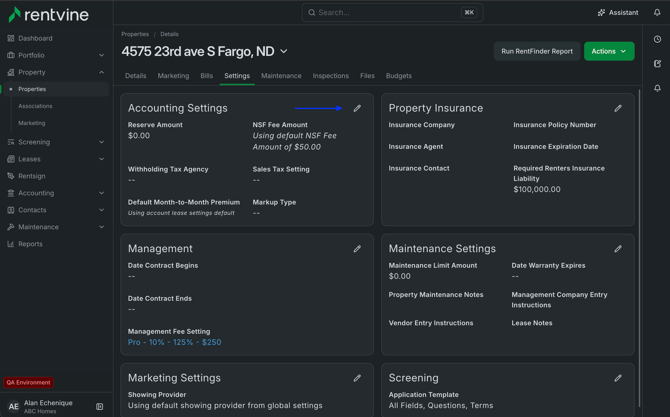
Navigate to: Properties → [select a property] → Settings tab
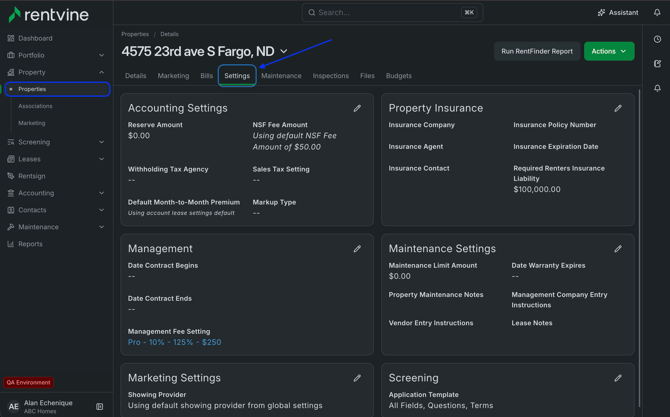
-
In the Accounting Settings card, you'll see a Default Month-to-Month Premium field. Edit the card and select any active premium you've created.
-
Any lease created under this property will default to this premium. You can still override it on individual leases.
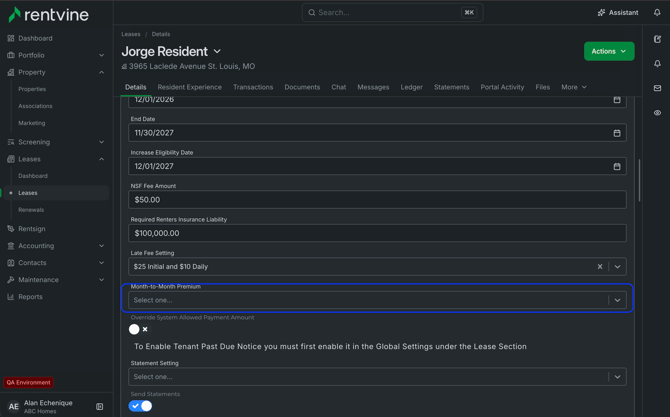
- If no default is set at the property level, the selection will fall back to the default configured in your Lease Settings.
Step 3: Apply a premium when creating a lease
-
When moving in a new tenant (Leases → Move In Tenant), you'll set the lease term on the Details step. There are two scenarios:
Starting a lease as month-to-month from day one
-
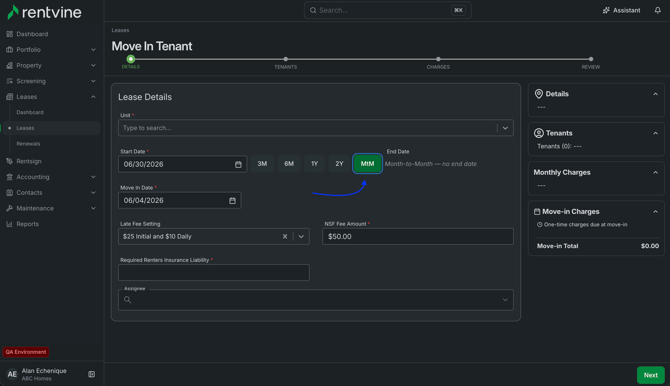
In the lease term selector, choose MtM. The End Date field will show "Month-to-month — no end date," indicating the lease has no fixed term. The lease will be active and month-to-month immediately upon move-in.
Setting up a fixed-term lease to auto-convert
-
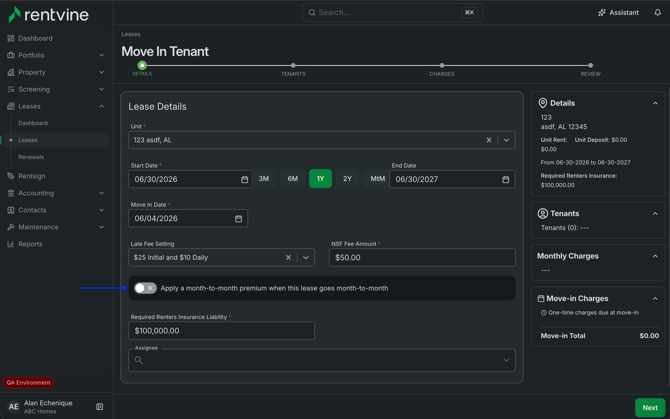
If you select a fixed term (3M, 6M, 1Y, 2Y) and enter an End Date, a blue "Apply a month-to-month premium when this lease goes month-to-month" toggle will appear below the lease details.
-
Enabling this toggle tells Rentvine: if this tenant doesn't renew, automatically apply the selected premium when the lease converts. Nothing changes at move-in, the premium only activates at conversion.
-
Under the toggle, a Month-to-Month Premium dropdown lets you choose which premium to apply. It will default to the premium set on the property, or the standard premium if no property default is configured.
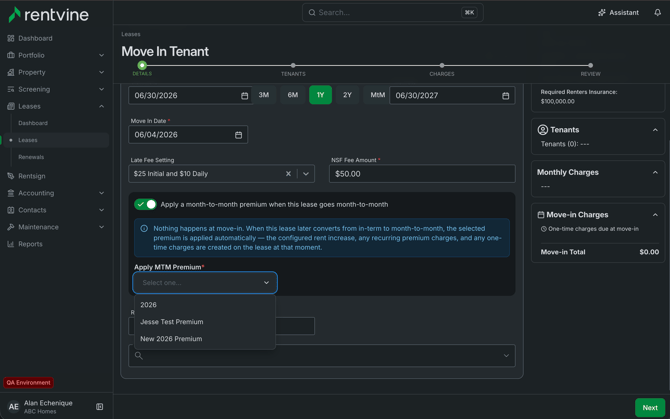
Note: This works similarly to the Late Fee Setting on a lease — you configure it once upfront, and Rentvine handles it automatically at the right time.
Managing month-to-month leases in Lease Renewals
-
All active month-to-month leases are grouped in their own tab in the Lease Renewals pipeline.
-
Navigate to: Leases → Renewals → Month-to-month tab
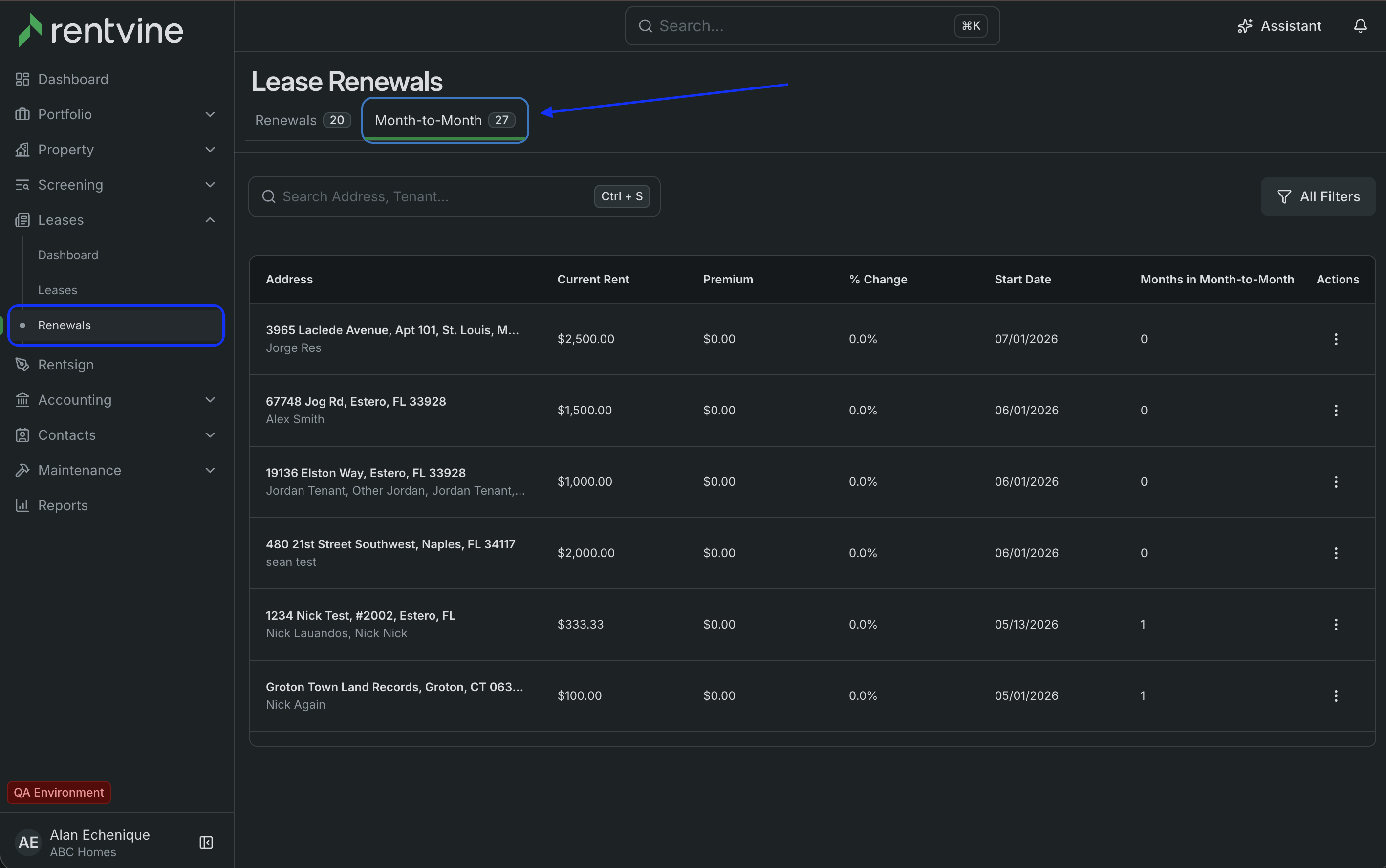
This table gives you a portfolio-wide view of every month-to-month lease, showing:
- Current Rent — what the tenant is currently paying
- Premium — the dollar amount and percentage of the premium being applied
- % Change — the rent change percentage from the premium
- Start Date — when the lease went month-to-month
- Months in Month-to-month — how long the lease has been on a month-to-month term
-
From the Actions menu (⋮) on any row, you can:
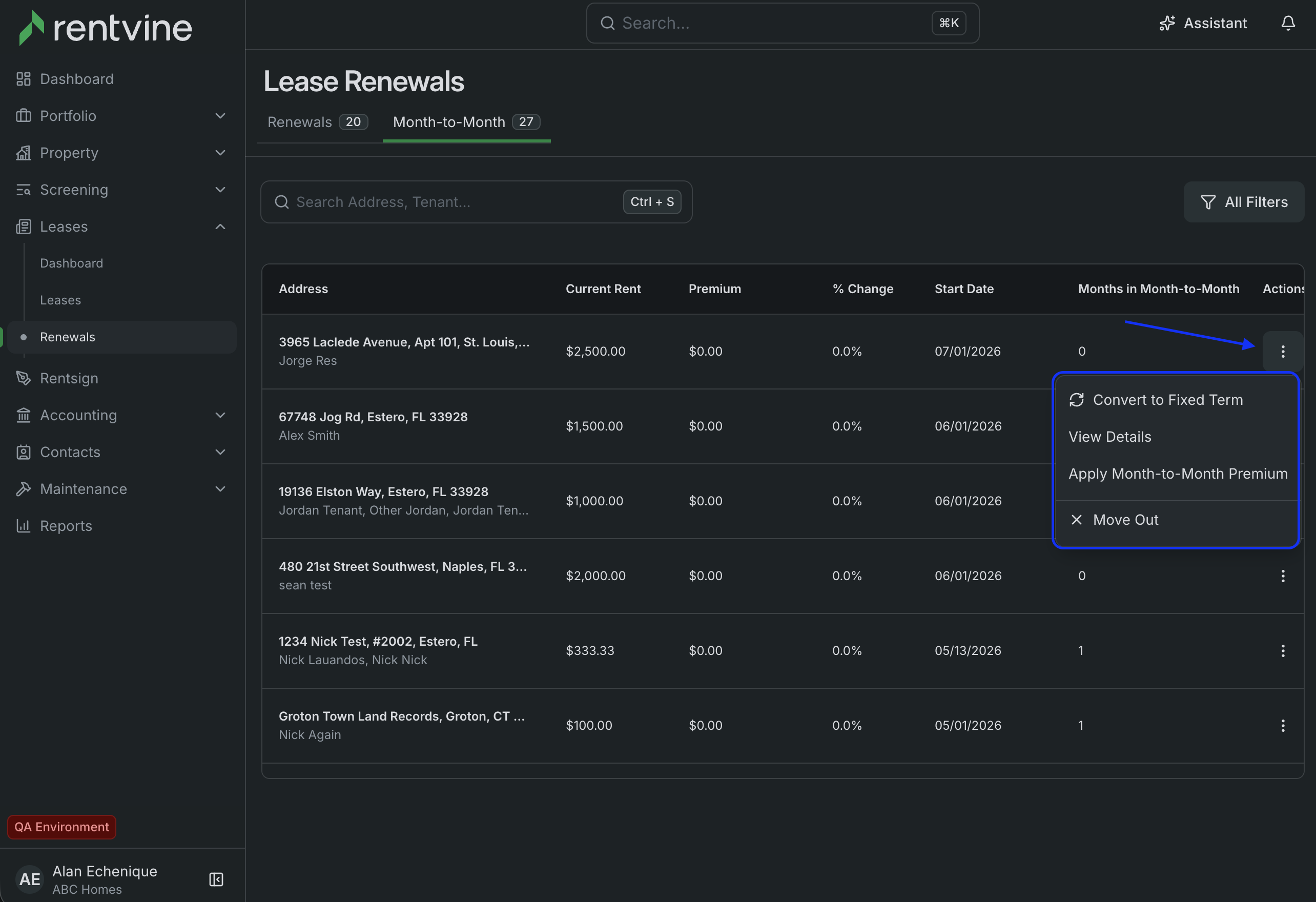
- Convert to fixed term — move the lease back onto a fixed-term agreement
- View lease details — jump directly to the lease record
- Update the Month-to-Month Premium — opens a confirmation modal showing the full billing breakdown before any changes are saved.
Note: this option is only available if the lease already has a recurring premium charge applied.
Converting a fixed-term lease to month-to-month via Renewals
-
You can also use the Renewals pipeline to transition a lease from a fixed term to month-to-month at the end of its lease term — for example, if a tenant won't be signing a new fixed-term agreement but will continue on a rolling basis.
-
- Go to Leases → Renewals and open the lease in progress.
- Create a renewal offer and set the term to Month-to-Month.
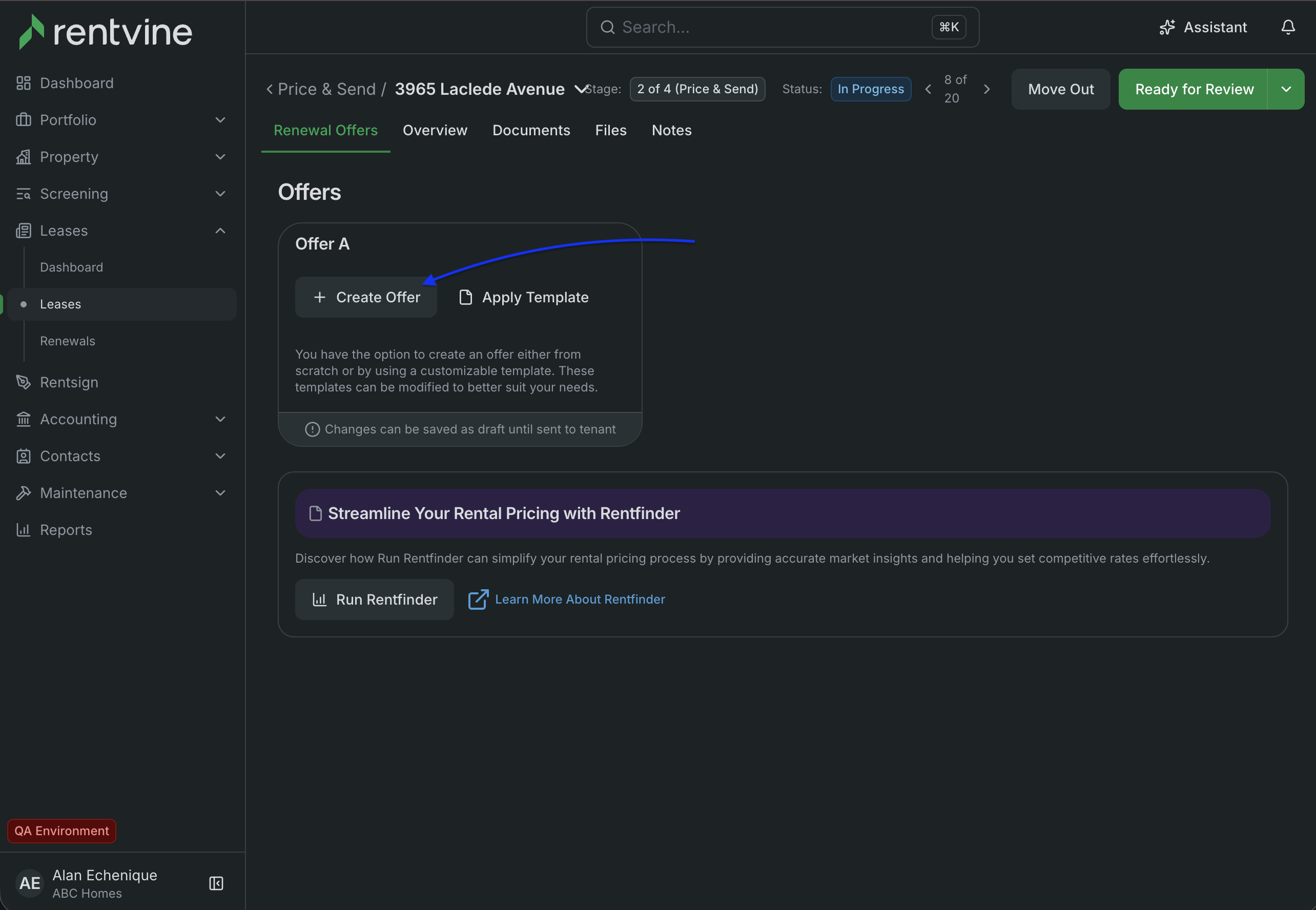
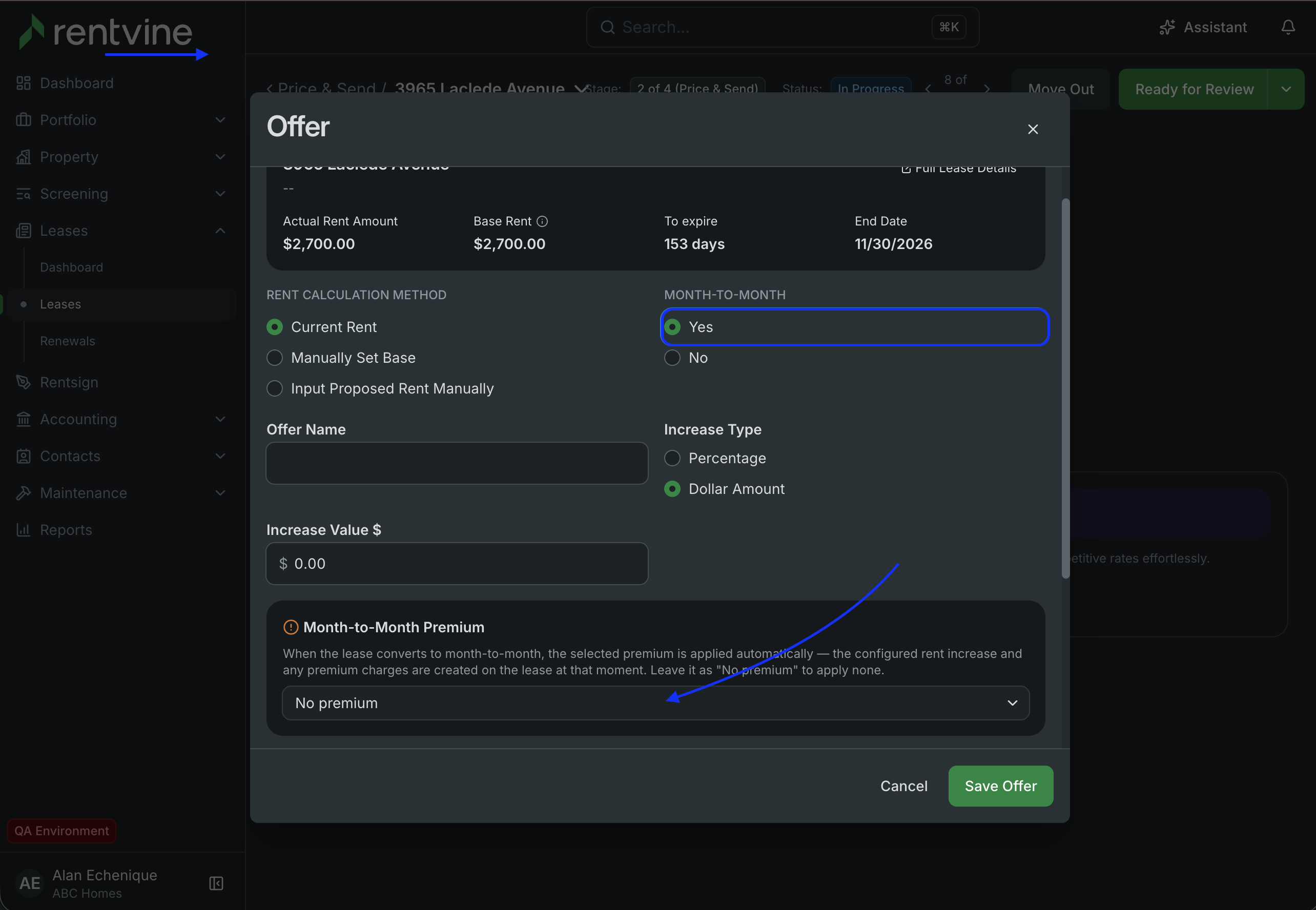
- Optionally select a Month-to-Month Premium to apply at conversion. The offer breakdown will show you the rent increase, new recurring charges, and any one-time charges before you finalize.
- Proceed through the renewal stages as normal. The premium charges will be applied when the lease converts at the end of the current term. Any one-time charges will post at that point as well.
Premium confirmation modal
-
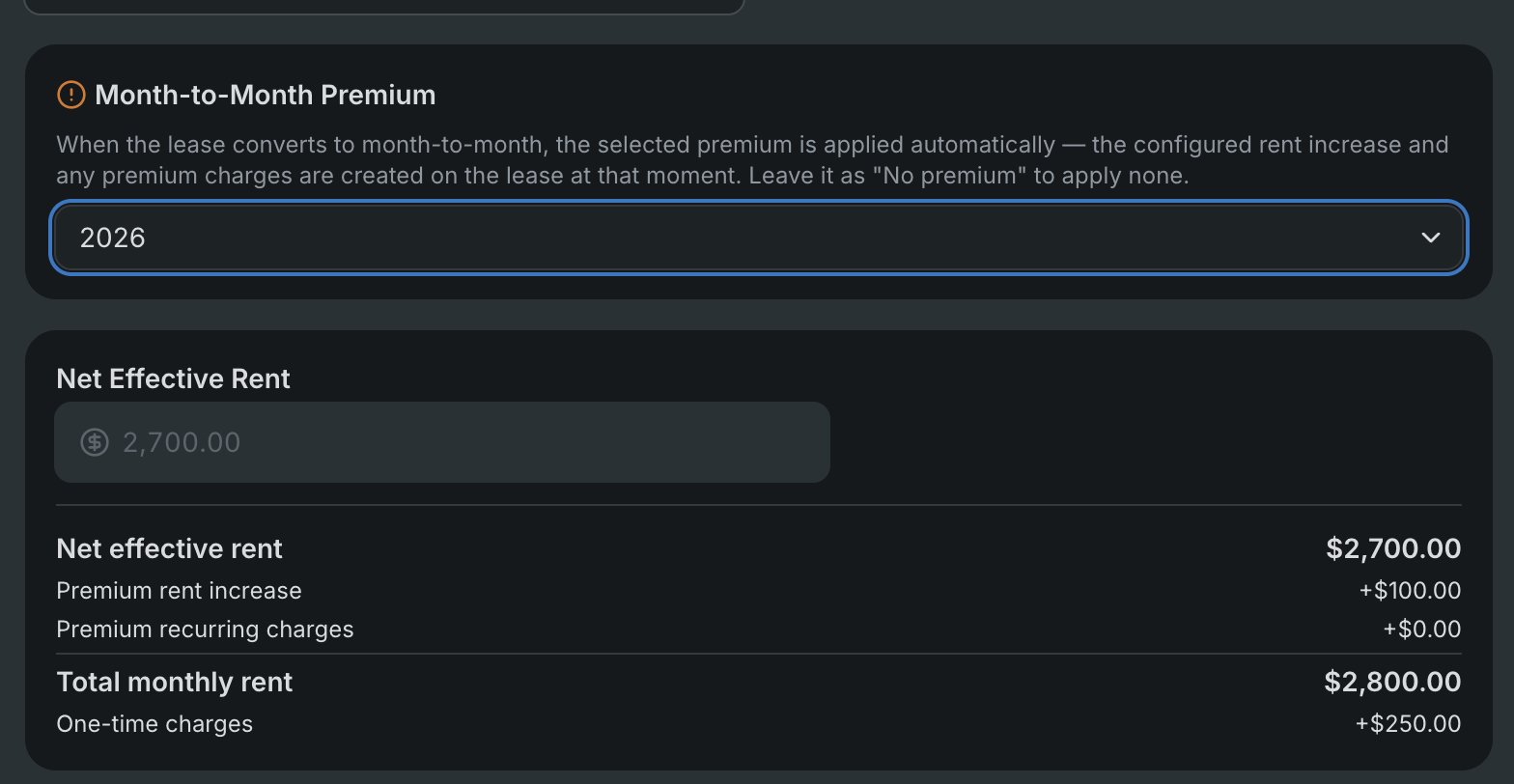
When applying or updating a premium from the Renewals view, a modal displays a New Breakdown summarizing the charges, the updated monthly total, the effective date, and the dollar and percentage change. Review and click Save to apply the changes and notify the tenant.
What tenants see
-
When a lease converts to month-to-month, Rentvine automatically notifies the tenant in two places:
-
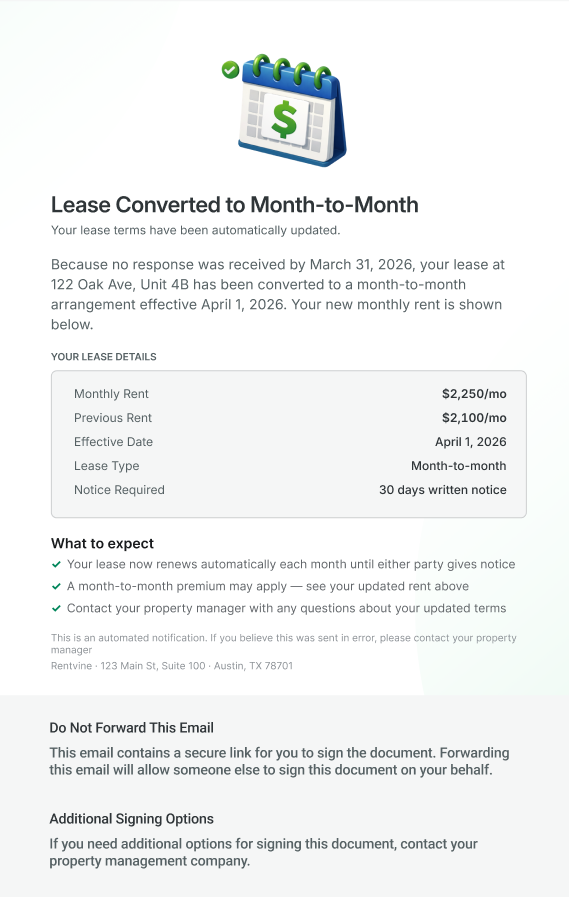
Email notification The tenant receives an email titled "Lease Converted to Month-to-Month" that explains their lease has converted, shows their updated monthly rent, the effective date, and key details including the notice period required to vacate.
-
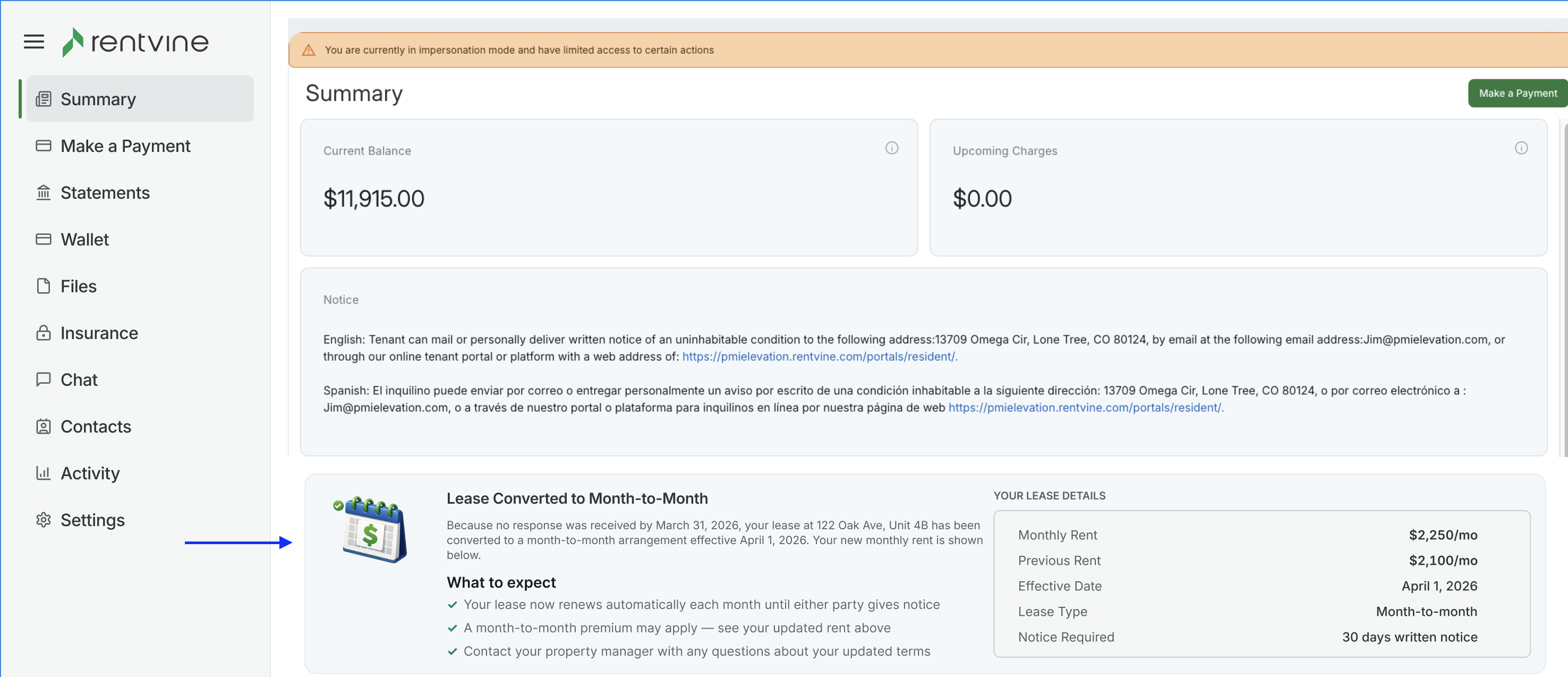
Tenant portal A card appears in the tenant portal with the same information — the conversion date, new rent amount, lease type, and what to expect going forward (automatic monthly renewals, any applicable premium, and how to reach their property manager).
Frequently asked questions
-
What's the difference between a Recurring Premium Charge and a One-Time Charge?
A recurring charge is billed every period for as long as the lease stays month-to-month. A one-time charge is applied only once, at the moment the lease first converts to month-to-month. -
What does the Rent Increase do, and how is it different from Recurring Premium Charges?
The Rent Increase modifies the base rent on the lease at conversion, it adjusts the existing recurring charges already marked as rent. Recurring Premium Charges are additional charge line items added on top of rent. You can use one, the other, or both. -
Can I use the same premium on multiple leases?
Yes, Premiums are reusable. Create a premium once and apply it to any number of leases, or set it as a property default so it applies automatically. -
What happens if I don't set a default premium on a property?
No premium is applied automatically at the property level. You can still select a premium on individual leases when creating them, or apply one later from the Renewals pipeline. -
Can I change the premium on a lease that's already month-to-month?
Yes. Go to Leases → Renewals → Month-to-month, find the lease, and use the Actions menu to update the premium. The confirmation modal will show you the billing impact before you confirm. -
Can a month-to-month lease go back to a fixed term?
Yes, From the Month-to-month tab in Lease Renewals, use the Actions menu to convert the lease to a fixed-term agreement. -
What's the difference between deactivating and deleting a premium?
Deactivating a premium makes it inactive and removes it from selection dropdowns, it's no longer usable on new leases, but its history is preserved.
Deleting a premium removes it entirely. Use deactivation if you think you may need the premium again or want to retain its audit trail.