Notes and Alerts in the Mobile App
The Rentvine mobile app now supports Notes and Alerts, giving property managers quick access to important lease information while on the go.
Notes allow users to view, search, create, and edit lease-related notes directly from the Lease Details screen. Notes can include attachments, such as photos and PDFs to help teams collaborate more effectively.
Alerts automatically appear when opening a lease, ensuring important information is seen before proceeding. This helps keep teams informed of critical details that may require attention.
These features provide a more streamlined way to document, share, and access important lease information directly within the mobile app.
Notes
Creating a Note
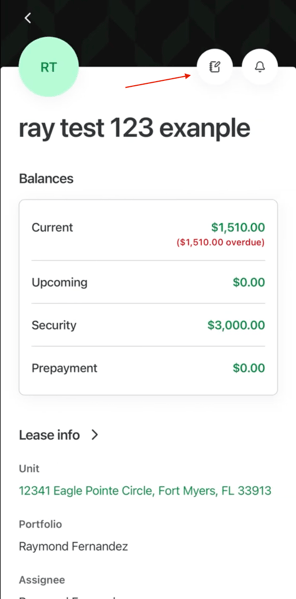
- To create a note, navigate to the desired lease and select the Notes icon in the top-right corner of the screen. From there, you can view existing notes or create a new one.
Sharing a Note
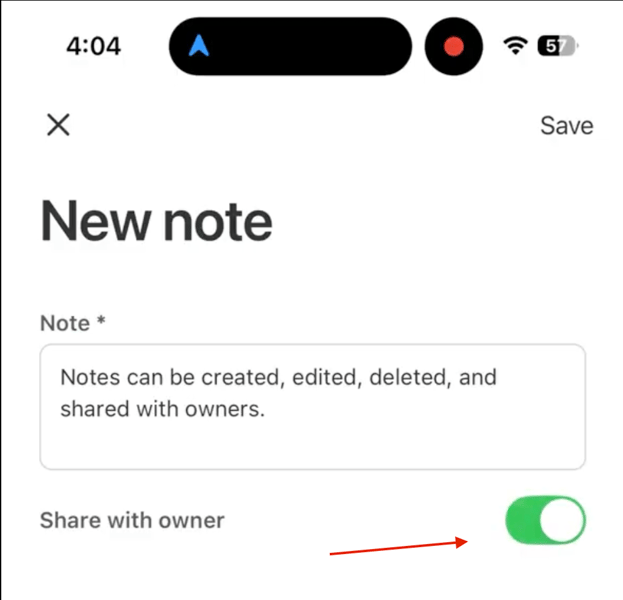
- Notes can be created, edited, deleted, and even shared with the owner. After the note has been created, you will see a toggle labeled "Share with owner." You will want to make sure this toggle is on.
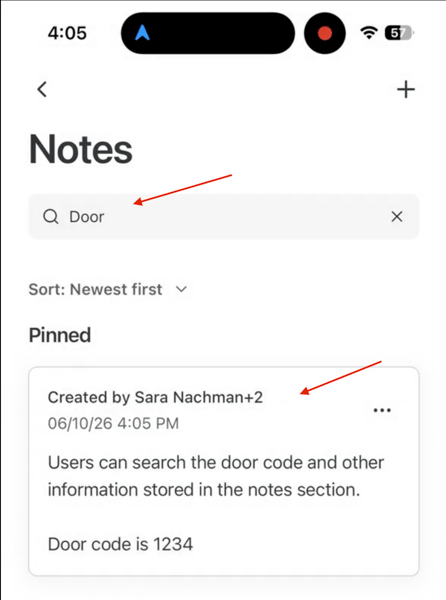
Search for a Note - Users can quickly locate notes by searching for keywords contained within the note content. For example, if a note contains the text "Door Code 1234," searching for "Door" will return that note, along with any other notes containing the word "Door."
Alerts
-
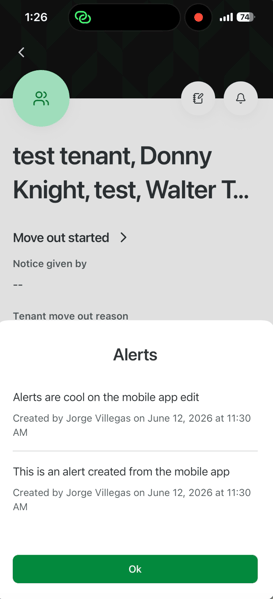
Alerts help ensure important information is immediately visible to users when viewing an entity within the Rentvine mobile app. This makes it easy to communicate critical details that require attention before taking action.
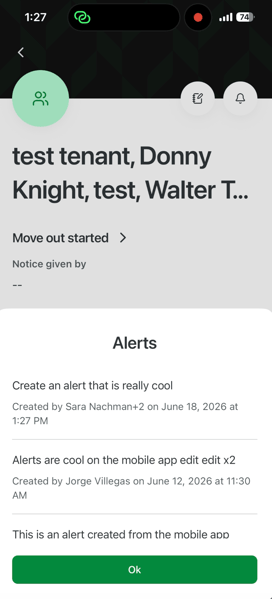
When navigating to an entity that contains an active alert, the alert will automatically display on your device when the page is opened. This helps ensure important information is seen right away.
Creating Alerts
-
To create a new alert:
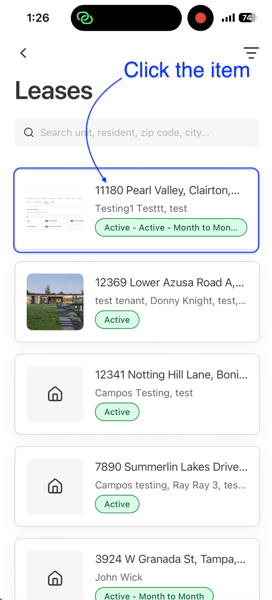
- Navigate to the desired entity.
- Select the Bell icon located in the top-right corner of the app.
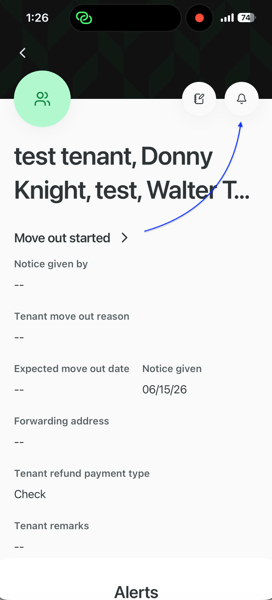
- This will open the Alerts screen, where you can view all existing alerts tied to that entity.
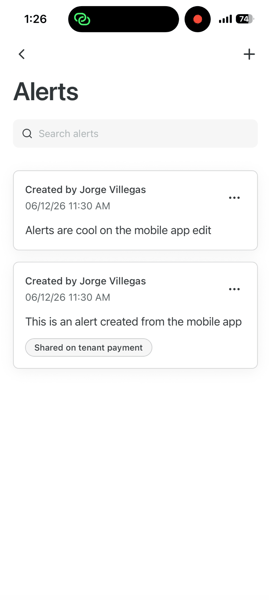
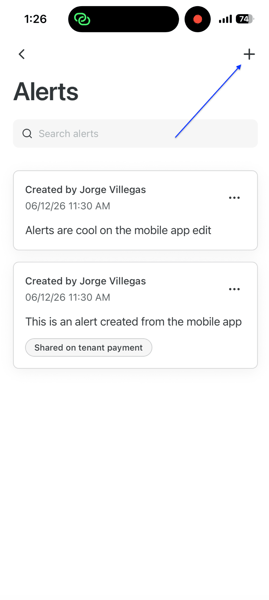
- Select the ”+” icon to create a new alert.
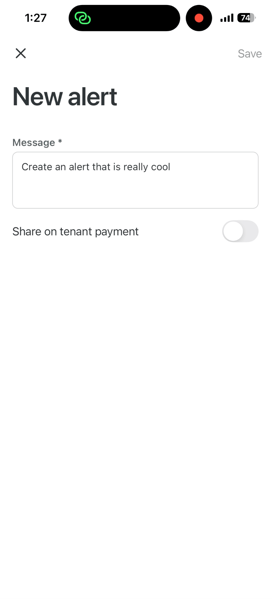
- Enter the alert details and select Save.
Once saved, the alert will appear alongside any other alerts associated with that entity.
Viewing and Editing Alerts
-
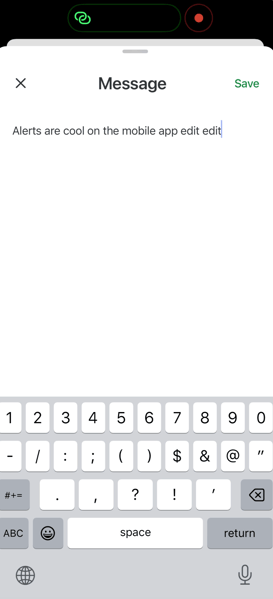
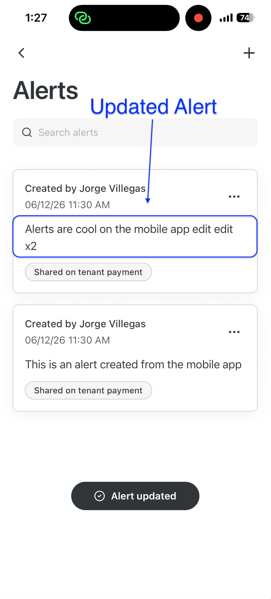
Existing alerts can be viewed and edited directly within the mobile app.
To edit an alert:
- Navigate to the Alerts screen.
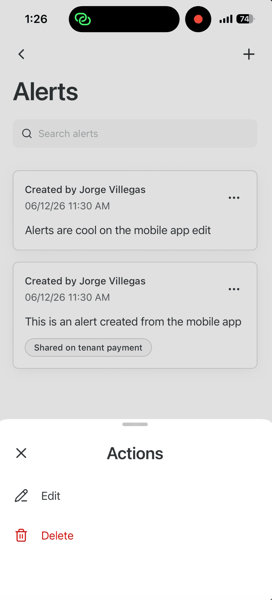
- Select the Ellipsis (…) next to the alert you would like to modify.
- Select Edit.
- Update the alert information as needed and select Save
-
Any changes made will update immediately and be visible to other users with access to the entity.