![rentvine-logo-white-rgb-1600px.png]](https://help.rentvine.com/hs-fs/hubfs/rentvine-logo-white-rgb-1600px.png?height=40&name=rentvine-logo-white-rgb-1600px.png)
Step 1 - Collect the owner contribution
(There are two ways to do this. Options are listed below.)
Skip Step 1 and go straight to Step 2 if you do not need a contribution from the owner.
- Option #1 - Owner Contribution through the Owner Portal (ACH or CC payment through the Owner Portal)
The owner can sign into their owner portal and pay via eCheck or credit card (Note: the contribution will go to the operating trust bank account). You can Go to Step 2
- Owner Contribution Option #2 - CHECK/CASH/MONEY ORDER
Record a payment in Rentvine if the owner gives you a check/cash/money order
-
-
-
-
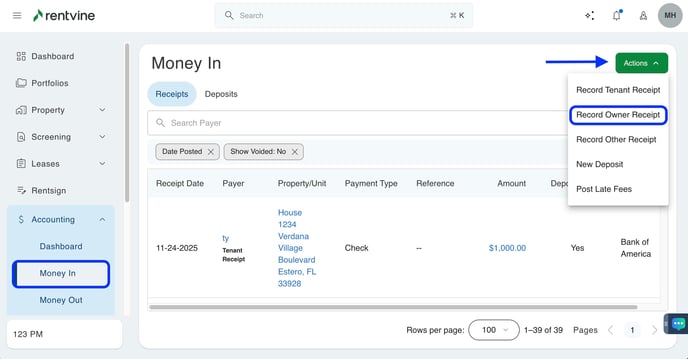
Click on Accounting on the left side
- Click on Money In from the drop down
- Click on the green Actions button on the right,
- Select Record Owner Receipt
-
-
-
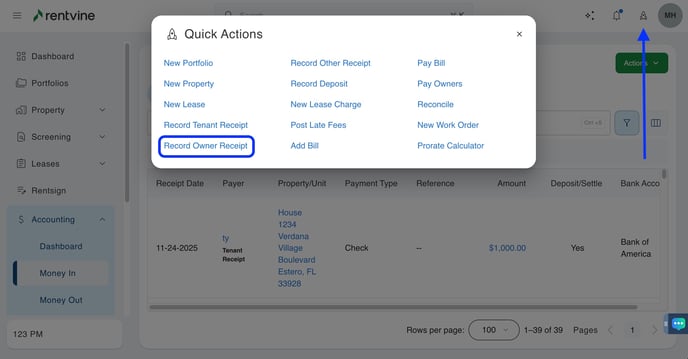
You can also use the Quick Actions Menu at the top right of the screen --> Click on Record Owner Receipt
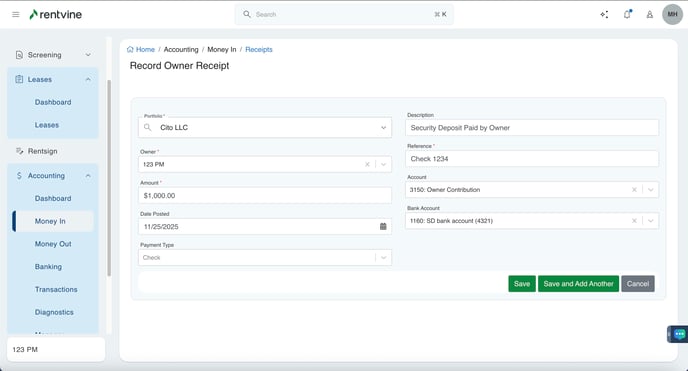
In the Record Owner Receipt screen, complete the fields below
-
-
-
- Select the Portfolio
- Select the Owner
- Enter in the Amount of the security deposit/owner contribution
- Enter in the Date Posted
- Select the Payment Type
- Enter in the Description
- Enter in the Reference
- The Account will default to your default account for an owner contribution, but you can change this if needed
- The Bank Account account will pre-fill to your default trust account, but you can update this if needed
- Click the green Save button
-
-
*Note: For option 2, remember to record this transaction as deposited in Rentvine
Step 2 - Create a security deposit lease charge on the lease
If the lease charge already exists please skip to step 3
- Search for the lease
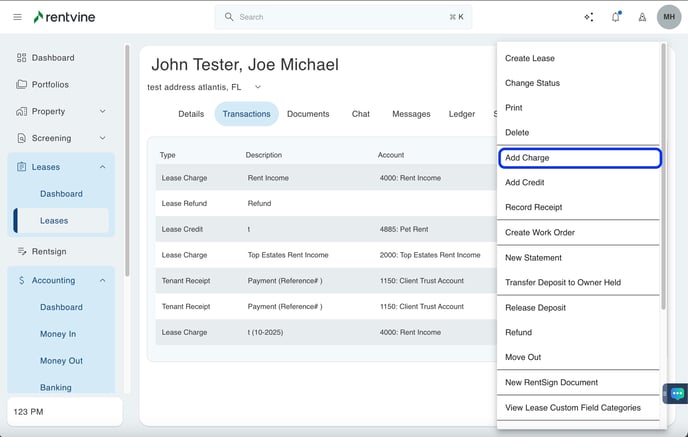
- In the lease view page, click on the green Actions button
- Select Add Charge from the drop down
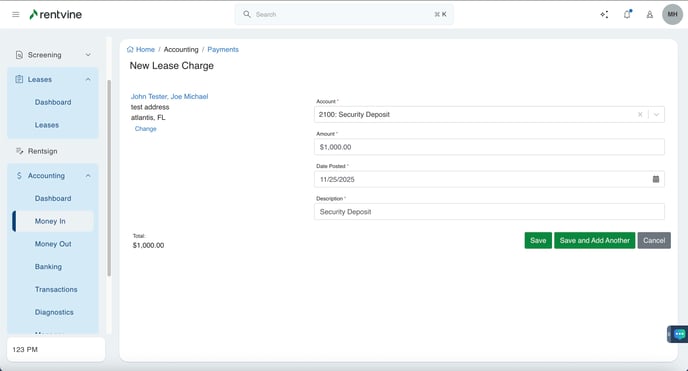
- In the New Lease Charge screen, complete the fields
- Select the Account for your security deposits
- Enter in the Amount of the security deposit
- The Date Posted will pre-fill, but you can change this if needed
- The Description will pre-fill to the name of the account, but you can change this if needed
- Click the green Save button
Step 3 - Record a credit on the lease and apply it to the security deposit lease charge
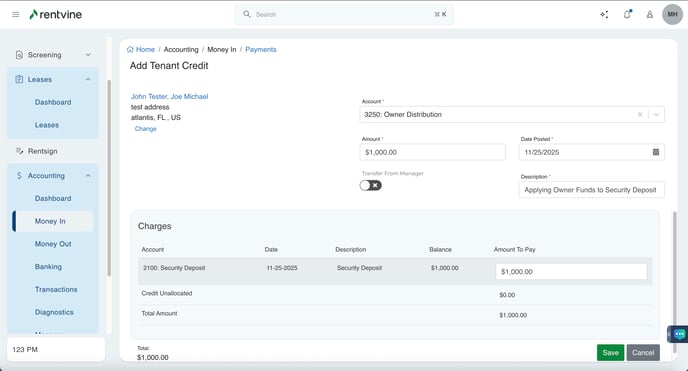
A credit is applied to the lease to show that the owner is paying the security deposit and to show a tenant credit as well.
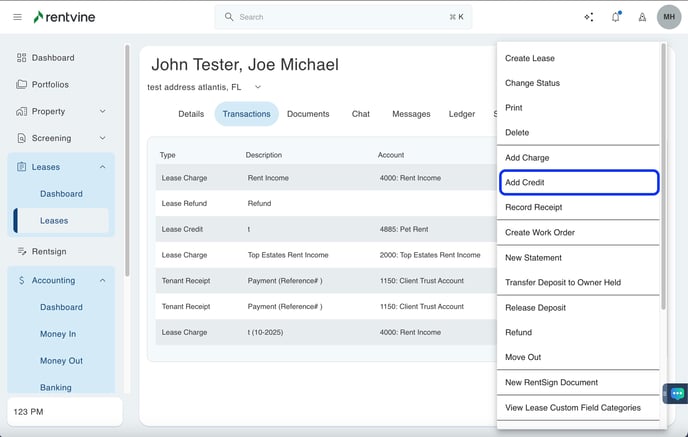
- In the lease, click on the green Actions button
- Select Add Credit from the drop down
- In the Add Tenant Credit page, complete the fields to record the credit
- Top Section - Details
-
-
- Account - Choose your Owner Distribution chart of account
- Amount - Enter the amount to be credited
- Date Posted - will pre-fill, but you can adjust this if needed
- Description - Enter text to describe the transaction
- Bottom Section - Charges
- Apply the credit to the lease security deposit charge that was recently created
- Click the green Save button
-
Step 4 - Record a bank transfer (if applicable)
You only need to perform this step if you hold security deposits in a different bank account and you have transferred the owner's contribution from the Operating Trust bank account to the Escrow/Security Deposit Trust bank account in real life.
- From the left navigation menu click on Accounting then click on Banking.
- Click on the green Actions button and select New Bank Transfer from the dropdown menu.
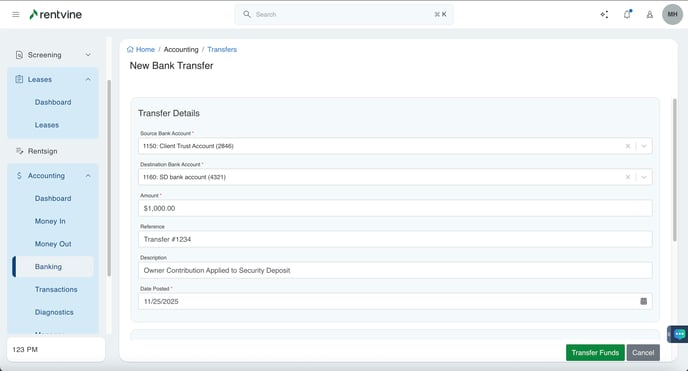
- In the New Bank Transfer form, fill out the fields to record the bank transfer.
- Top Section - Details
- Source Bank Account - Select the appropriate source bank account.
- Destination Bank Account - Select the appropriate destination bank account.
- Amount - Enter the amount that was transferred.
- Reference - Enter text. i.e., transfer id 234.
- Description - Enter text to describe this transfer.
- Date Posted - will pre-fill, but you can adjust this if needed.
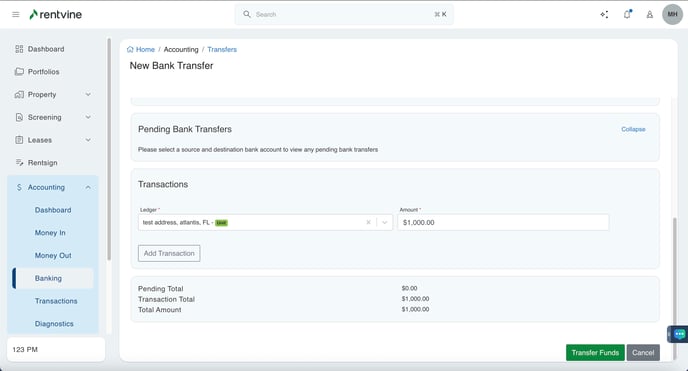
- Bottom Section - Transactions
- Ledger - Select the unit that the lease is linked to.
- Amount - Enter the amount.
- Click Transfer Funds at the bottom of the form.
- Top Section - Details