
An Internal Technician has their own separate portal, just like an ordinary vendor portal would have.
This is a separate portal for your in-house team to manage their assigned work orders.
Creating an Internal Technician
Viewing Work Orders
Selecting Labor and Materials
Settings
Creating an Internal Technician
-
To do this, navigate to the Maintenance Tab > and select Technicians
If this is your first time, you will see a window like this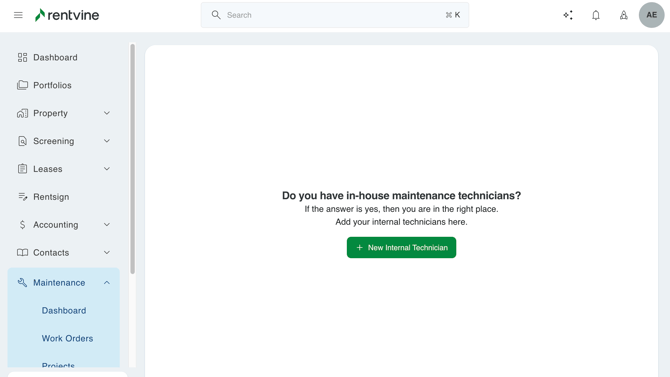
- You'll need to add the Internal Technician's name, as this is required.
You can also add additional information, such as:- Phone
- Address
- Attachments
- Once created, you'll see the new technician contact made
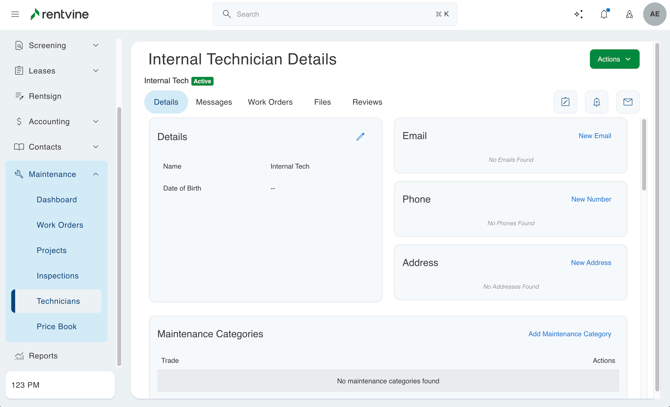
The Technician tab will show all Internal Technicians you have created in your account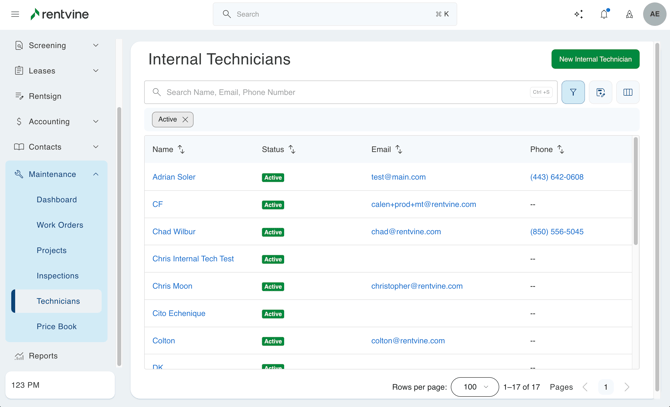
-
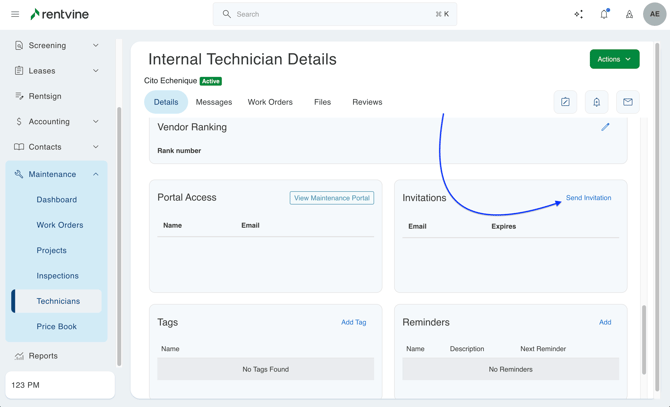
Once the contact is created, you can send the technician a portal invite as normal in the Invitations section
Viewing Work Orders
-
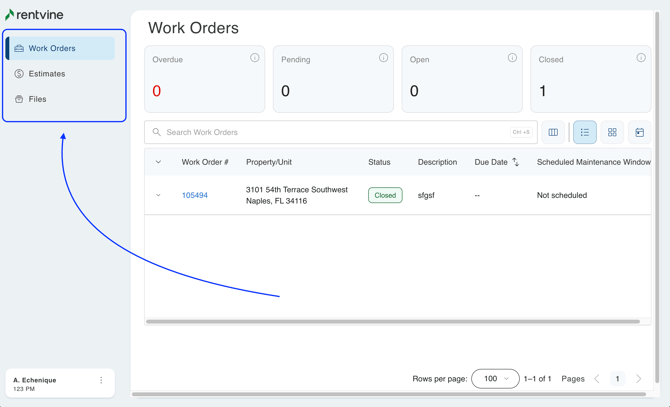
Just as a vendor portal, the Internal Technician portal shows the work orders assigned to them, the estimates submitted to them, and the files shared with the Internal Technician contact specifically.
The user can select any of the preset filters to find work orders that fall under the specific criteria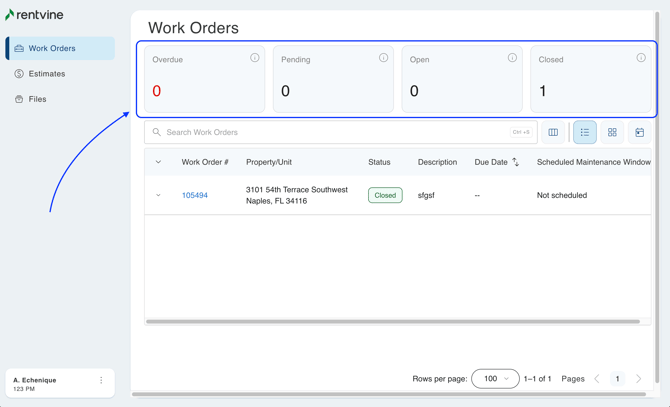
-
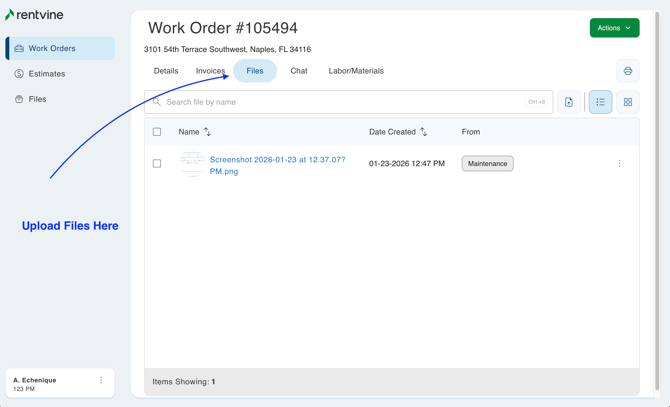
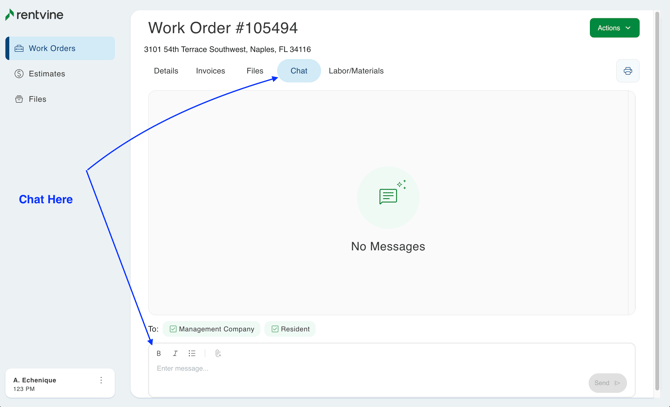
Once the user clicks on the Work Order assigned to them, it will navigate them to the work order details. Here, they will be able to schedule a date and time, upload files, send chats to the resident & the management company, and record the labor / materials cost
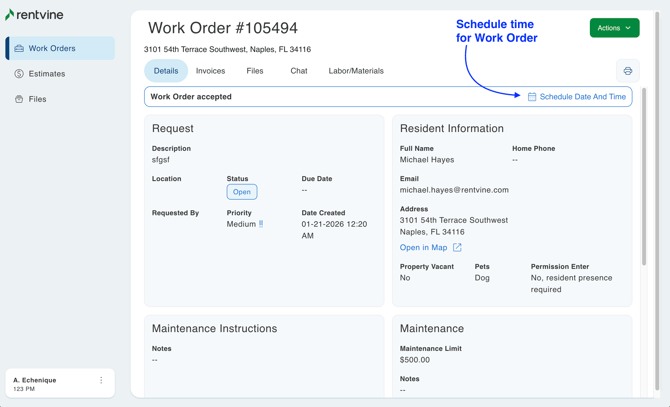
A property manager can also schedule a time and day for when an Internal Technician will show up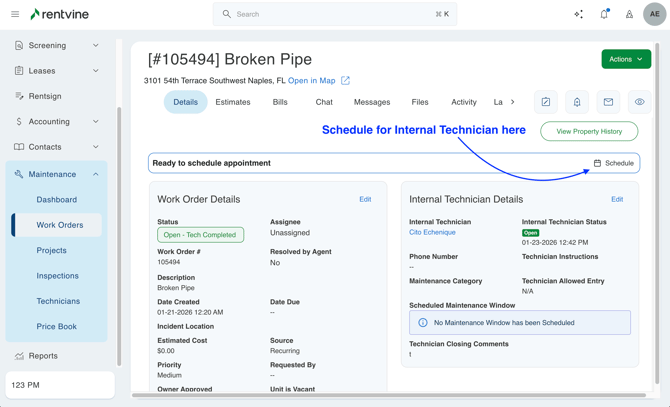
Selecting Labor and Materials
-
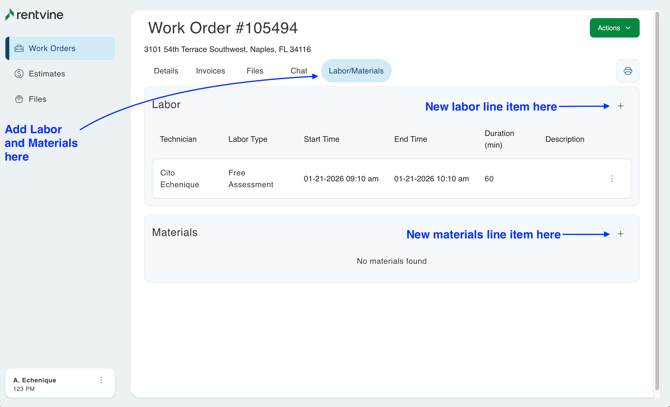
You can have multiple Labor line items in the occurrence, the Work Order takes multiple days, or is broken up into separate hours of the day.
Labor Types are created and determined by the property manager, the Internal Technician cannot create a Labor Type on their end.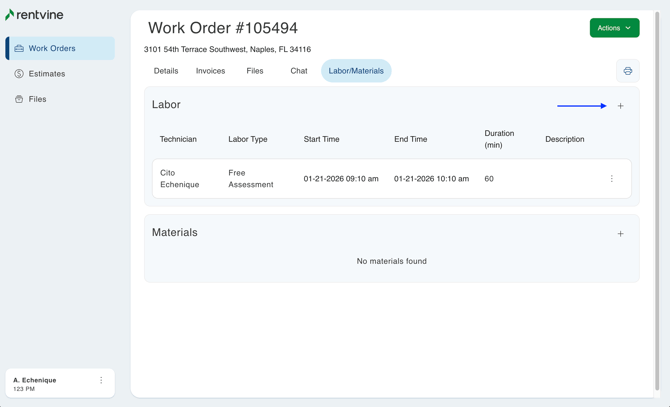
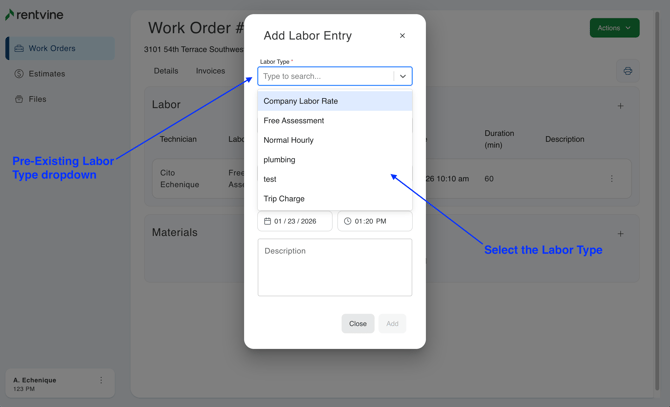
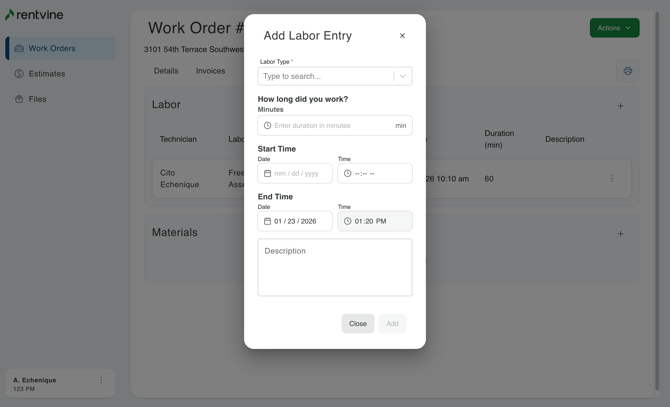
Once all the information has been entered, you will see a new line item for Labor. - For Materials, both the property manager and the Internal Technician can create materials and set a price for them.
The Internal Technician can select from the dropdown for existing Materials listed in the system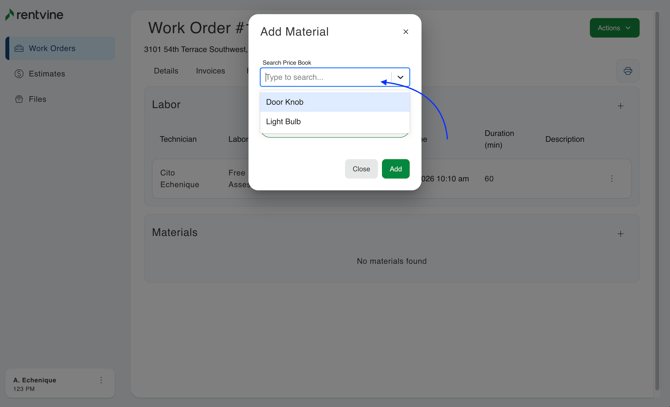
- If you do want to create a new Material, click Add New Material or Upload Receipt, you will need to enter the following details when manually adding a material:
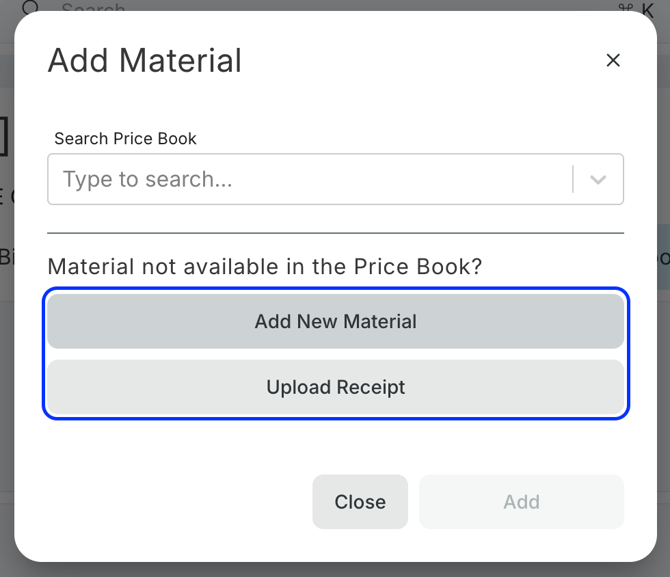
- Material Name (required)
- Description
- Quantity
- Purchase Price
- UPC Code
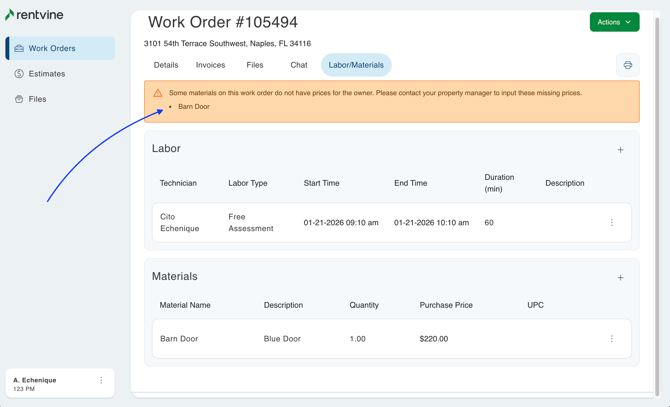
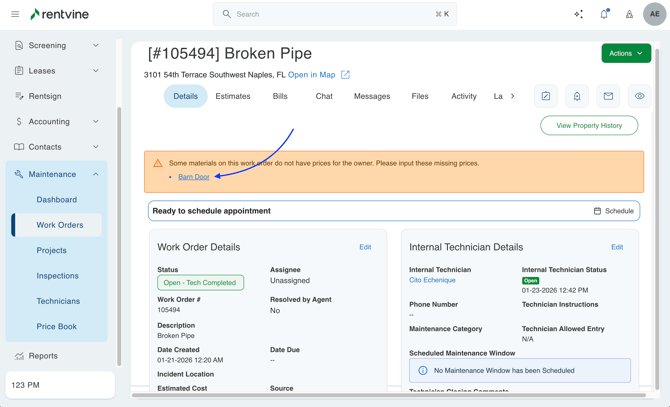
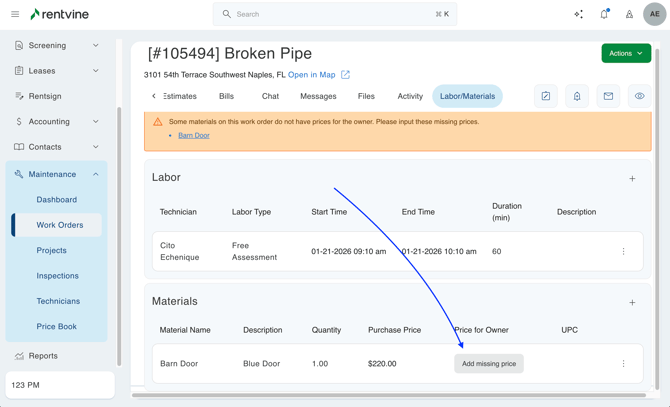
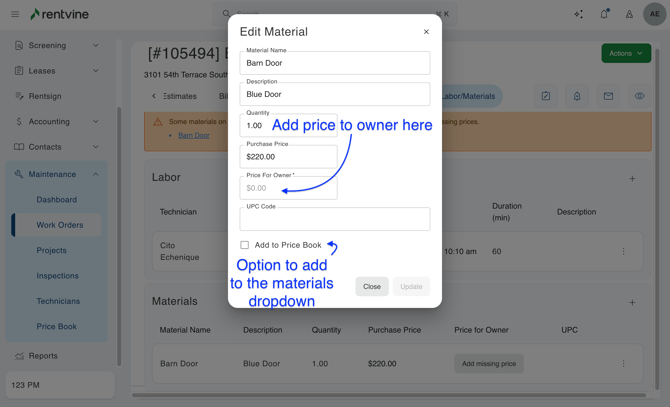
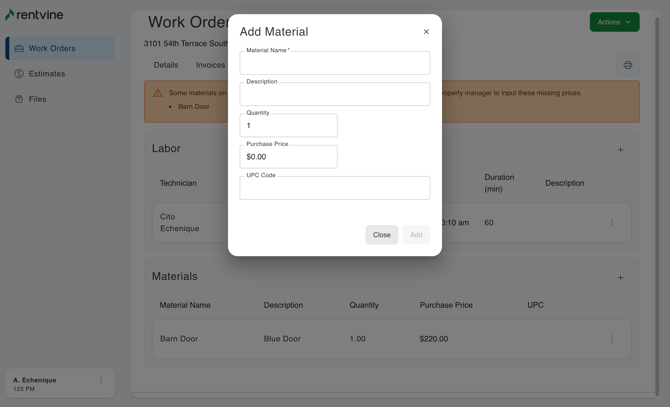 Once created, you'll notice the new material is added, but the Property Manager still needs to add a price for the owner. This can only be done by the property manager
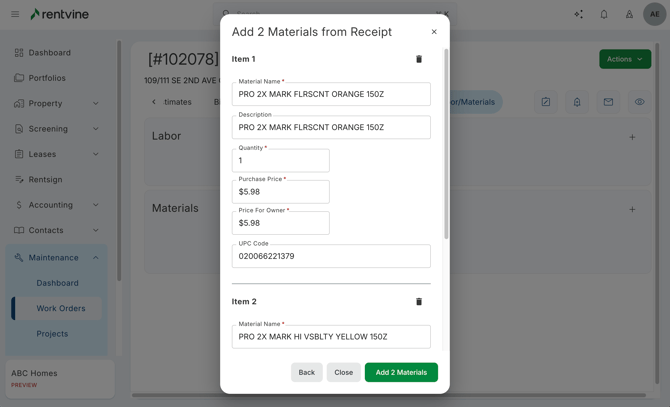
If you upload a receipt, the system will attempt to scan the line items on the receipt and add the information into the system for you. Once completed, the system will add all the information to the receipt. Please ensure all information is correct first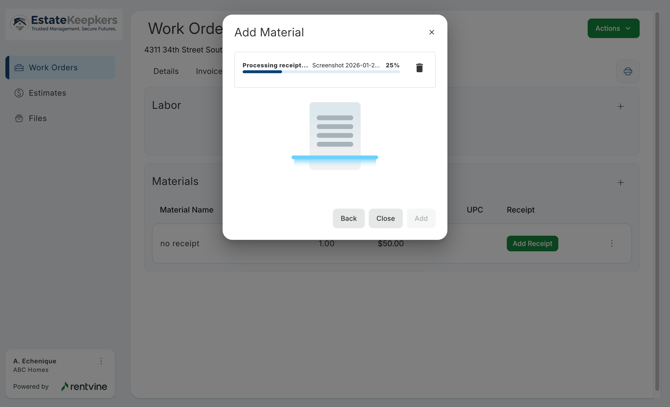
- On the property manager's side of the work order, they will see a notification informing them of this that they can click on and will redirect them to the exact page to add the needed information.
Settings
-
In the Maintenance Settings, there will be a section specifically for Internal Maintenance, and the added settings for the Work Orders that fall under this category.
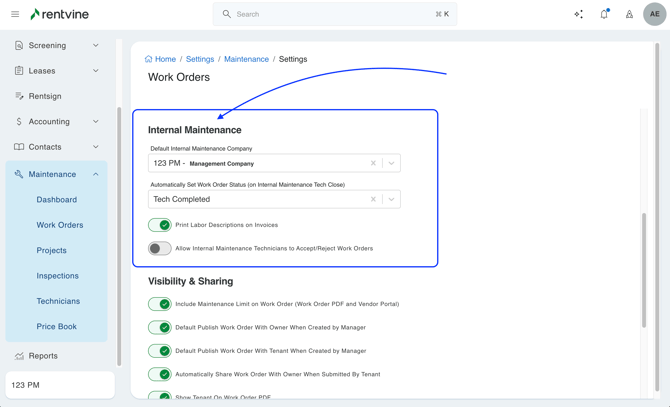
Default Internal Technician - This setting allows you to select the default payee on invoices for work completed by an internal technician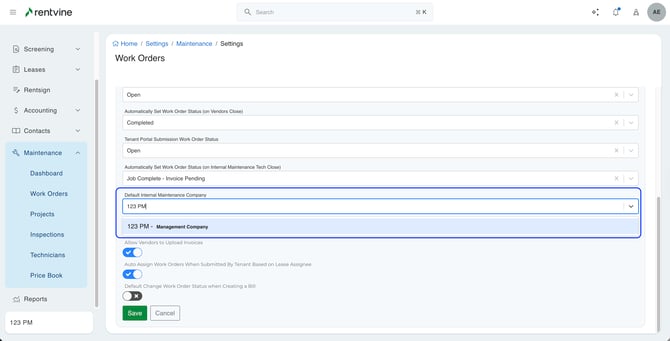
-
To use a separate entity:
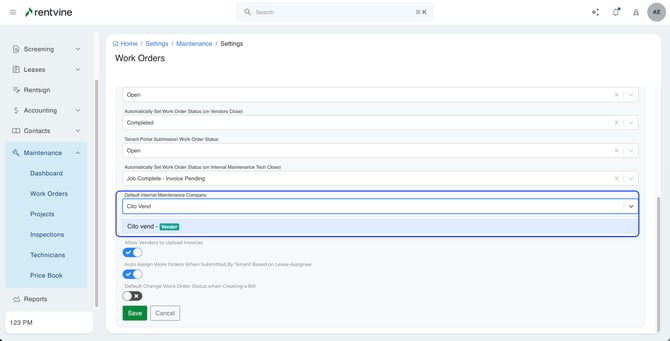
- Create a new vendor for your internal maintenance company.
- Add its bank account information.
- Select it as the DIMC in Rentvine settings.
Automatically Set Work Order Status (on Internal Maintenance Tech Close) - This is the default Work Order Status when the Internal Technician completes it on their end. We highly recommend you select a primary OPEN work order status, since the work order must be set to open to create an invoice.
No markup on material pricing (use purchase price)- Tells the system if you are to markup material pricing and utilize the purchase price entered/scanned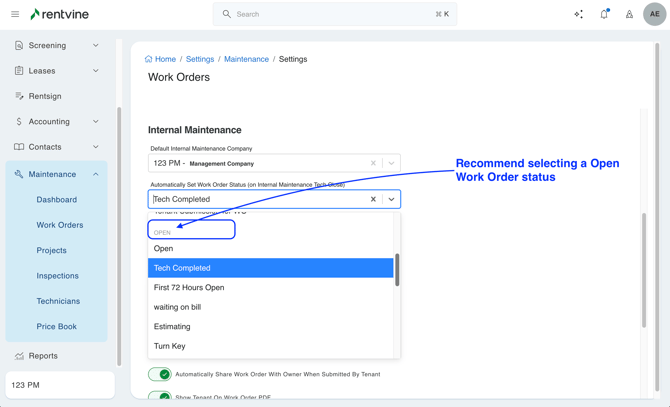
Print Labor Descriptions on Invoices - Allow the descriptions of the labor entered to show on the Invoice generated for the Work Order
Allow Internal Maintenance Technicians to Accept/Reject Work Orders - Allow the Internal Technicians to have the option to either Accept or Reject a work order assigned to them -