![rentvine-logo-white-rgb-1600px.png]](https://help.rentvine.com/hs-fs/hubfs/rentvine-logo-white-rgb-1600px.png?height=40&name=rentvine-logo-white-rgb-1600px.png)
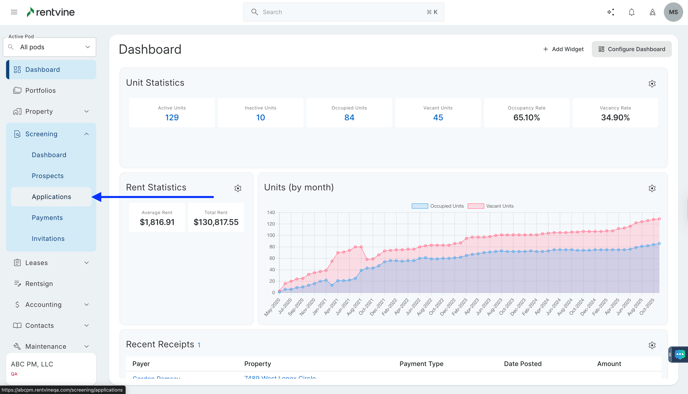
- From Dashboard
- Click Screening
- Then select Applications
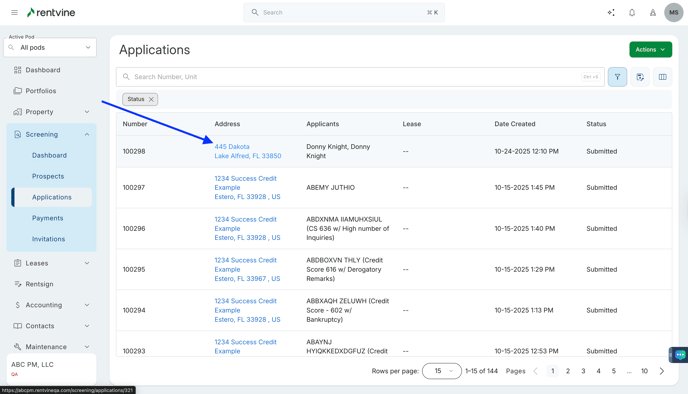
- Once on the Applications page, you will locate the application you would like to view and screen.
- Hover over and click on the Application Tab to be taken to the Application Details page
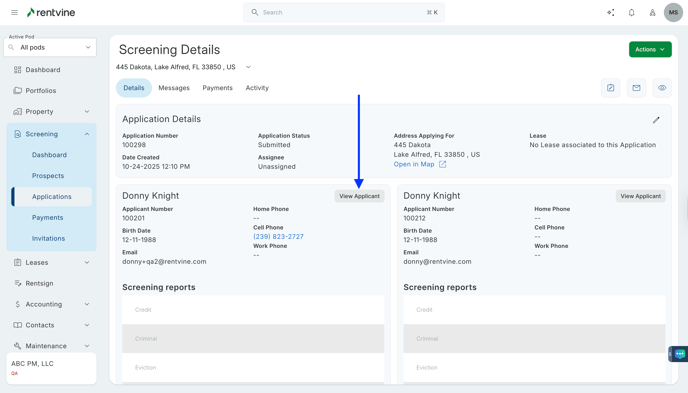
- On the Application Details page, you will locate the Applicants Tab
- Click View Applicant
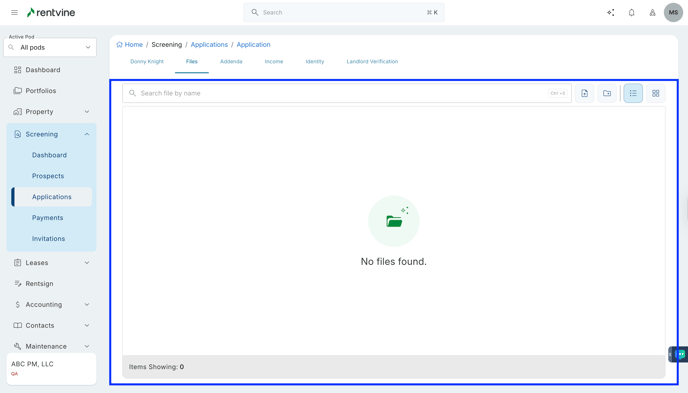
- On the Applicant's Application, you will locate the "Files" tab.
- Click Files

- Here you will be able to view all upload files or upload any additional files.
- You can create a New Folder within this documents section
- You can also drag and drop files below to upload within this area.