![rentvine-logo-white-rgb-1600px.png]](https://help.rentvine.com/hs-fs/hubfs/rentvine-logo-white-rgb-1600px.png?height=40&name=rentvine-logo-white-rgb-1600px.png)
- When viewing the Lease Info, you will see a field that reads Lease Status.
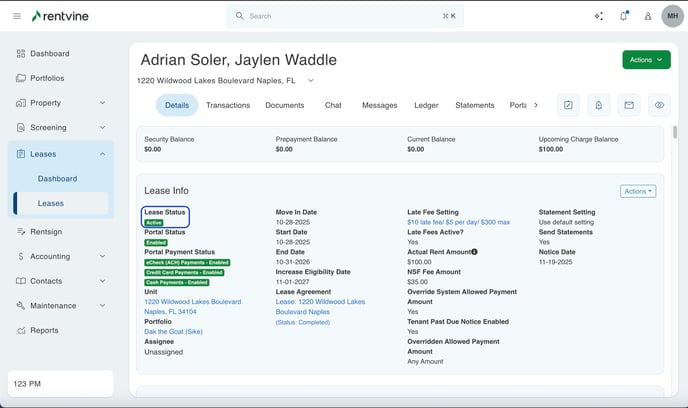
- To change the status, select Actions>Change Status.
.jpeg?width=688&height=409&name=Image%2011-25-25%20at%2012.12%20PM%20(1).jpeg)
- The last step is to select a new status from the drop-down and click "Save."
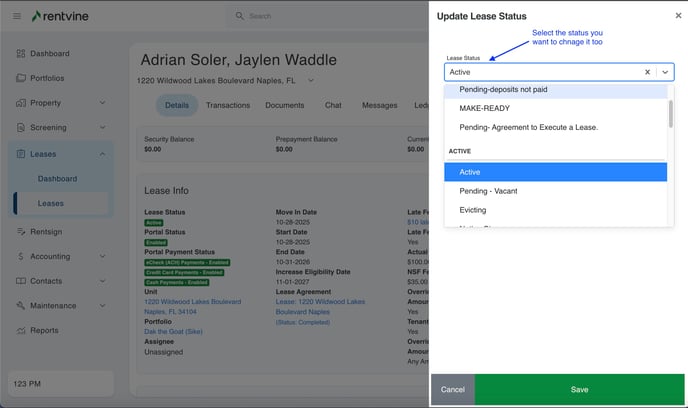
Please note that you can add more Lease Status options in your Global Settings.
- Select Settings on your Name Card on the top right of your screen:
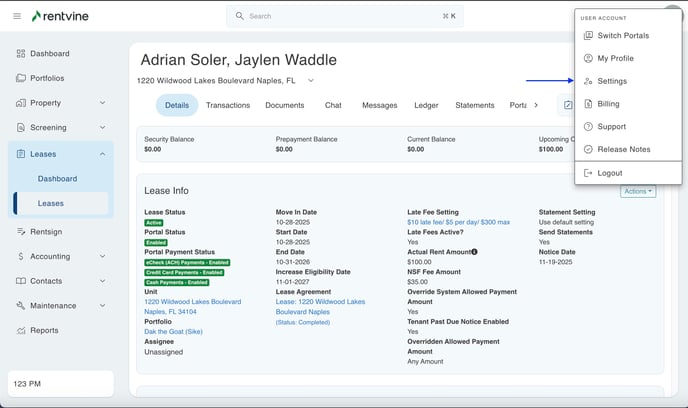
- Then, under the "Lease" options in your Global Settings, select Lease Statuses.
.jpeg?width=688&height=409&name=Image%2011-25-25%20at%2012.15%20PM%20(1).jpeg)
- When viewing your Lease Status Settings, you can select "Add Status."
.jpeg?width=688&height=79&name=Image%2011-25-25%20at%2012.15%20PM%20(2).jpeg)
- This will prompt you to add a Name and select a Primary Lease Status option.
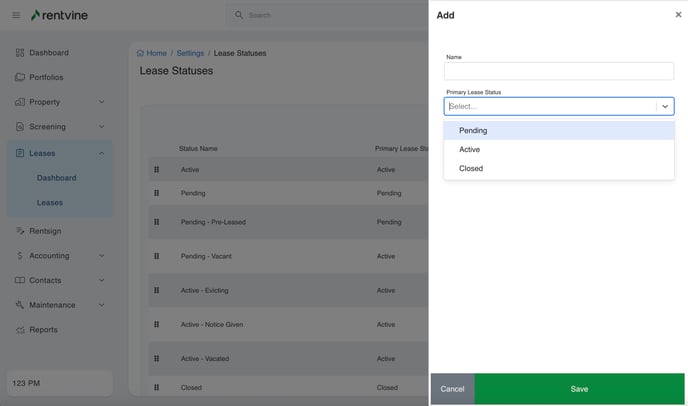
When selecting "Pending" and "Active" as a Primary Lease Status, two different toggles will appear under the Primary Lease Status drop-down menu. Please see below:
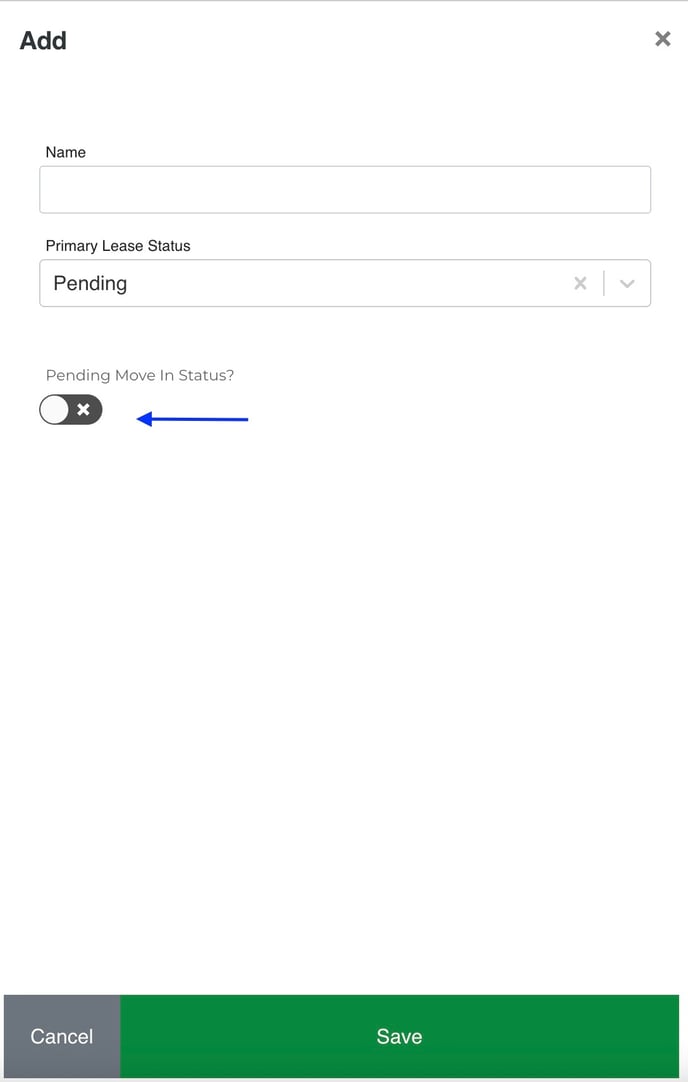
Pending Move In Status will mark the specific status as a Move In.
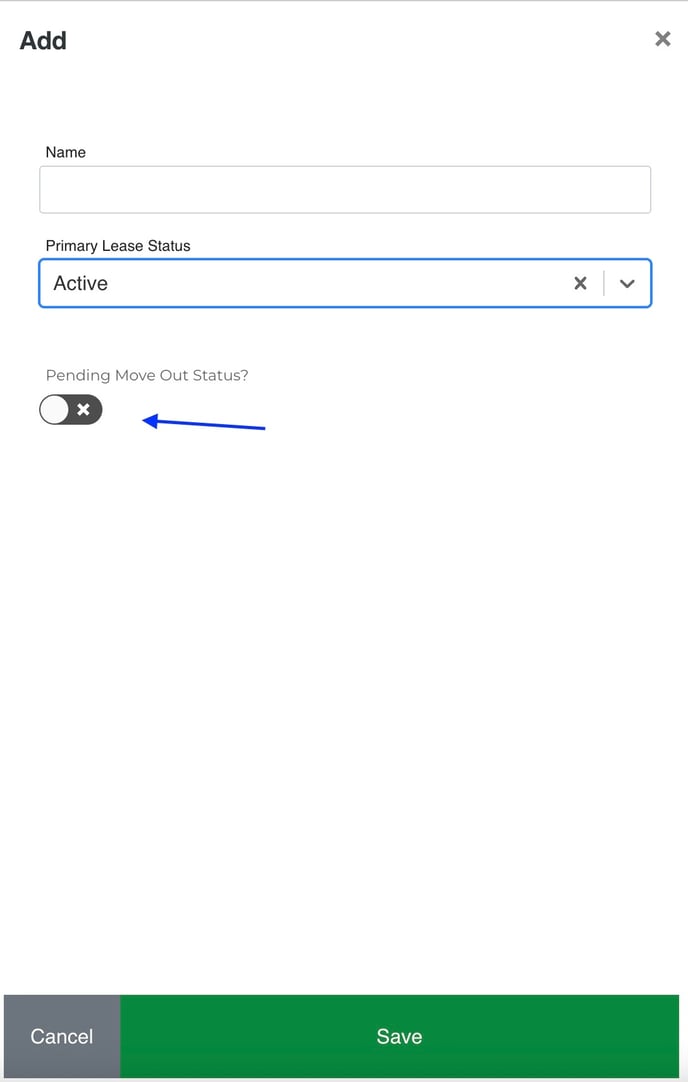
Pending Move Out Status will mark the specific status as a Move Out.