
-
The Lease Renewal flow in Rentvine is designed to make renewing leases easier and more organized. Instead of managing renewals across multiple areas of the system, everything is handled through a structured workflow that walks you through each step.
Using this process, you can:
-
Review leases that are nearing expiration
-
Create and send renewal offers to tenants
-
Generate documents for signature
-
Update lease terms and recurring charges once the renewal is complete
This feature also introduces a few new components, including:
-
A Lease Renewal system setting
-
Renewal Offer Templates
-
A RentSign template type specifically for renewals
-
A new Renewal workflow page
Lease Renewal Settings
-
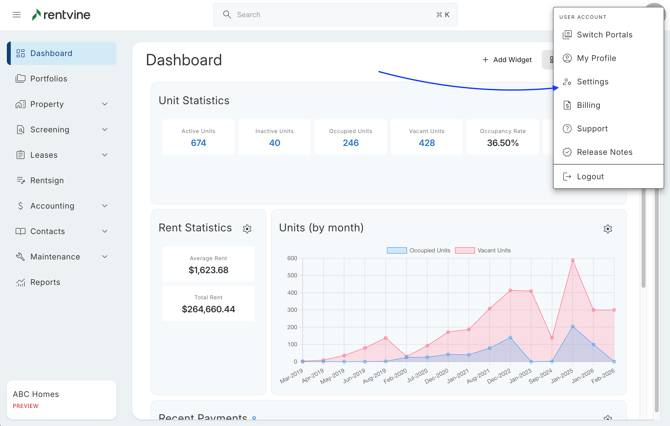
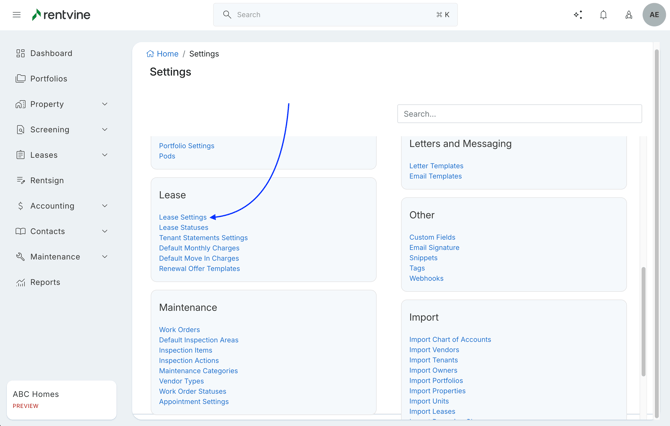
To configure when leases appear in the renewal workflow, go to Global Settings → Lease Settings
-
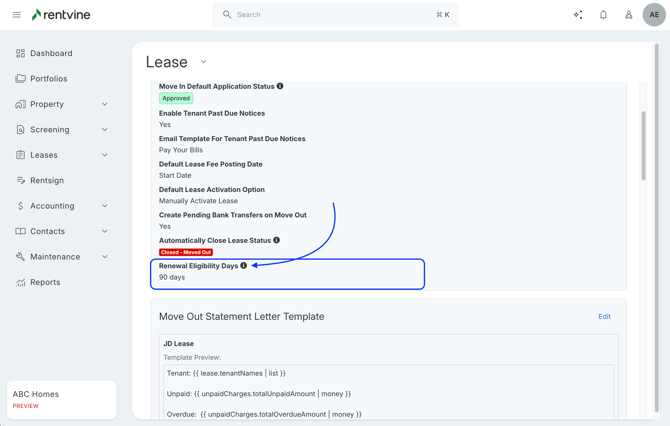
Here you will see the setting called Renewal Eligibility Days - This determines how many days before a lease ends it will appear in the Renewals Review tab.
For example, if you set this to 60 days, any lease ending within the next 60 days will appear in the renewal workflow; this relies on the End Date field on the lease itself.You can adjust this value to any number depending on how early your team prefers to start renewal conversations with tenants.
Lease Offer Template
-
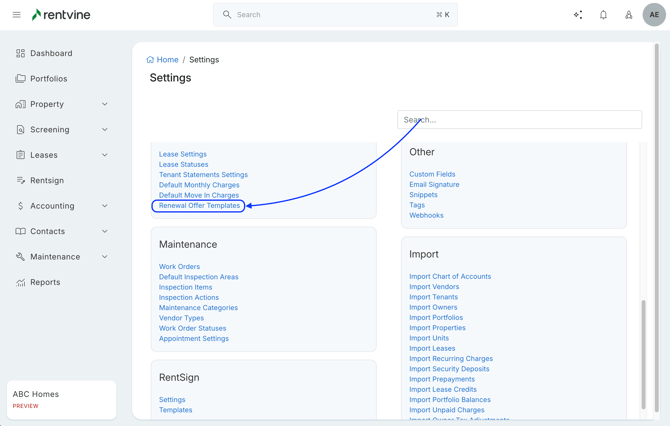
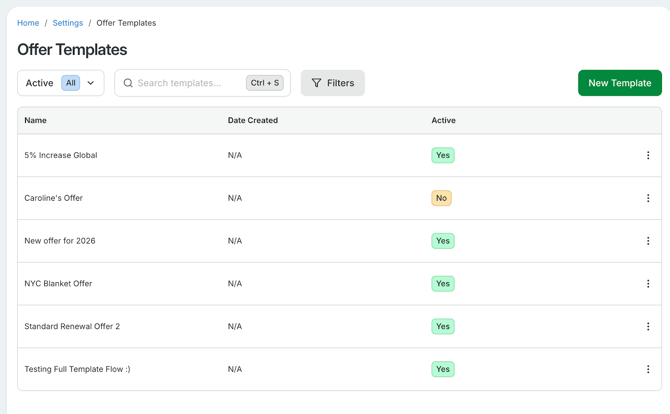
Inside Global Settings, you will also find the Renewal Offer Template section
-
This is where you can:
-
View existing templates
-
Create new offer templates
-
Standardize renewal offers across multiple leases
-
-
Offer templates help speed up the renewal process by automatically filling in common information, such as:
-
Rent adjustments
-
Lease terms
-
Offer descriptions
This is especially helpful if your team typically sends the same types of renewal offers.
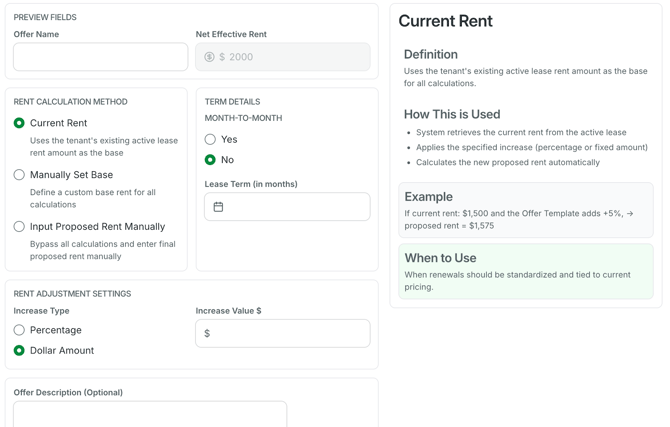
When editing a template, you’ll also see an example on the right side of the screen showing how the offer will appear to tenants.
-
Lease Renewal Flow
-
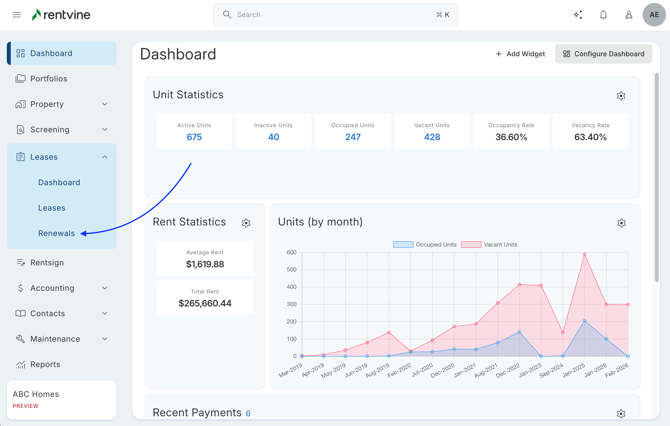
To access the renewal workflow: Go to the Lease tab → select Renewals.
-
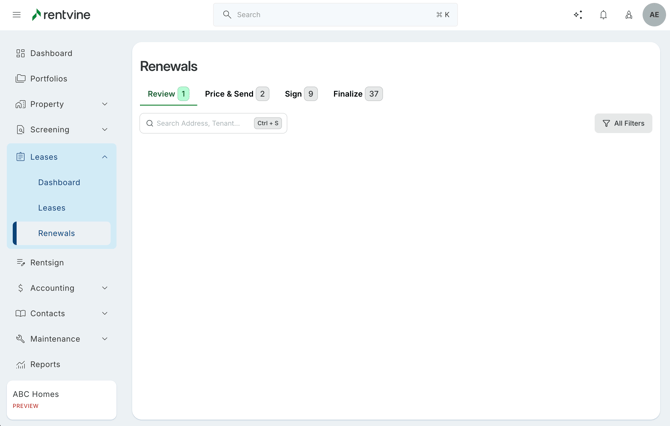
The renewal process is organized into four stages:
-
Review - Deciding if your team would like to renew the lease in question
-
Price & Send - Create Offers for the tenant to review and decide
-
Sign - Create documents to send to the tenant and other parties
-
Finalize - Finish updating the lease details and adjusting any charges needed
-
-
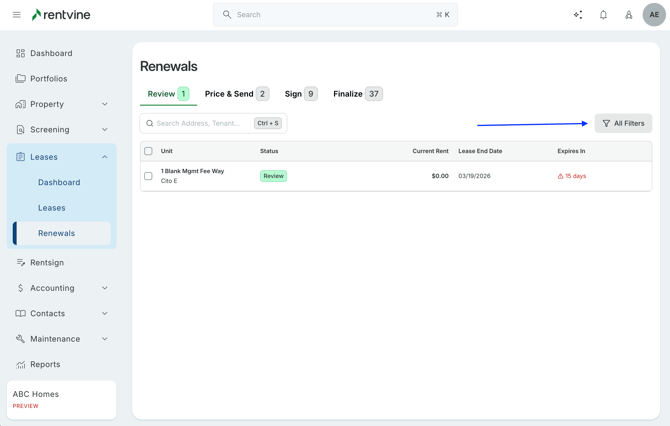
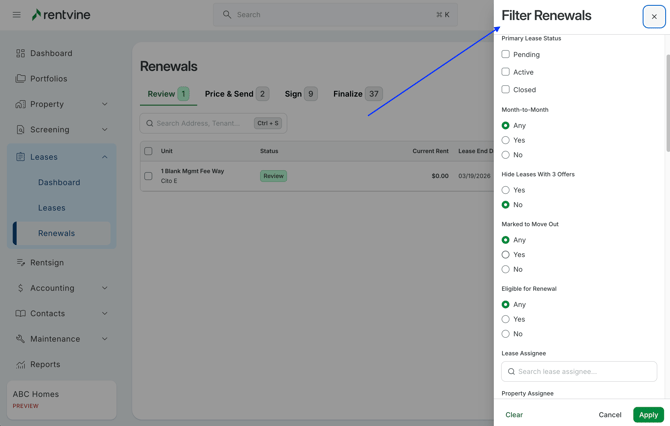
You can also use filters to quickly find specific leases within the workflow.
Review Stage
-
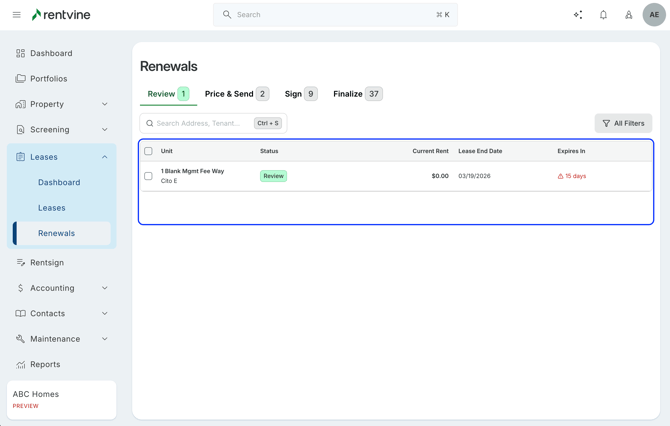
The Review stage shows leases that are approaching their end date based on the Renewal Eligibility Days setting.
-
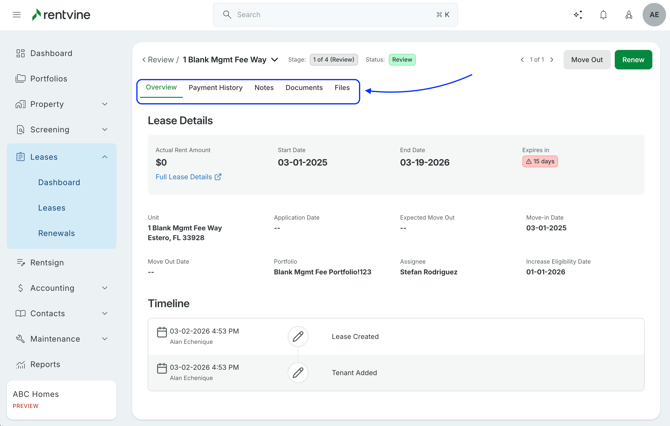
Clicking on a lease will show a full overview of the lease, including:
-
Lease details and timeline
-
Tenant payment history
-
Notes
-
RentSign documents
-
Attached files
-
-
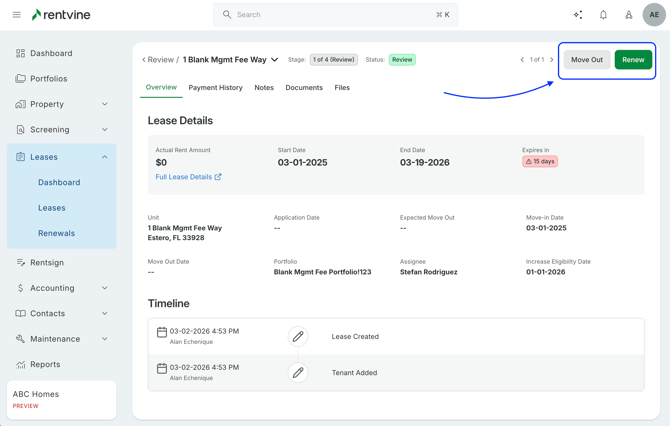
After reviewing the lease, you can choose to:
-
Continue with the Renewal process
-
Start the Move Out process
-
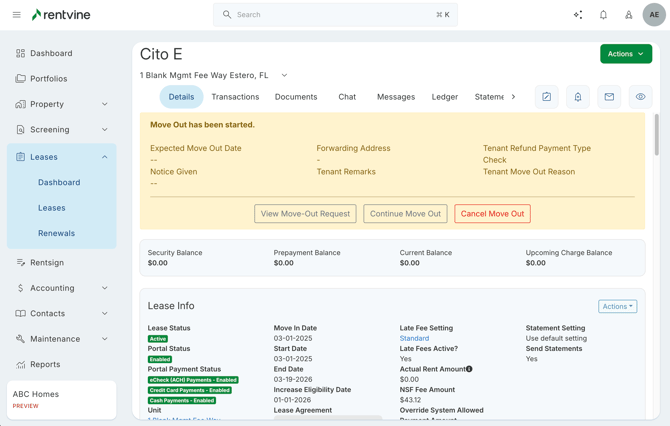
Selecting Move Out will start the move-out workflow, but you can always return later if needed.
-
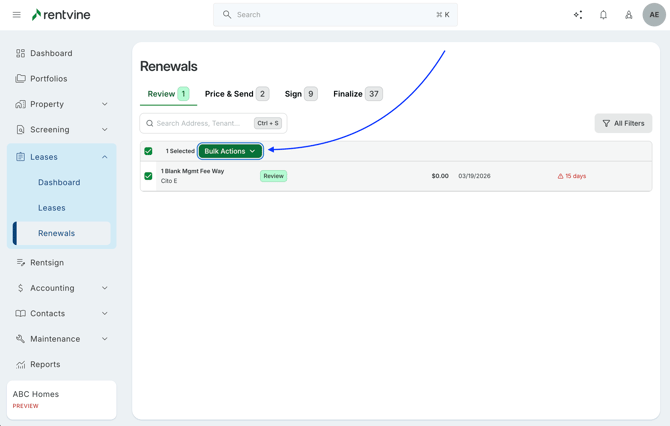
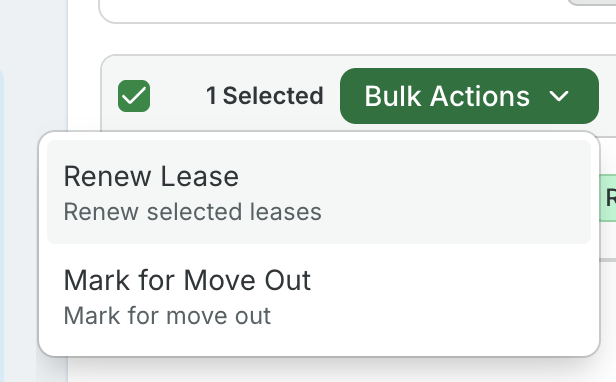
You can also perform bulk actions in this stage, such as:
-
Marking multiple leases for move-out
-
Moving multiple leases into the renewal process
-
Price & Send Stage
-
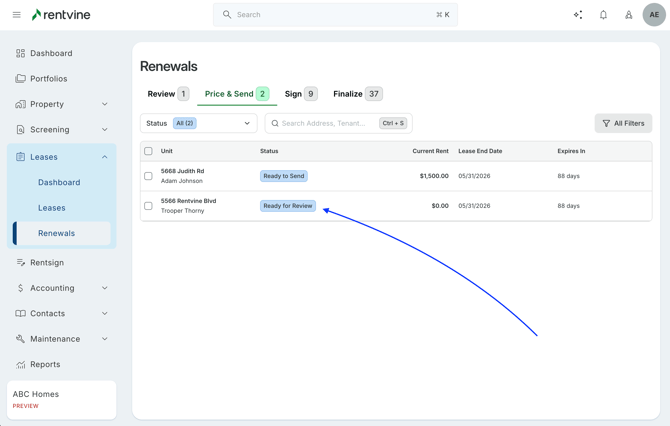
This stage shows leases that are moving through the renewal process but do not yet have offers created.
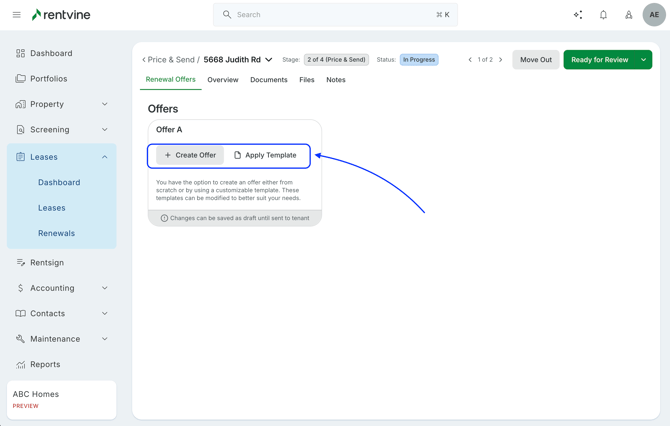
Selecting a lease opens the Offer Creation screen, where you can create renewal offers.
You can either:
-
Create an offer from scratch
-
Use an Offer Template
-
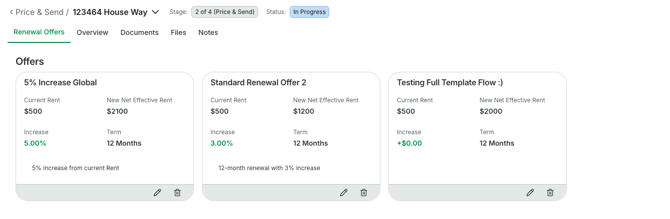
Each lease renewal can include up to three offers.
-
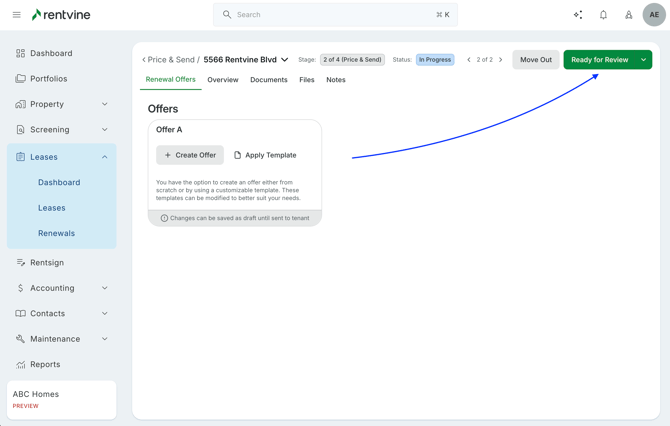
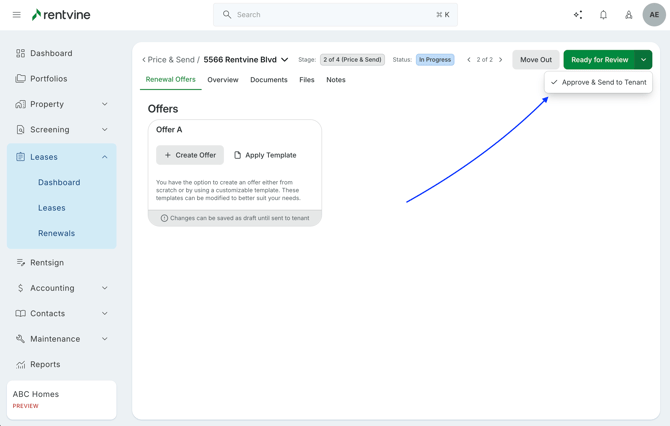
Once created, offers can either be:
-
Submitted for review by another team member
-
Approved and sent directly to the tenant
-
-
If an offer is submitted for review, another team member can approve it or approve and send it to the tenant.
Just like before, the team member can approve it, or they can approve it and send it directly to the tenant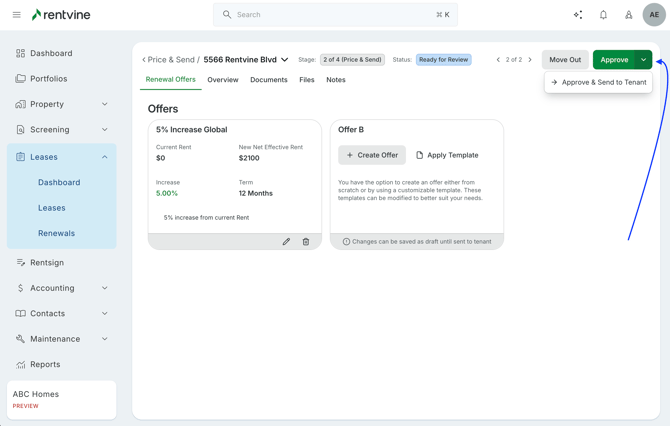
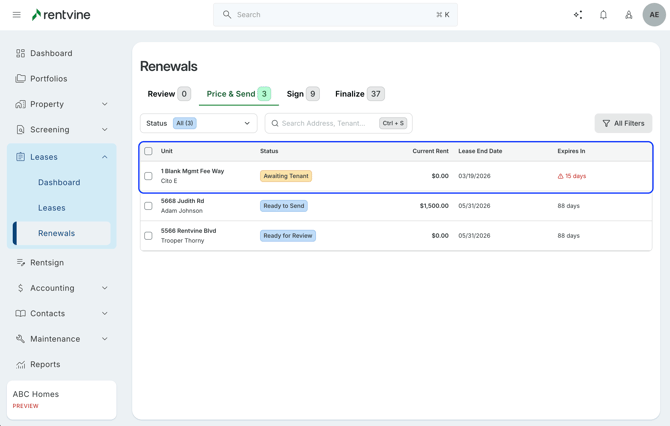
Once the offer is sent, the lease status will update to Awaiting Tenant.
Offers can also be rescinded and edited if changes need to be made before acceptance.
If the agreement happens outside of Rentvine (for example, a verbal agreement), you can manually mark the offer as Tenant Accepted.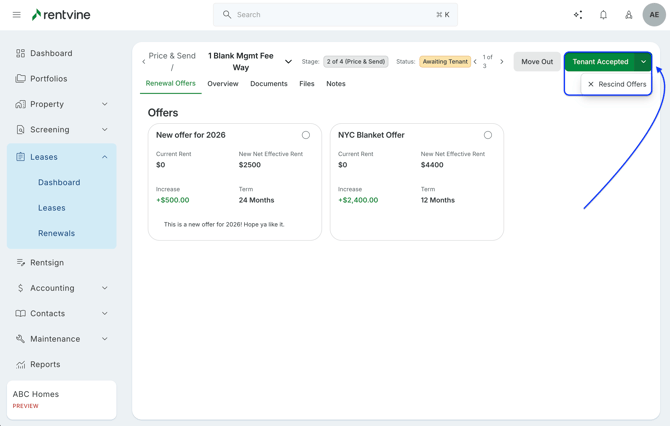
- Once you send this out to the tenant, the tenant will receive an email notification letting them know offers were sent their way.
They will be able to view these offers in their resident portal directly.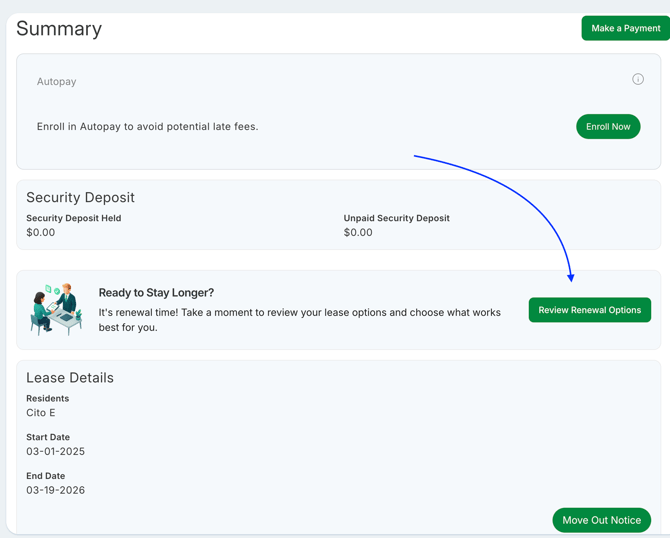
-
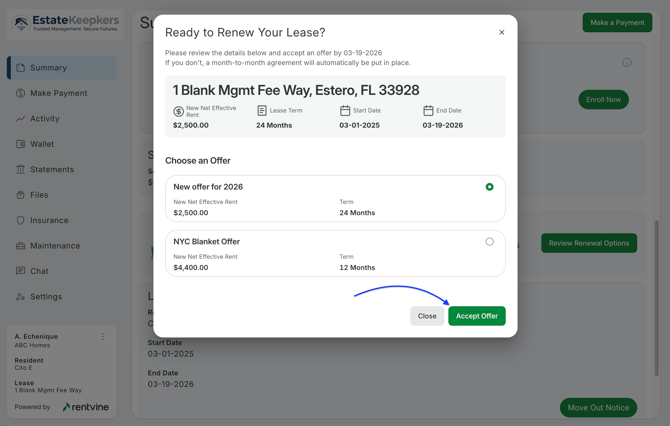
From there, the tenant can review the available offers and select the one they want by clicking Accept Offer.
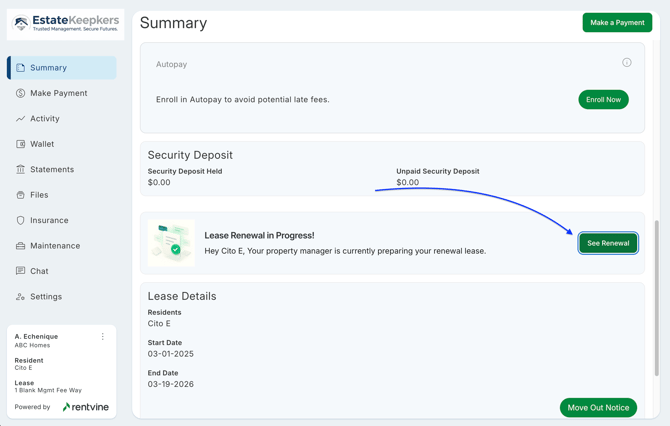
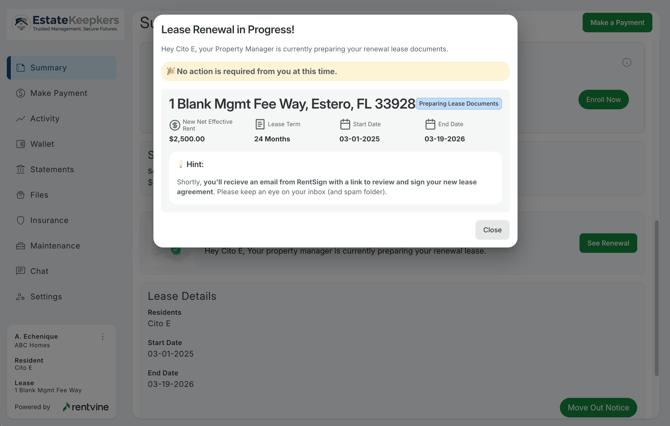
- Once completed, the tenant will see on their end that they have completed all their steps on their end. They can always come back to the lease to view the Lease Renewal Process as well
-
Bulk actions are also available in this stage, allowing you to:
- Apply templates
-
Mark leases for move-out
Sign Stage
-
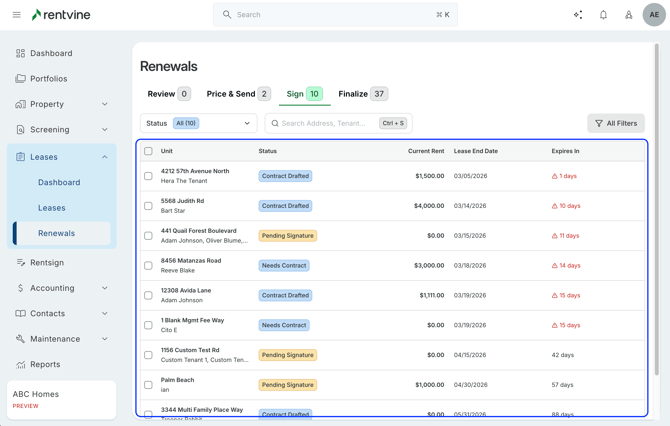
The Sign stage shows leases where the tenant has accepted an offer.
-
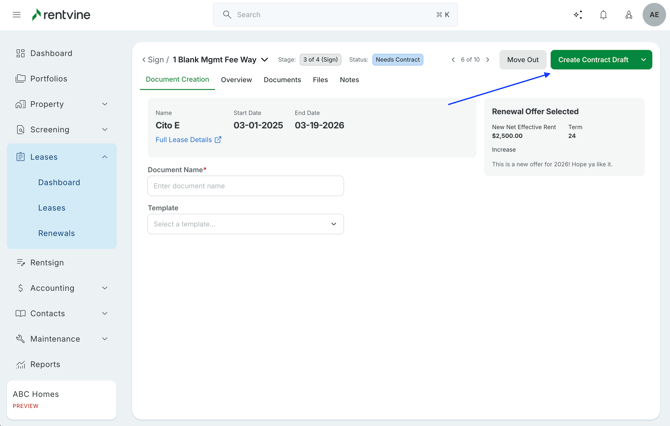
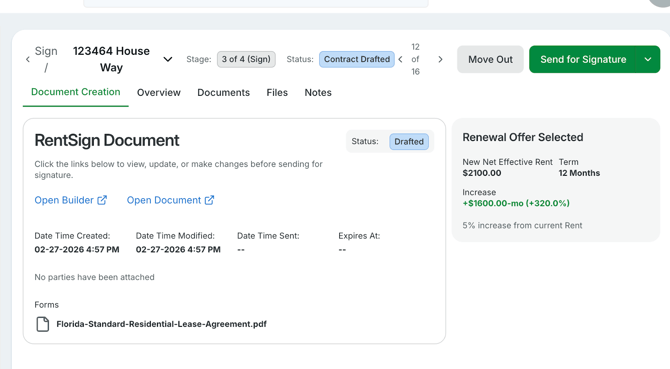
Selecting the lease will take you to the Document Creation screen, where you can generate a RentSign document for the lease renewal.
Lease renewal documents will use the Lease Renewal template type within RentSign.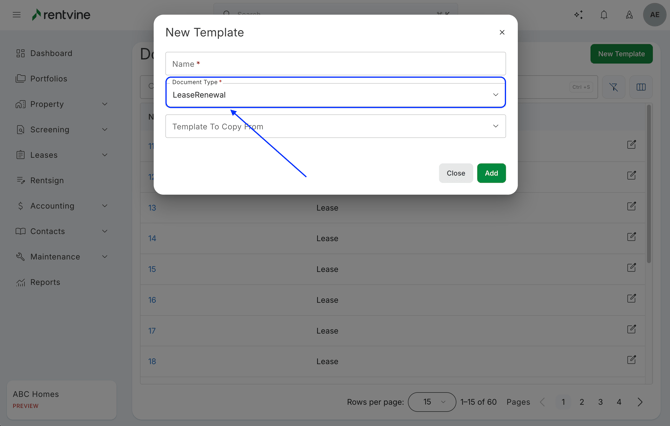
-
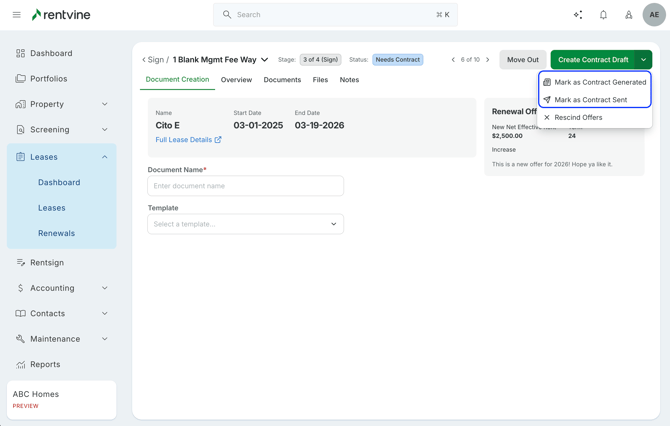
If your team uses another document platform outside of Rentvine, you can still track progress by marking the document as:
-
Generated
-
Contract Sent
This simply records the stage in Rentvine without creating a RentSign document.
-
- Once you create a document for the lease renewal, you can send the document out for signatures.
-
Once the renewal document has been signed by all required parties, the lease moves to the Finalize stage.
Finalize Stage
-
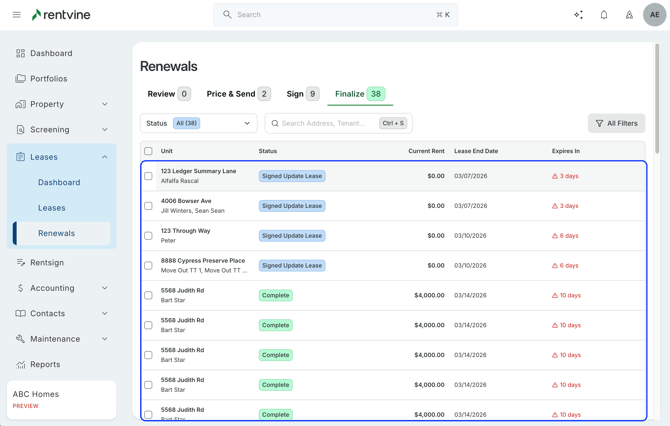
The Finalize stage shows lease renewals where documents have been signed and the lease just needs to be updated.
-
When you open a lease here, you will be prompted to update:
-
The new lease terms
-
Any renewal fees
-
Recurring charges, if needed
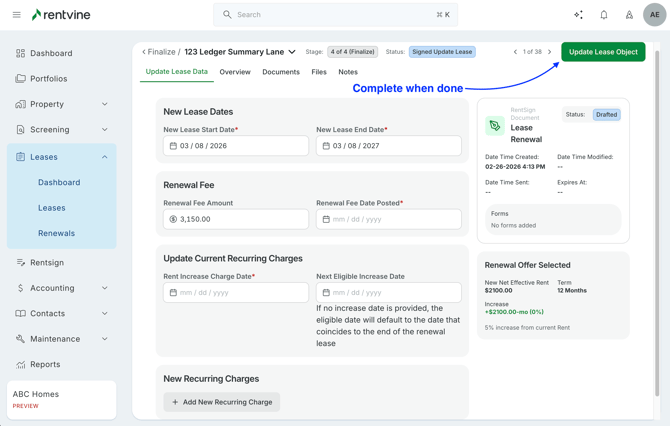
Once everything is entered, select Update Lease Object to finalize the renewal and apply the updated lease details.
-
-
If multiple leases are selected:
-
Completed renewals can be exported
-
Leases can be marked as executed
-
Or marked for move-out if needed
-