-
Do you ever need a quick way to see your internal technicians’ schedules for the day or even the entire week?
The Technician Calendar in Rentvine gives you a centralized view of all scheduled work orders and makes it easy to assign and manage jobs for your internal maintenance team.
This article will walk you through how to use the calendar and get the most out of scheduling your work orders.
Technician Calendar
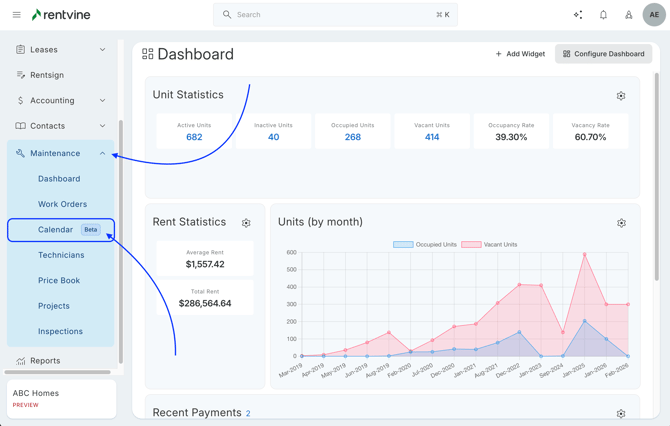
- You can find the calendar in the Maintenance section -> and selecting Calendar
If you do not have any technicians created in your system, the system will prompt you to create a technician.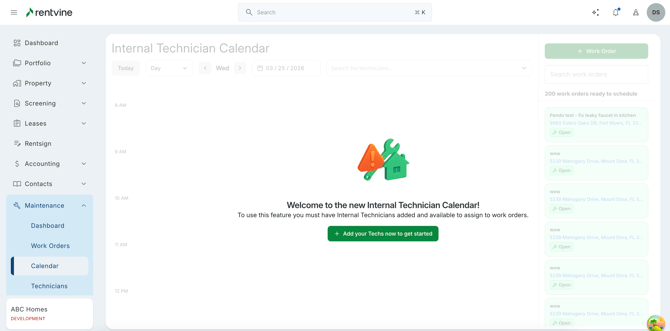
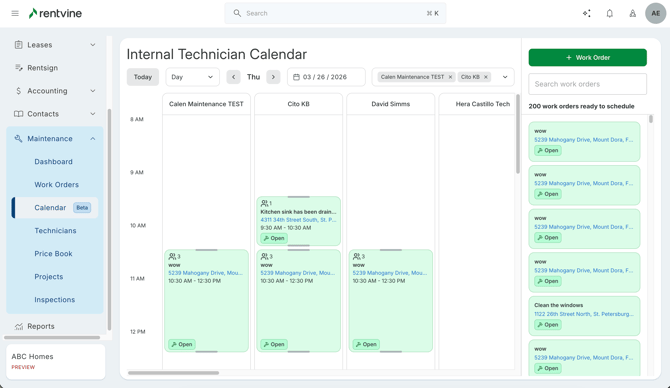
- The calendar will show you by default all appointments for each internal technician for the current day.
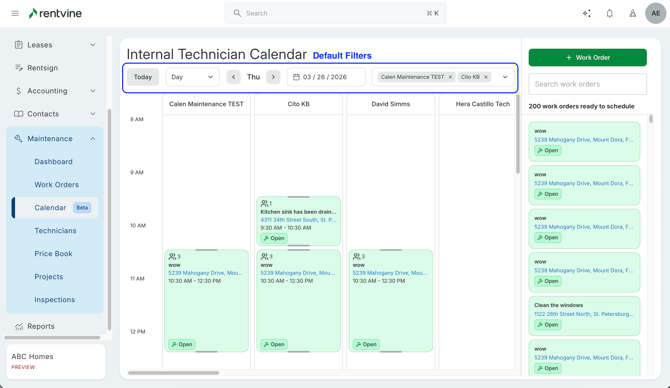
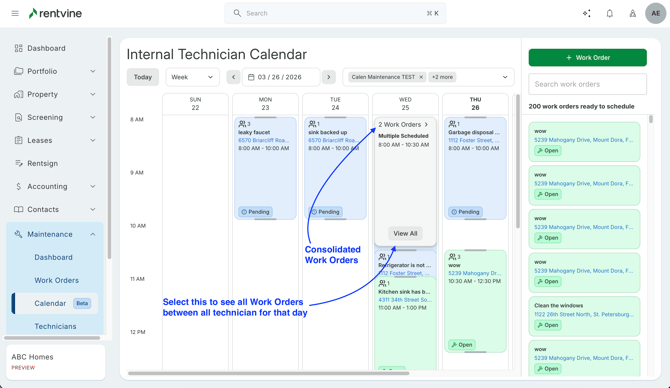
- You have the option to adjust the view to see the entire week instead of individual days.
You can also select the exact internal technicians you are viewing by selecting the internal technician dropdown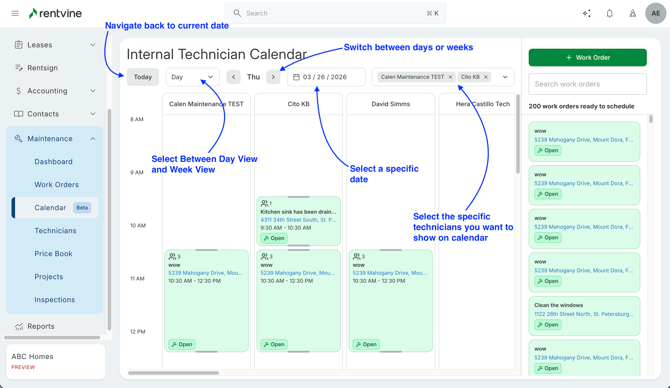
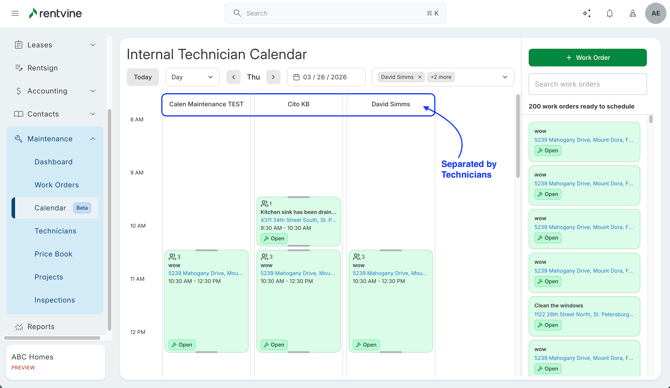
- If you are selecting the Day View, the calendar will be separated into columns by internal technicians
If you are selecting the Week View, the calendar will be separated into columns by days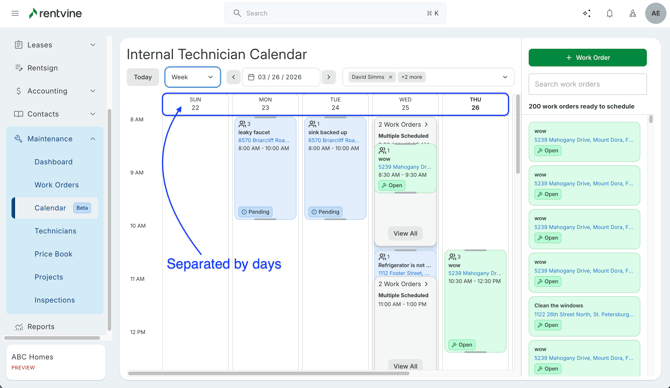
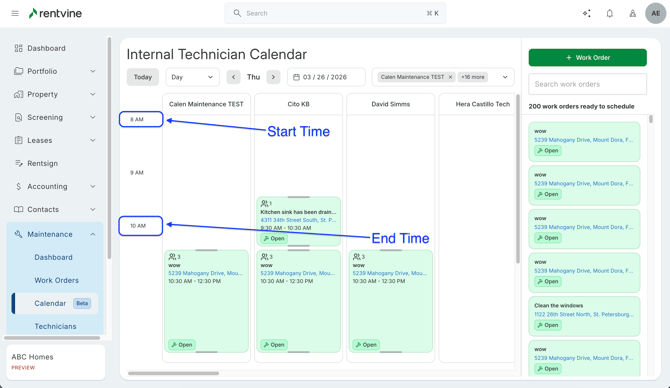
The calendar will show you times based on your appointment settings 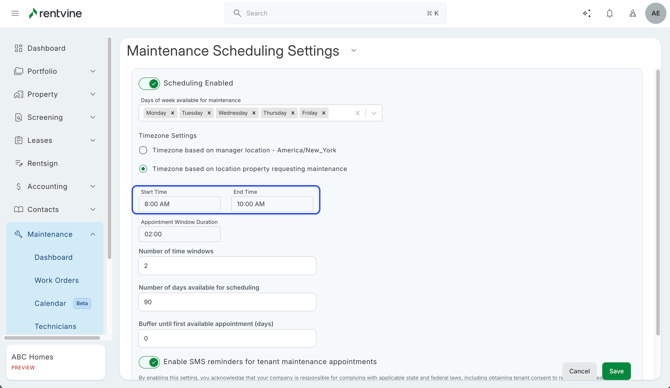
Unscheduled Work Orders Panel
-
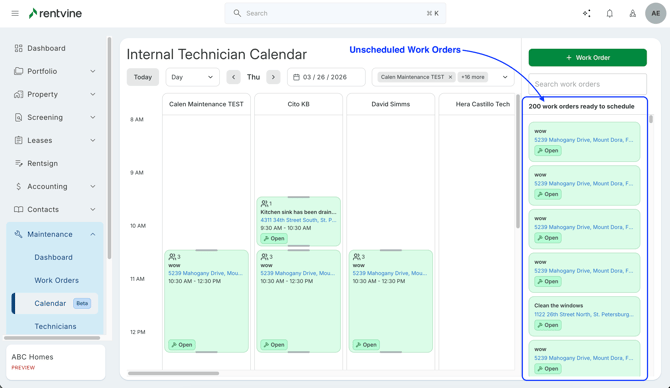
On the right of the calendar, you can see the Unscheduled Panel
-
This panel:
-
Displays up to 200 of the most recent unscheduled work orders
-
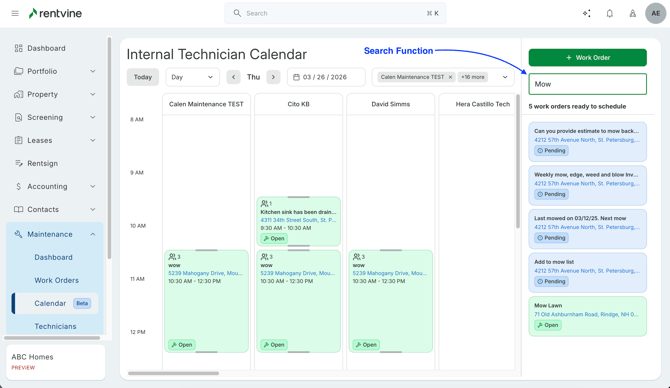
Allows you to search for specific work orders
-
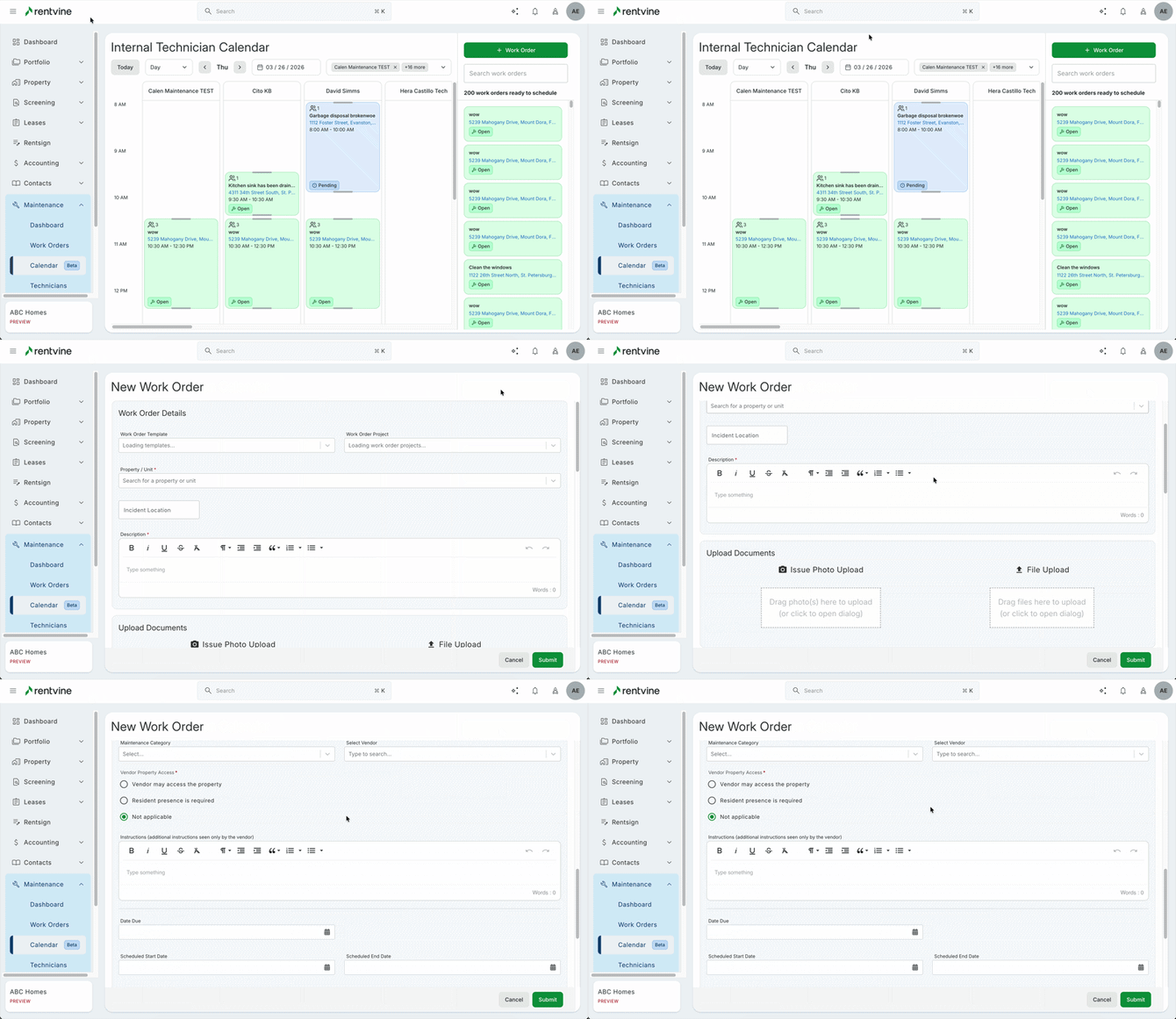
Lets you create new work orders directly from this view
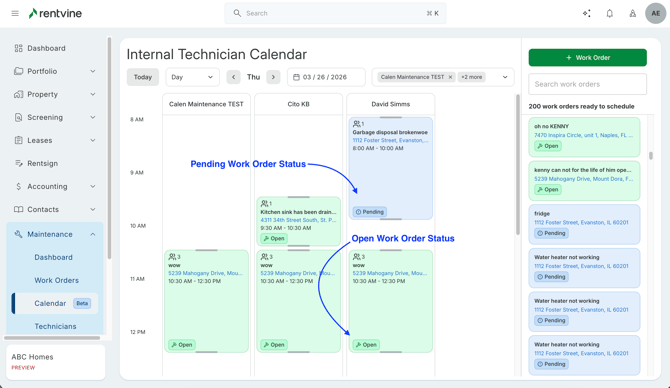
You’ll also see status indicators such as:
- Pending
-
Open
-
- Here you can see if a work order is under the Pending or Open status
Scheduling the Work Orders
-
With the new calendar view, you can drag and drop the work order onto the calendar directly to get it scheduled.
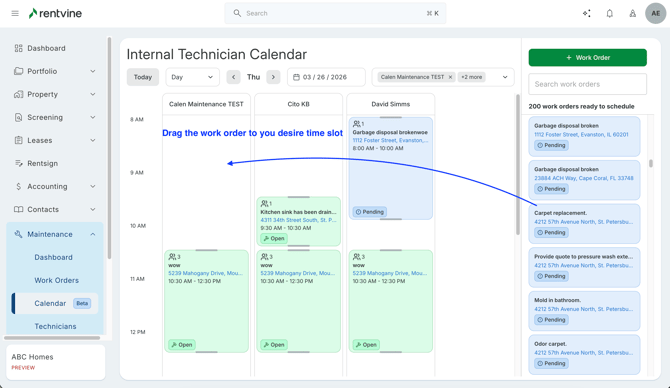
- If you are using the day view, you have the option of dragging and dropping the work order directly under the technician you want assigned to the work order and the time slot.
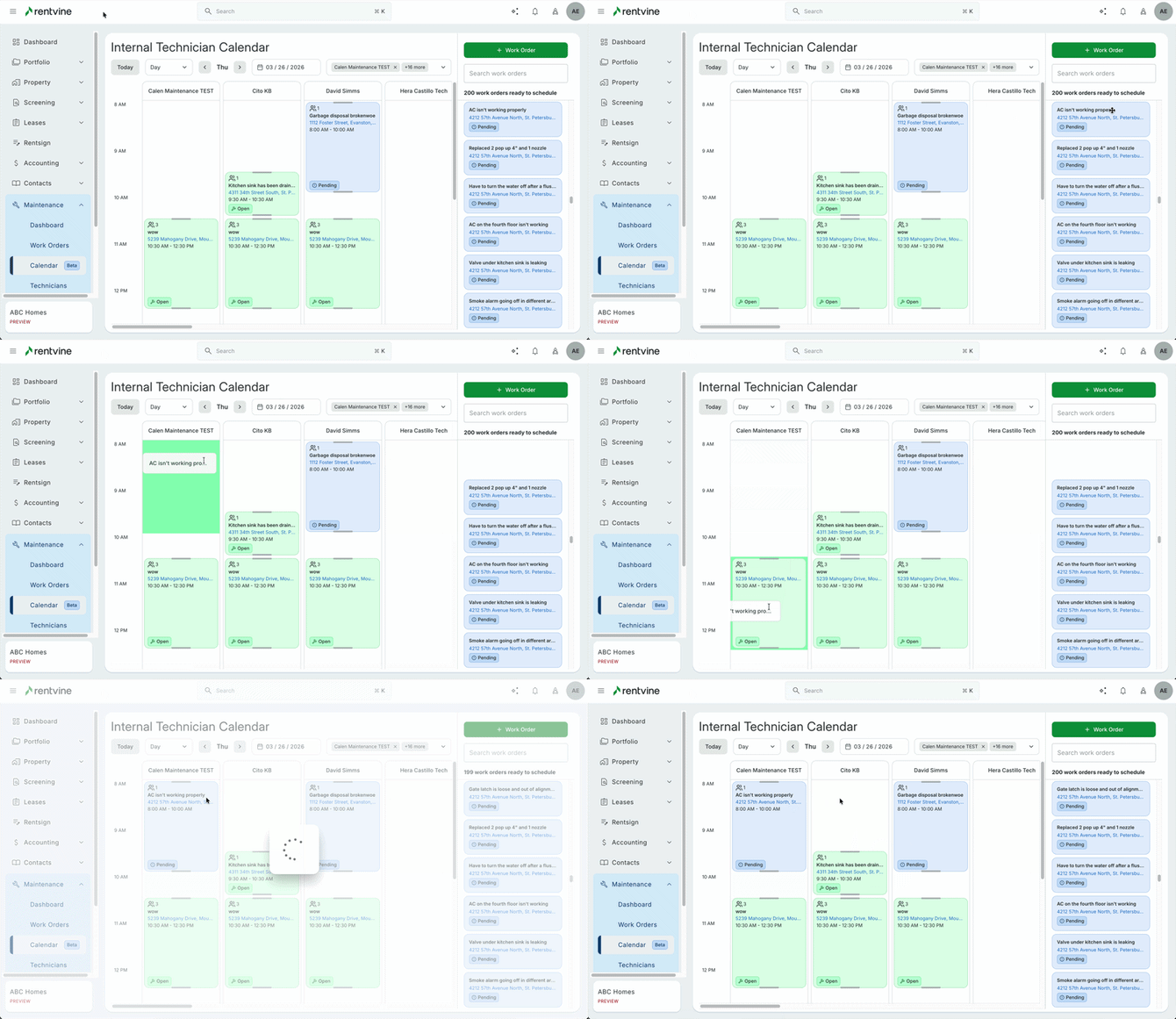
- If you are using the week view, you have the option of dropping the work order on the day and time slot.
Once you drop the work order in the desired time slot, the system will prompt you to select technicians to assign to the work order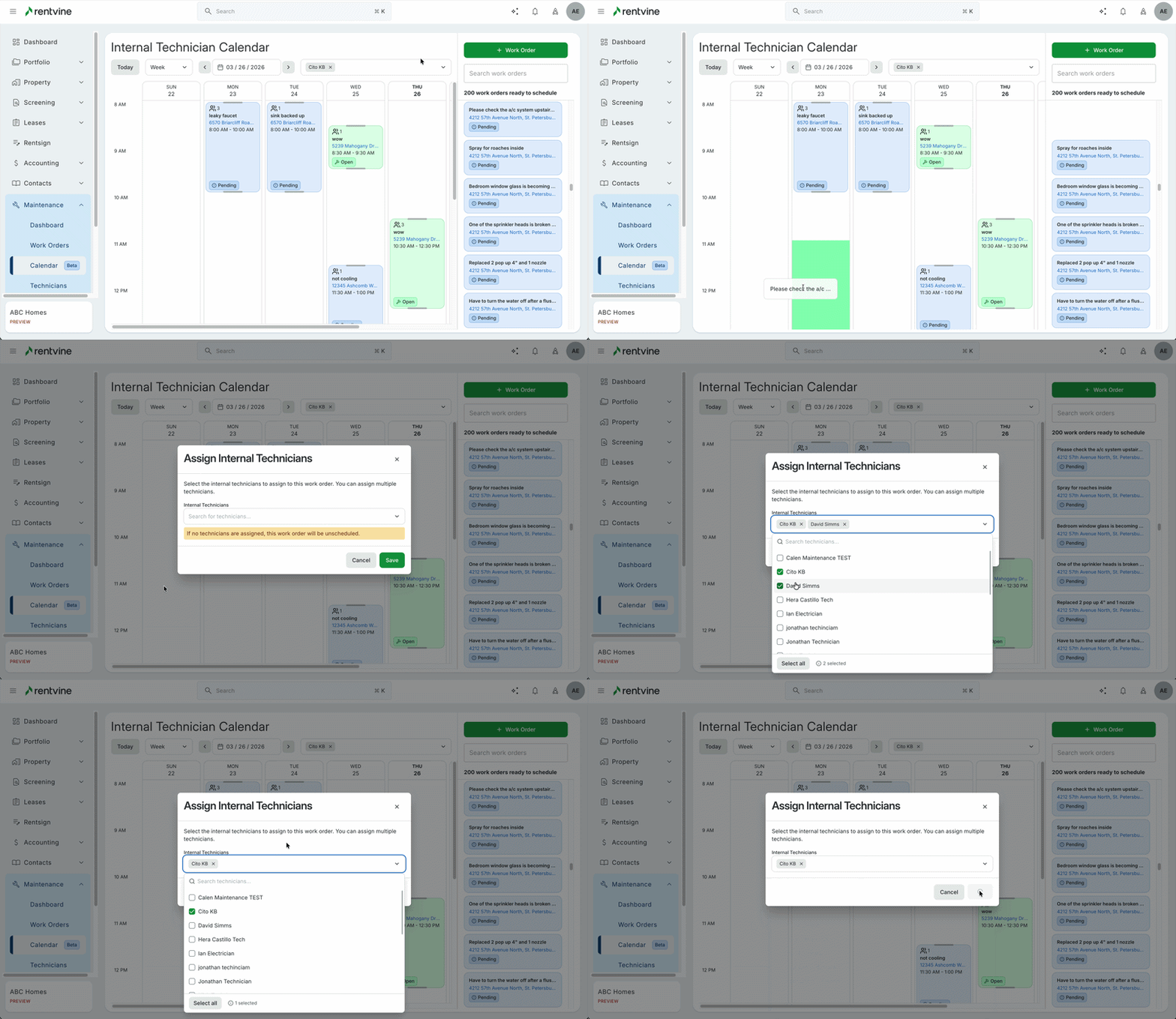
If you would rather not drag and drop the work order on the calendar, you can click the work order and select Schedule.
This will redirect you to the work order page, and you can schedule it here.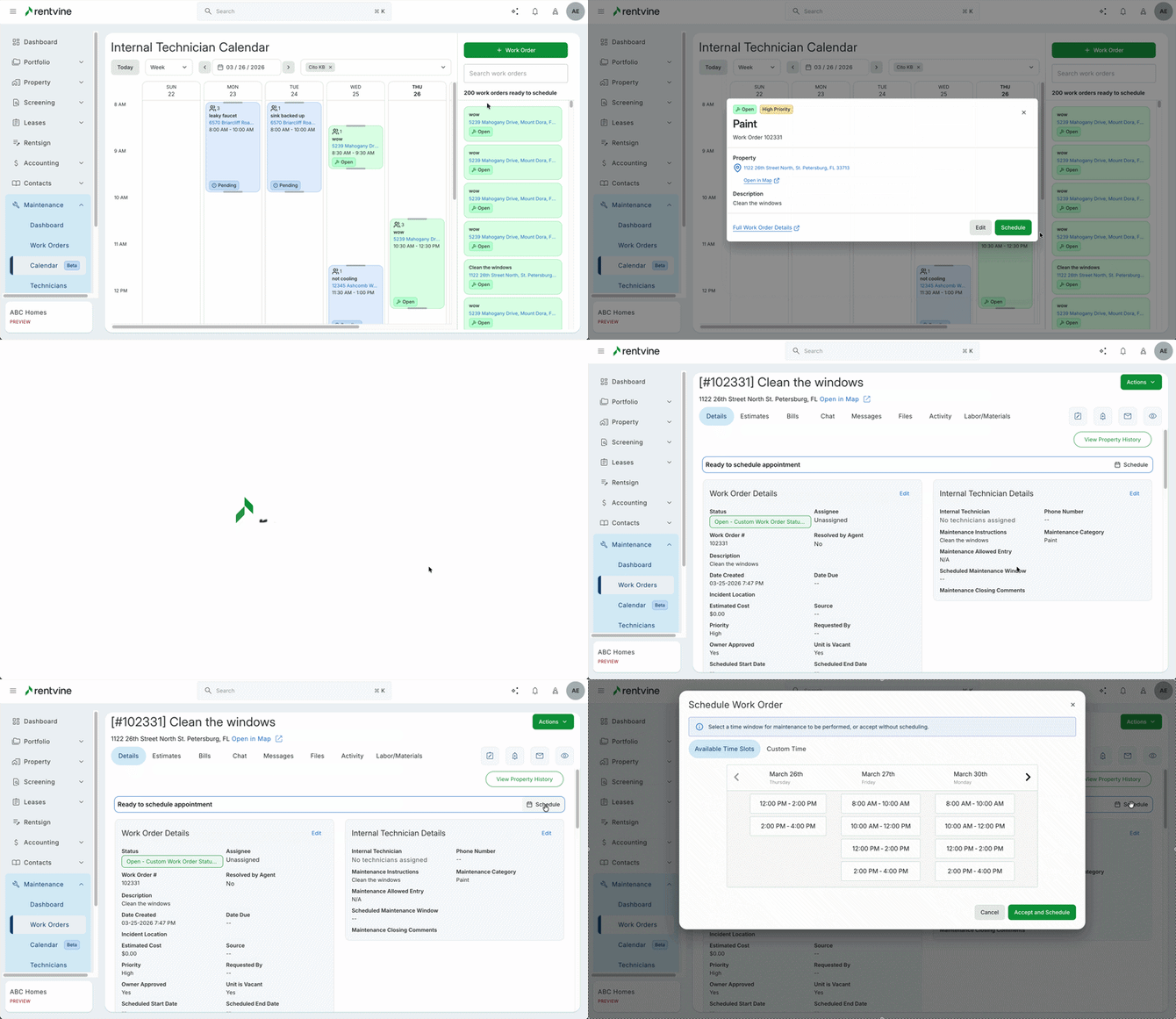
Additionally, you can select Edit, and this will allow you to quick edit work order details, such as the work order description and category
You can also see quick tags on work order such as the primary work order status and if this is a high-priority work order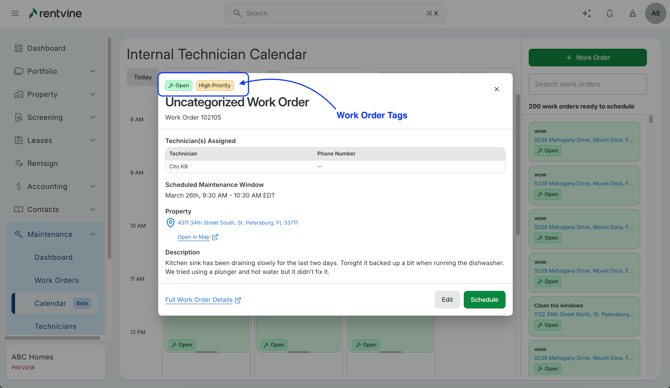
Which View Works Best For You?
-
Day View
-
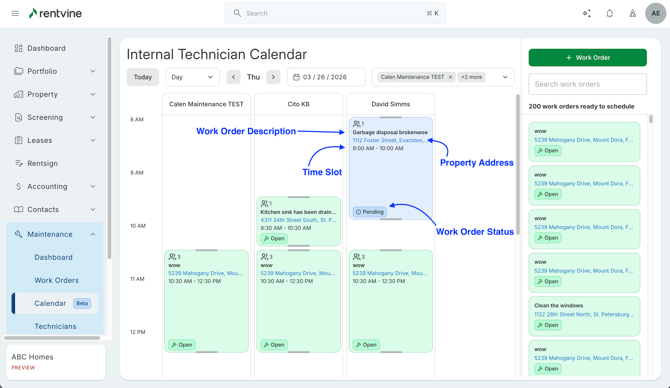
Day view is best for dispatching and balancing the daily workload
- You can see all technicians and each work order assigned to them by time slots
- Each block contains the work order summary, time range, property address, and status
-
-
- Easy to find gaps in the day to schedule those emergency work orders
- Easy to find gaps in the day to schedule those emergency work orders
-
Week View
-
Week view is best for planning coverage across the week while keeping dense schedules readable
- Columns separated by days
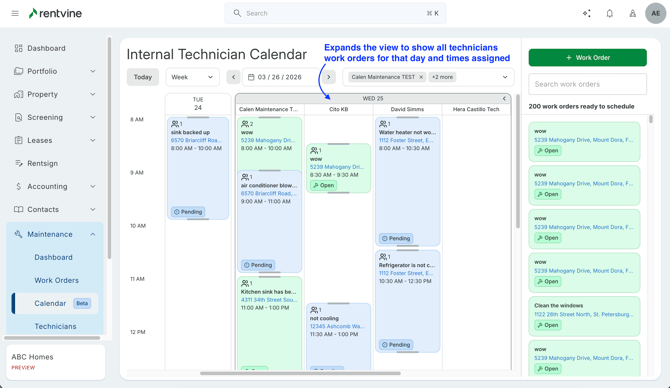
- When multiple work orders overlap in the same time window, you’ll see the blocks are condensed and tell you how many work orders fall under the time slot.
You can select View All to see the work orders that fall into this time slot. This will show you the internal technicians and their assigned work orders
-