
-
Have you ever received a single payment that needs to be split across multiple tenants, such as a Section 8 payment covering multiple leases?
Rentvine allows you to easily record these types of payments using Bulk Tenant Receipts, then apply them to the correct tenants, leases, and charges.
This guide walks you through how to:
-
Record a bulk receipt
-
Allocate funds across multiple leases
-
Ensure payments are applied to the correct charges
-
Recording the Bulk Receipt
-
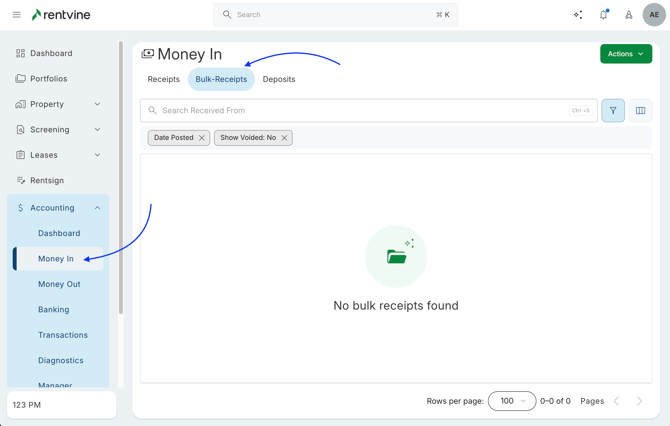
Navigate to the Accounting -> Money In -> and select the Bulk Receipts tab
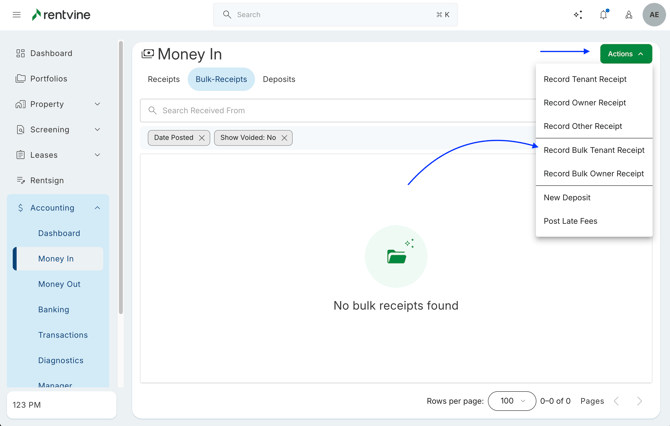
- From here, you will click the Actions button -> and select Record Bulk Tenant Receipts
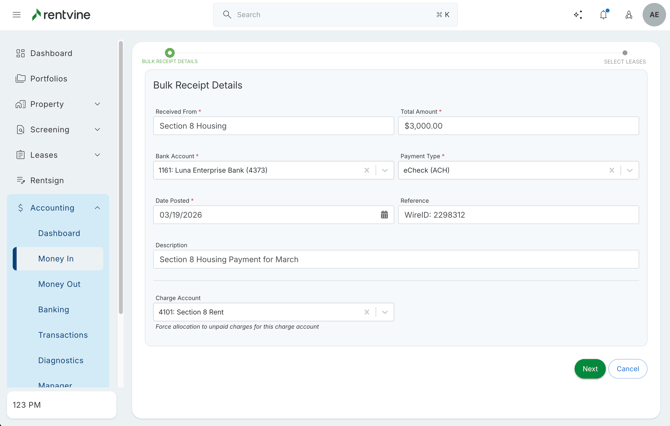
- Here you will enter the Bulk Receipt Details
- Received From (required)- Who you received these funds from
- Total Amount (required) - The total amount received
- Bank Account (required) - The bank account funds are being deposited into
- Payment Type (required) - How the payment was made
- Date Posted (required) - The date payment was received
- Reference - A reference to the payment
- Description - Brief description of the payment
- Charge Account - This forces allocation to unpaid charges for this charge account
How Charge Account Works
-
If a Charge Account is selected, the system will look for:
-
Leases tied to the selected bank account
-
AND posted charges matching that specific account
-
-
If no Charge Account is selected, the system will:
-
Show all leases tied to that bank account
-
-
On the next screen, you will see a list of all eligible leases.
At the top of the screen, you’ll see:-
Total receipt amount
-
Amount allocated
-
Remaining balance
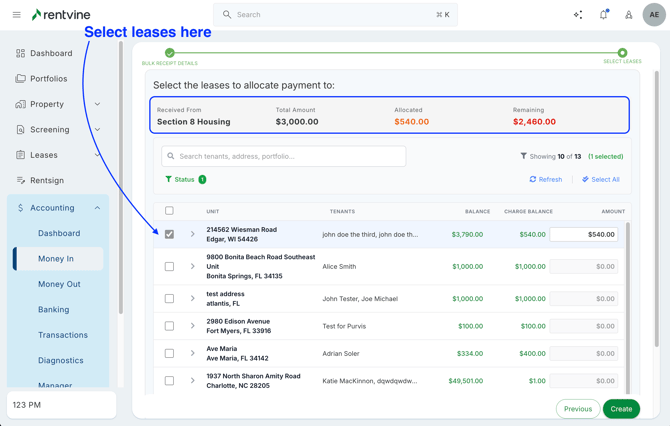
You can also select the lease and it will give you a dropdown of all the charges under the lease that are unpaid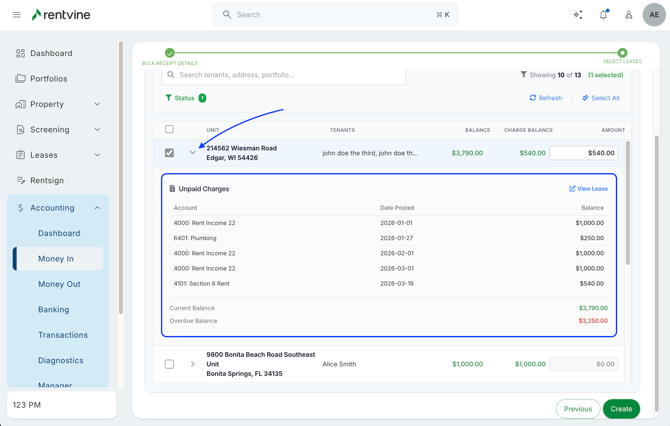
-
-
The system may auto-allocate funds, but you can manually adjust the amount by typing directly into the amount field.
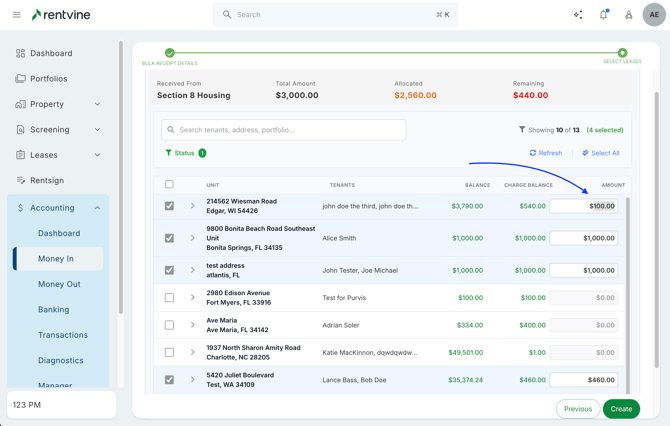
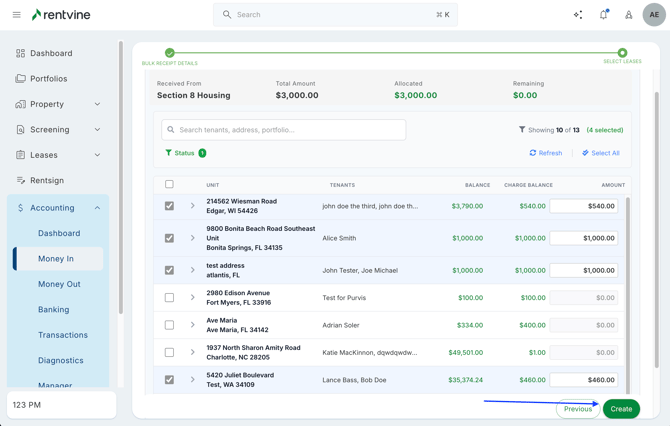
- Once all leases have been selected, you can click Create.
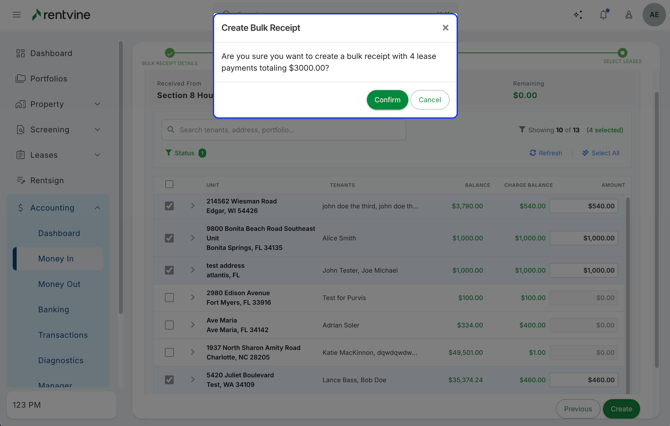
This will automatically generate individual tenant receipts for each selected lease based on your allocations.
-
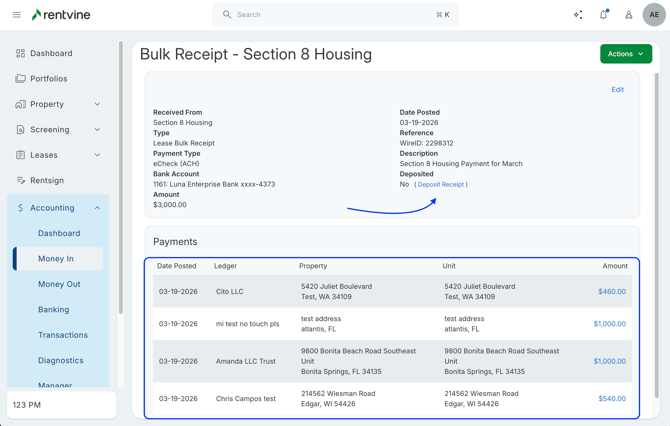
After creation, you’ll be taken to a summary screen showing:
-
The bulk receipt details
-
All generated tenant receipts
From this screen, you can:
-
Review each receipt
-
Deposit the funds directly
-
-
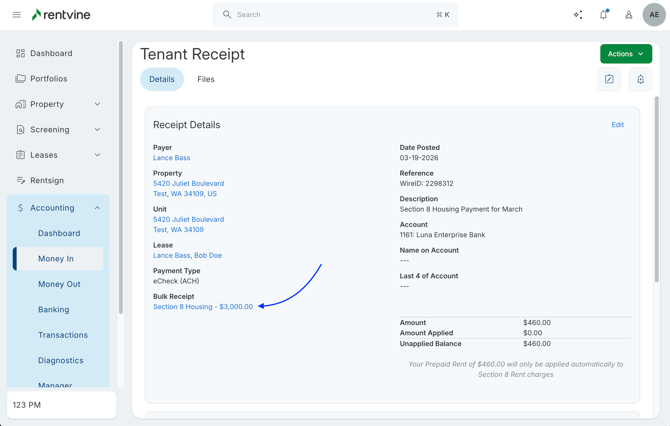
Clicking into any generated receipt will:
-
Open the individual tenant receipt
-
Show full details of the transaction
-
Include a reference back to the original Bulk Receipt
-