
- Labor is something based on your technician charges. You can select both a dollar rate for the owner and how much the technician charges. You can also add a description to the labor as well.
- Materials are going to be the actual items used to complete the work order. You can give it a name, description, purchase price, and the price for the owner.
Adding a Material Item
-
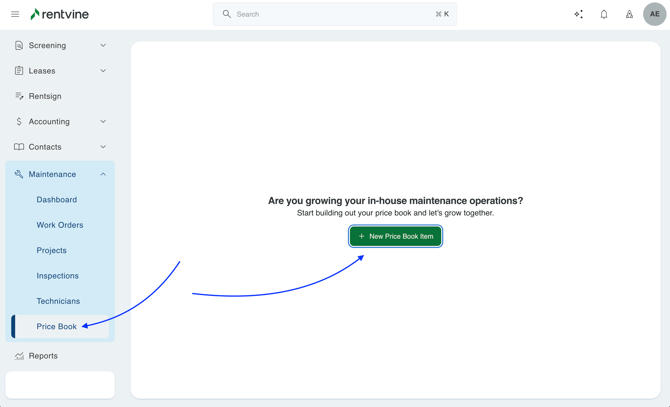
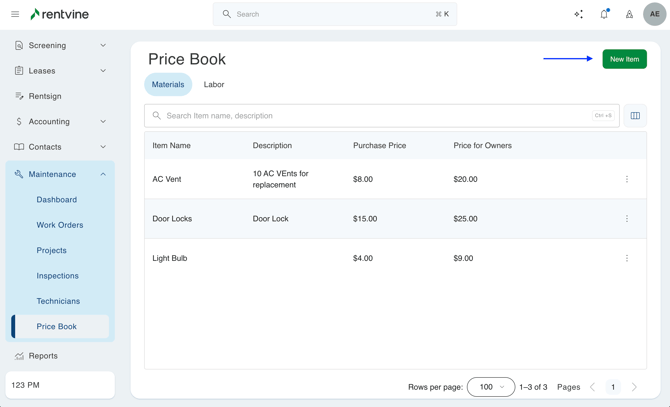
If this is your first time creating a material, you will go to the Maintenance Tab > and select Price Book
- When creating a new material item, you will have to enter details for the material
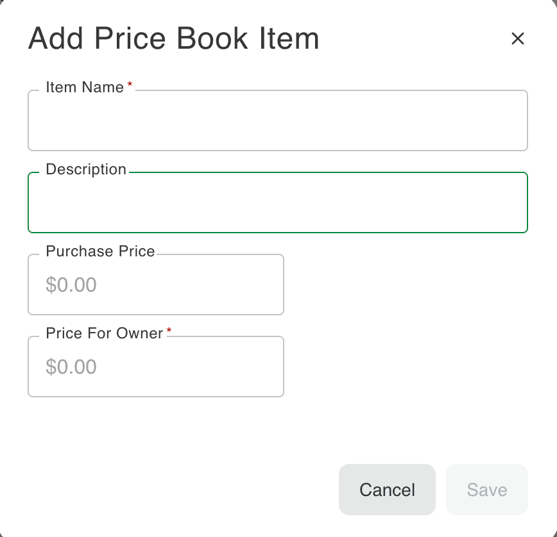
- Item Name (required) - Name of the material used
- Description - Brief description of material being used
- Purchase Price - The cost of the material
- Price for Owner (required) - The cost for the owner that will show on the line item
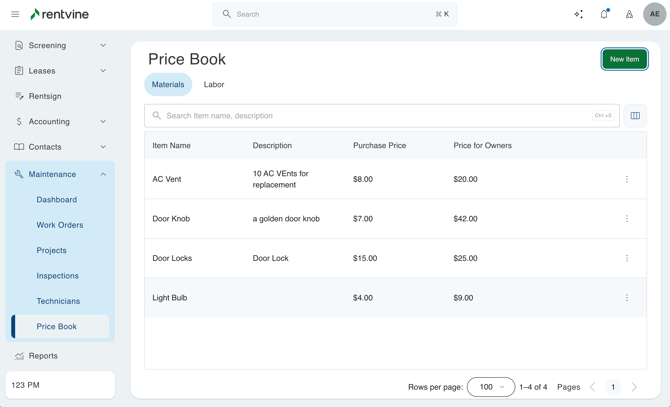
- Once you have a Material Item created, it will generate in your account automatically, and you will see a list of all material items
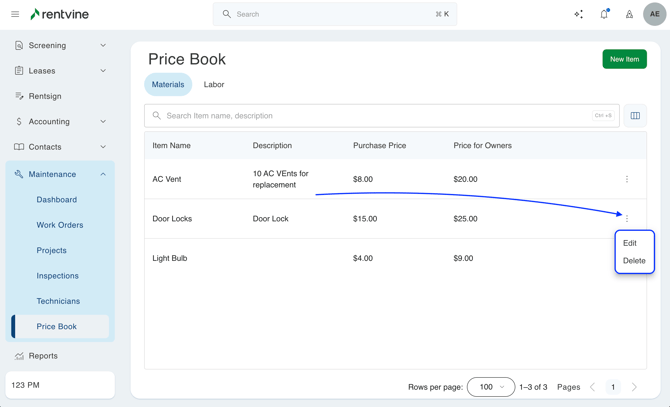
- From here, you can click on the ellipses of the material, and this will allow you to either edit or delete the material item
- If you need to create any more materials afterward, you can go back to the materials tab and select New Item
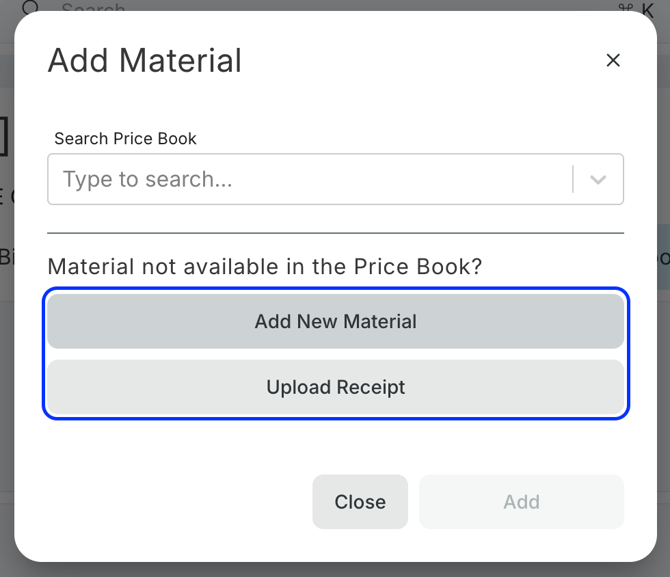
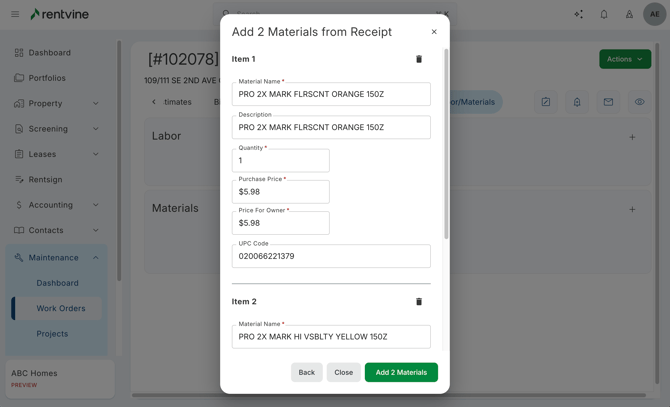
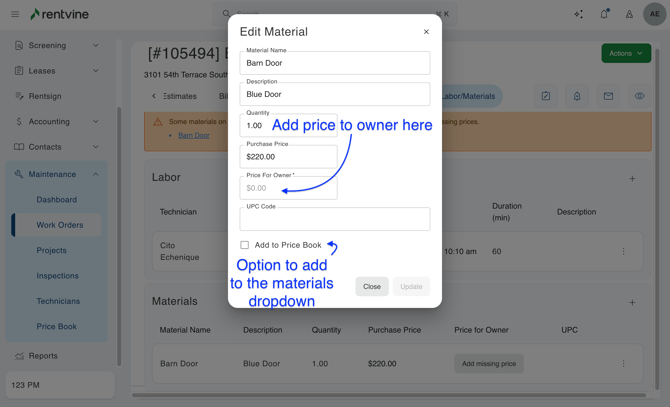
- The technician can also do this on their end of the work order and click either, Add New Material or Upload Receipt, you will need to enter the following details when manually adding a material:
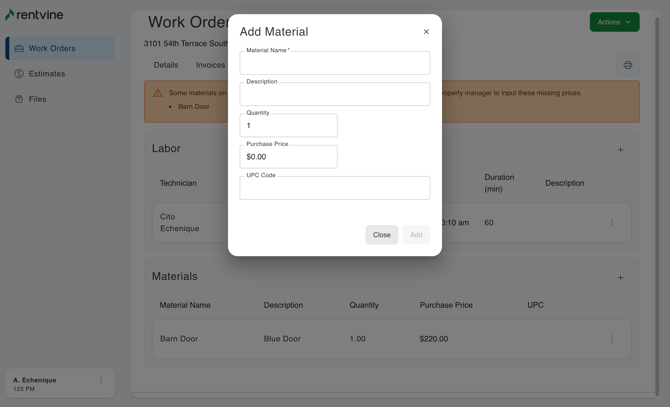
- Material Name (required)
- Description
- Quantity
- Purchase Price
- UPC Code
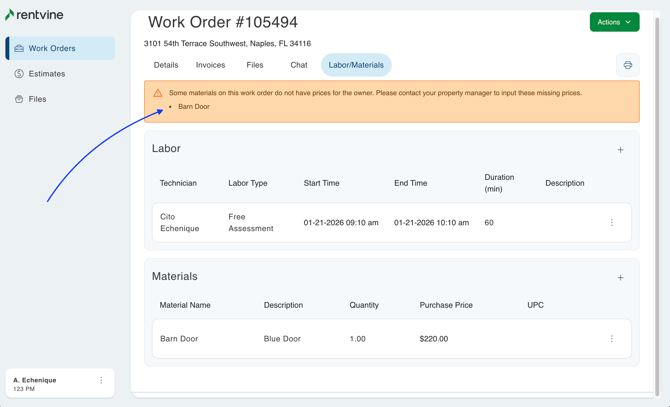
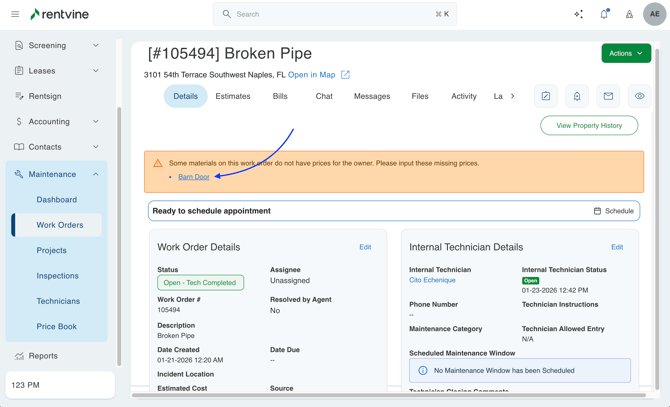
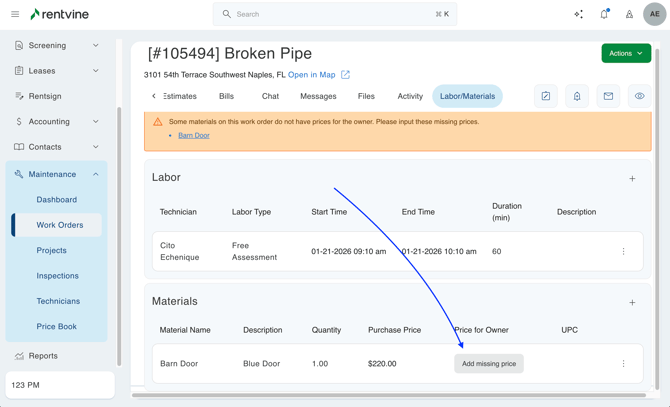
 Once created, you'll notice the new material is added, but the Property Manager still needs to add a price for the owner. This can only be done by the property manager
If you upload a receipt, the system will attempt to scan the line items on the receipt and add the information into the system for you. Once completed, the system will add all the information to the receipt. Please ensure all information is correct first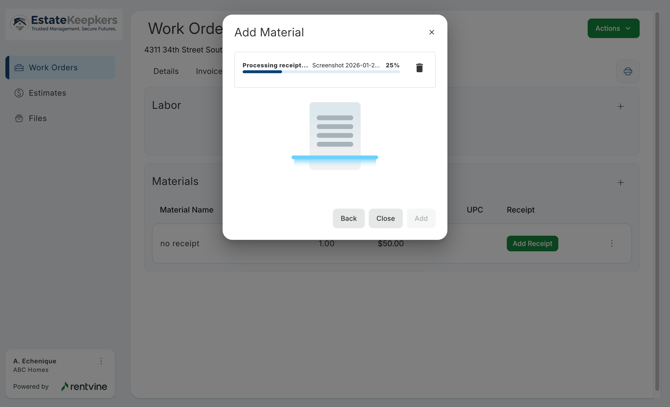
- On the property manager's side of the work order, they will see a notification informing them of this that they can click on and will redirect them to the exact page to add the needed information.
Creating a Labor Item
-
You will need to go to the Maintenance Tab > select Price Book > and select New Labor Type
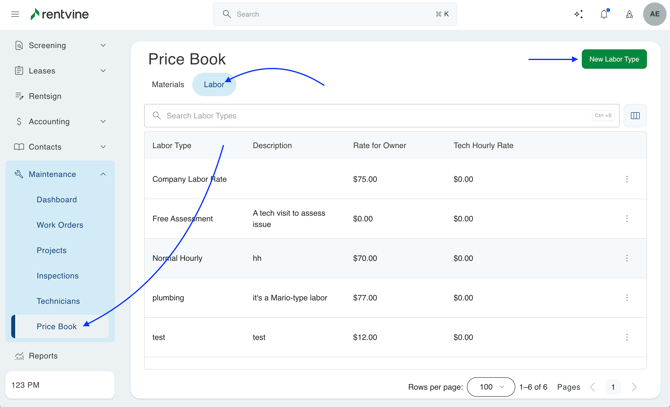
- This allows you to enter details of this specific labor type
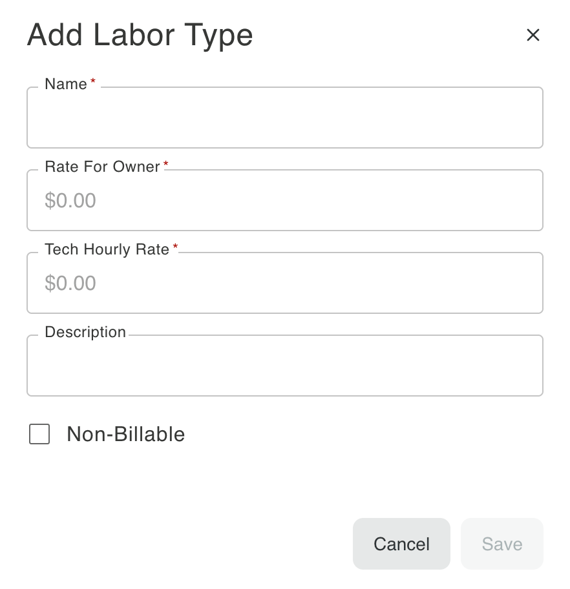
- Name (required)- Name of the specific labor type
- Rate for Owner (required) - The cost for the owner
- Tech Hourly Rate (required)- The cost the technician charges hourly
- Description - Brief description of the labor type
- Non-Billable - This option allows you to decide if you would like to charge the owner or not for this Labor Type
Once create it will auto-generate in the Labor Tab along with any other Labor created.