
Please remember that a Work Order Status must be set to OPEN when attempting to create an invoice for the completed Work Order utilizing Internal Maintenance.
-
When creating the Invoice for the Work Order, ensure that the Internal Technician Status is set to Closed and the Work Order Status is set to any Open status
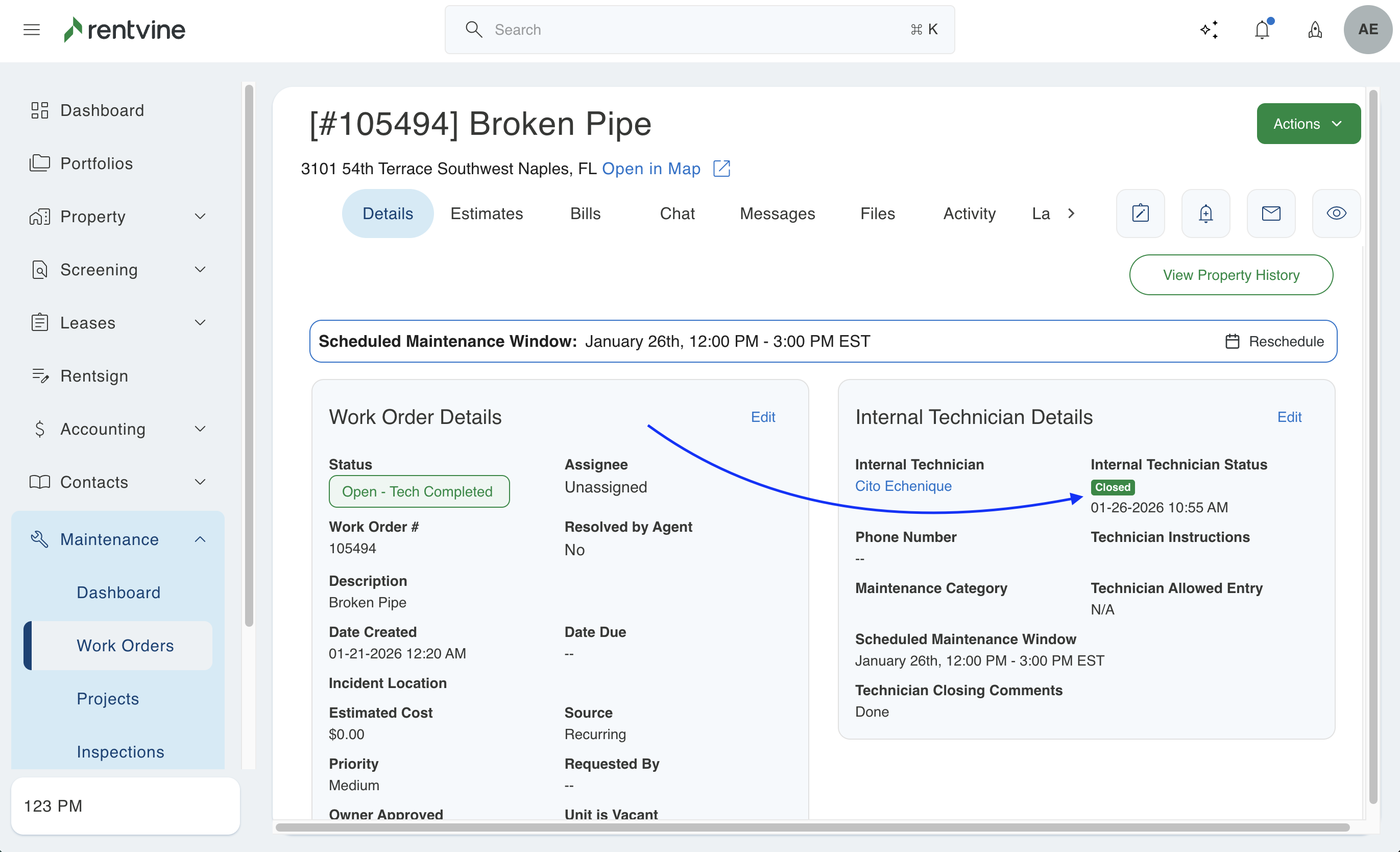
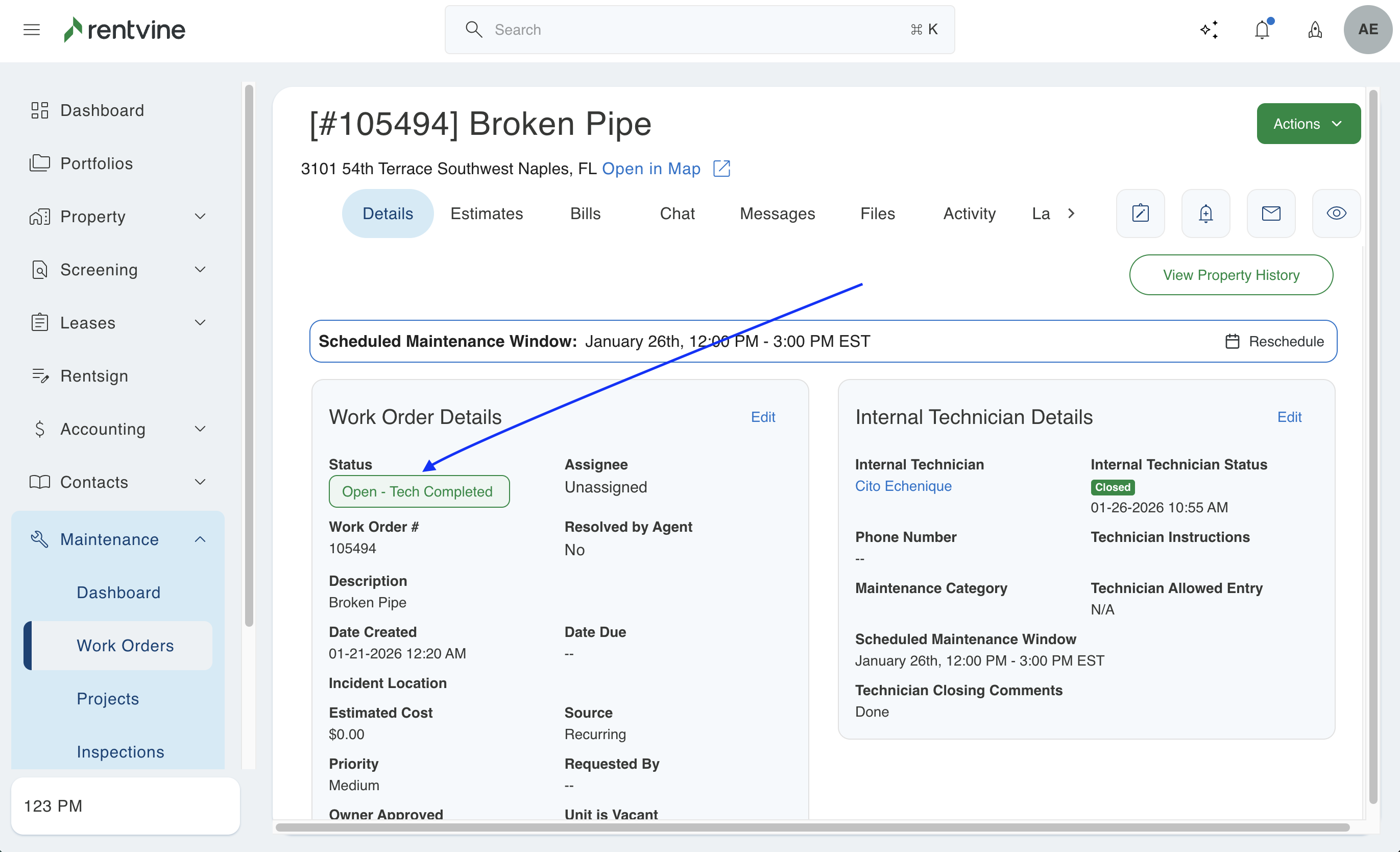
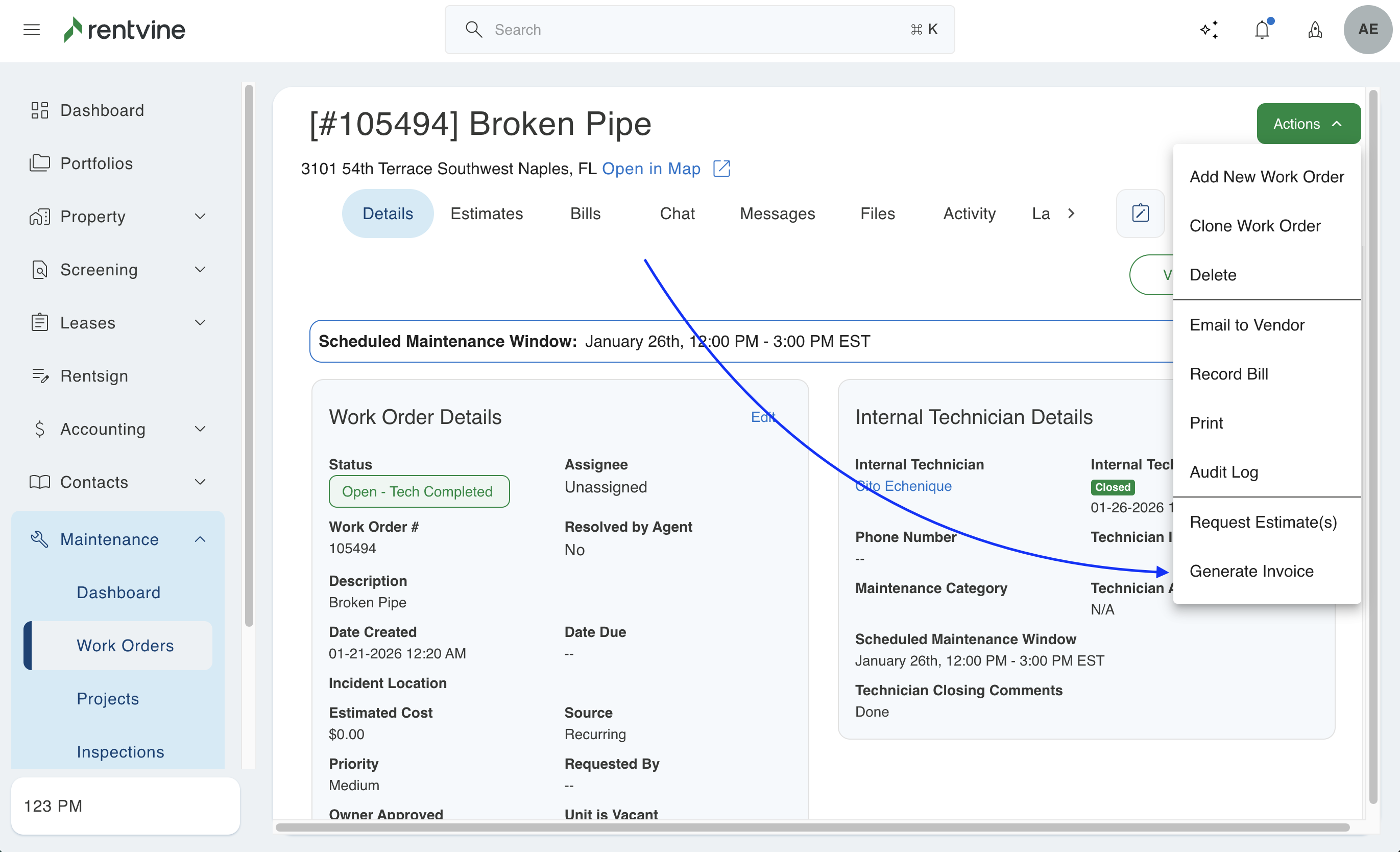
- Once the Status for the Work Order are correct, click the green Actions button and select Generate Invoice
- The next screen will allow you to view the Invoice/reference number and the line items that will be included in the invoice itself. Once you confirm everything is correct, you can select the green Submit button
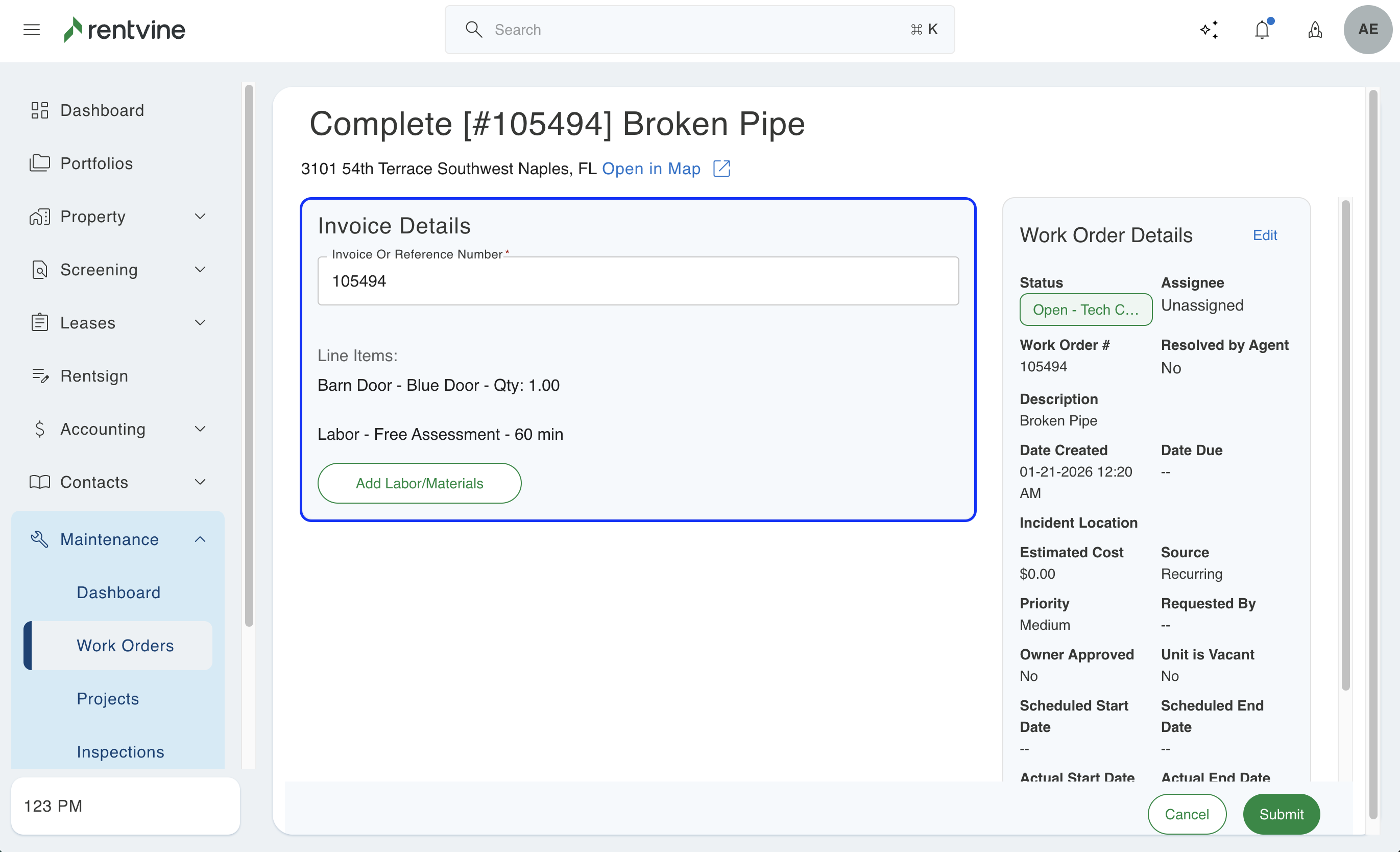
- This will auto-generate an invoice that can be found in two ways.
You can navigate back to the Work Order itself and view the Pending Invoice by clicking the blue hyperlink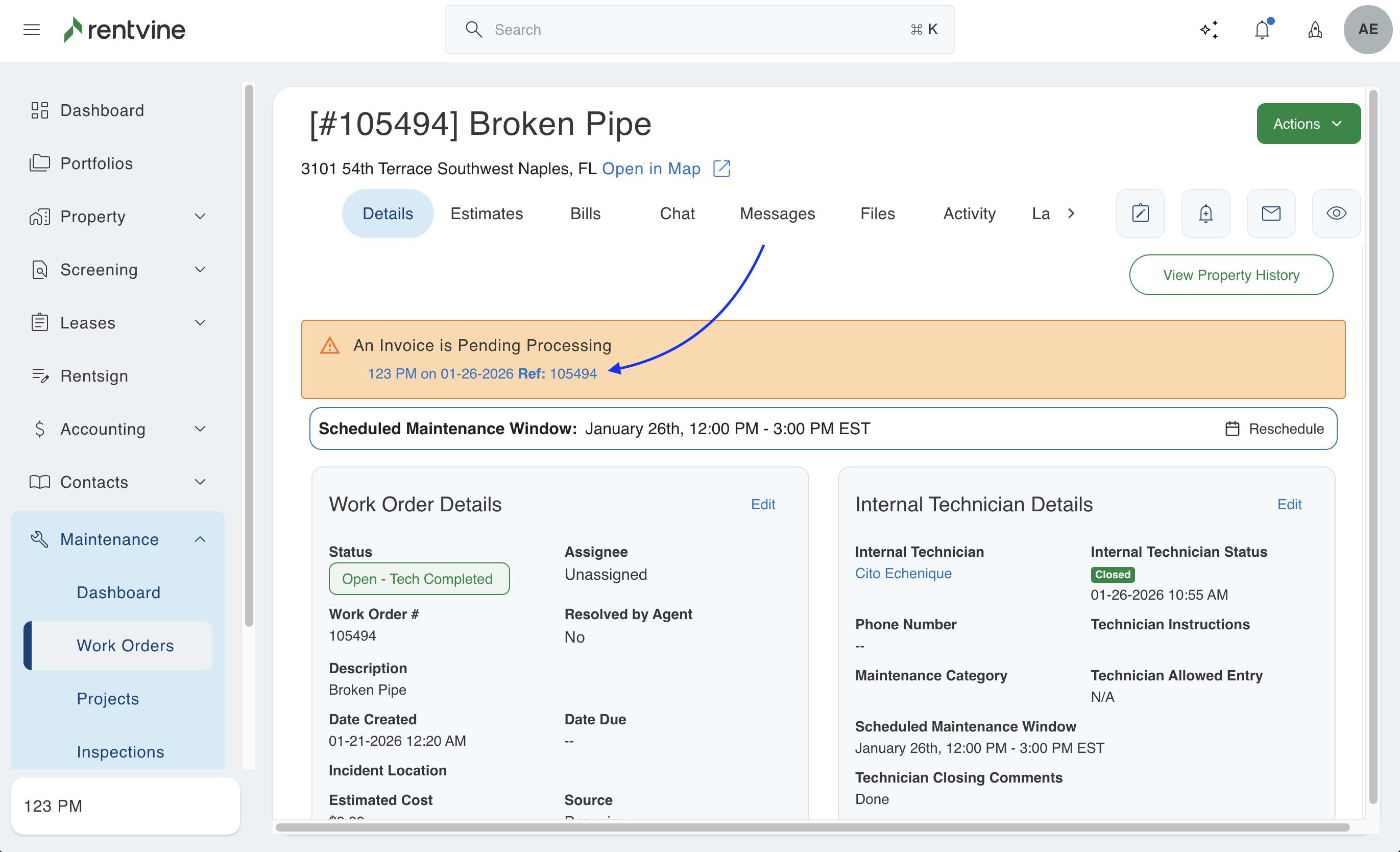
Or you can go to the Invoices tab and click the recently generated invoice, which should have the Work Order number in the reference column.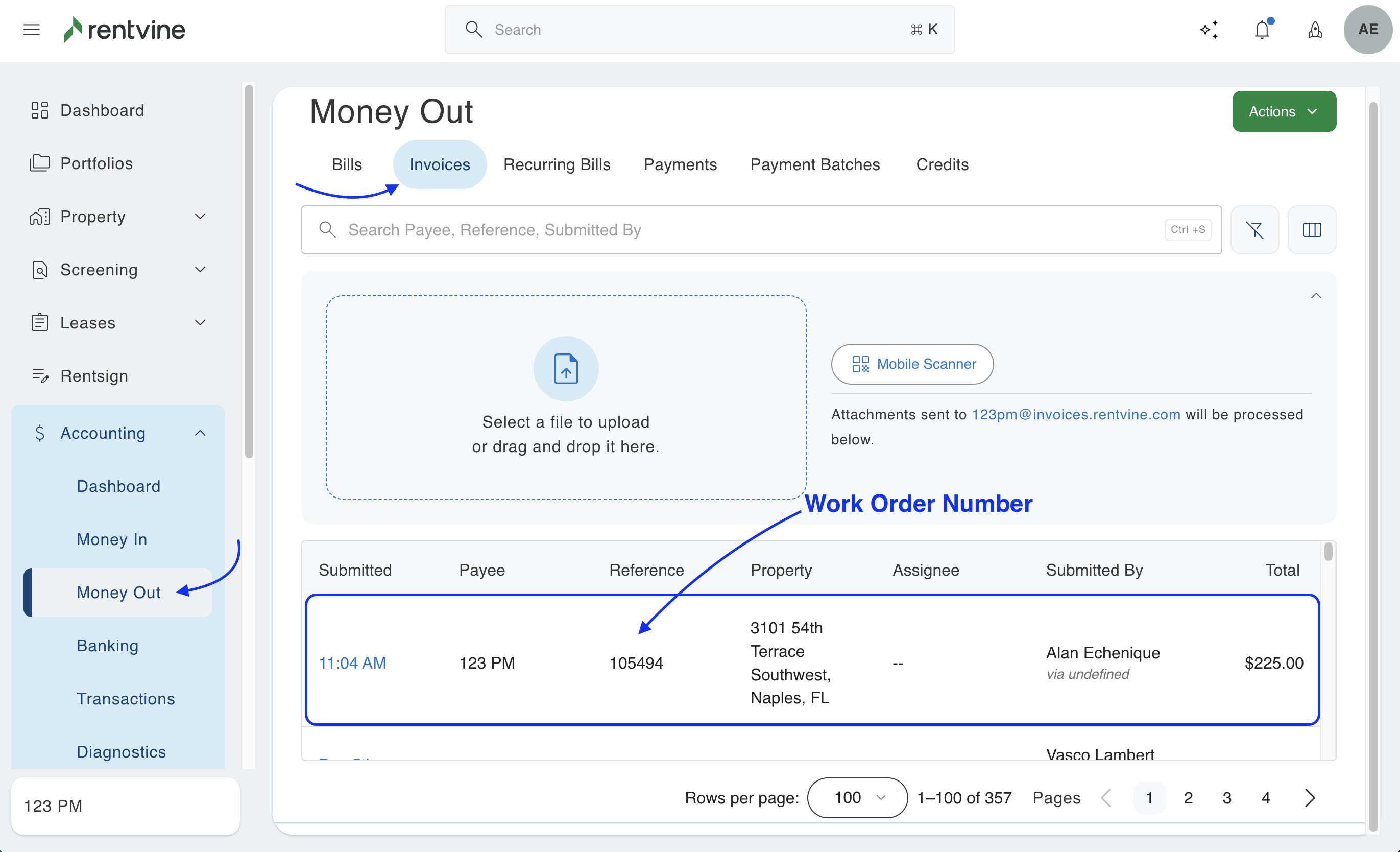
- Once you find the invoice, you can convert it to a bill and pay it out as normal within the system. This article goes over the Paying Bill process in further detail: Paying Bills